
Overview
The Video Popup widget in SiteCraft allows you to display videos in a lightbox popup using interactive triggers like icons or circular images. It’s ideal for showcasing promotional videos, tutorials, or presentations without embedding large video players directly on the page.
Key Features
- Two trigger styles: Icon & Circle Image
- Support for YouTube, Vimeo, or custom video links
- Lightbox popup on click
- Play button customization
- Overlay and hover effects
- Alignment and positioning controls
- Fully responsive design
How to Enable the Widget
Before using the Video Popup widget, make sure it is enabled.
Steps:
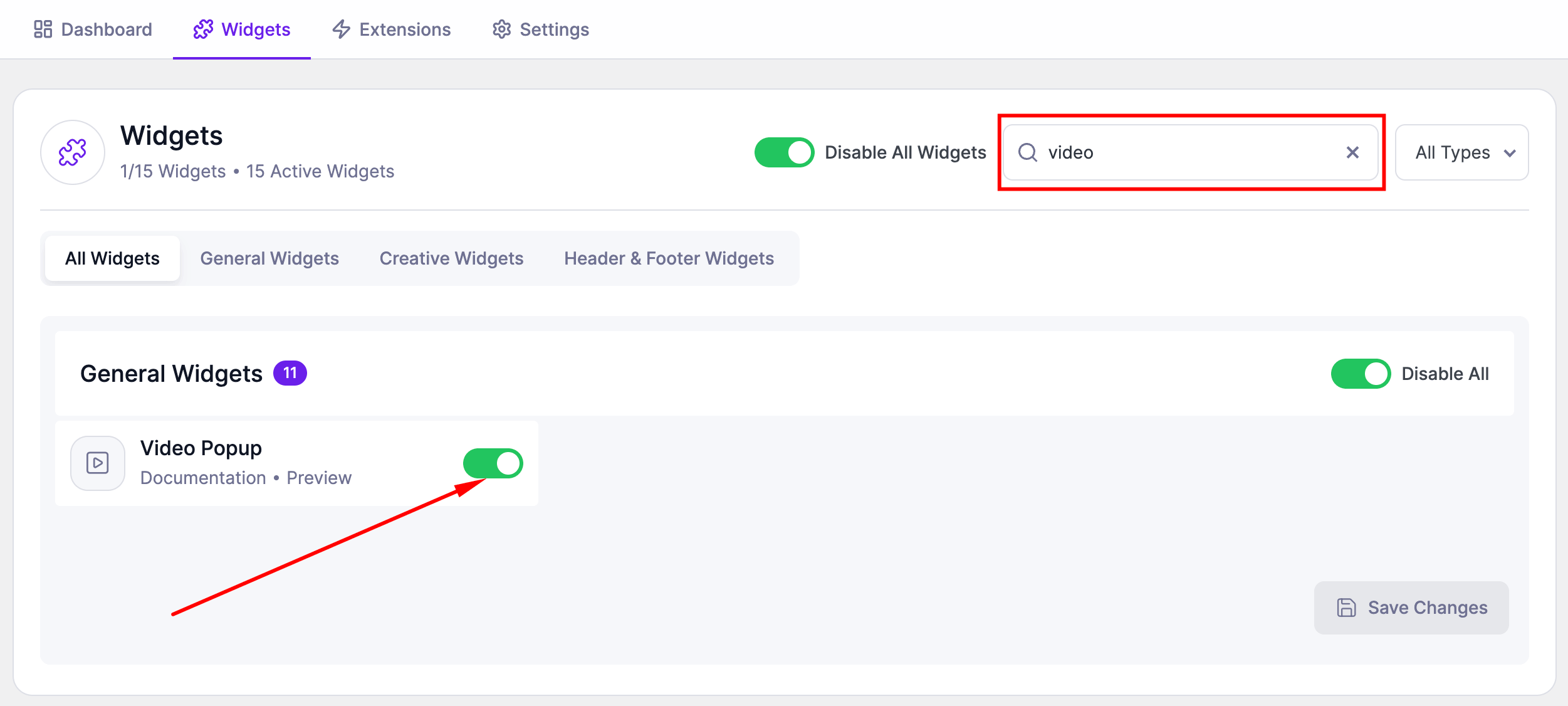
- Go to SiteCraft → Dashboard → Widgets
- Find Video Popup Widget
- Toggle to enable it
- Click Save Changes
How to Add the Widget in Elementor
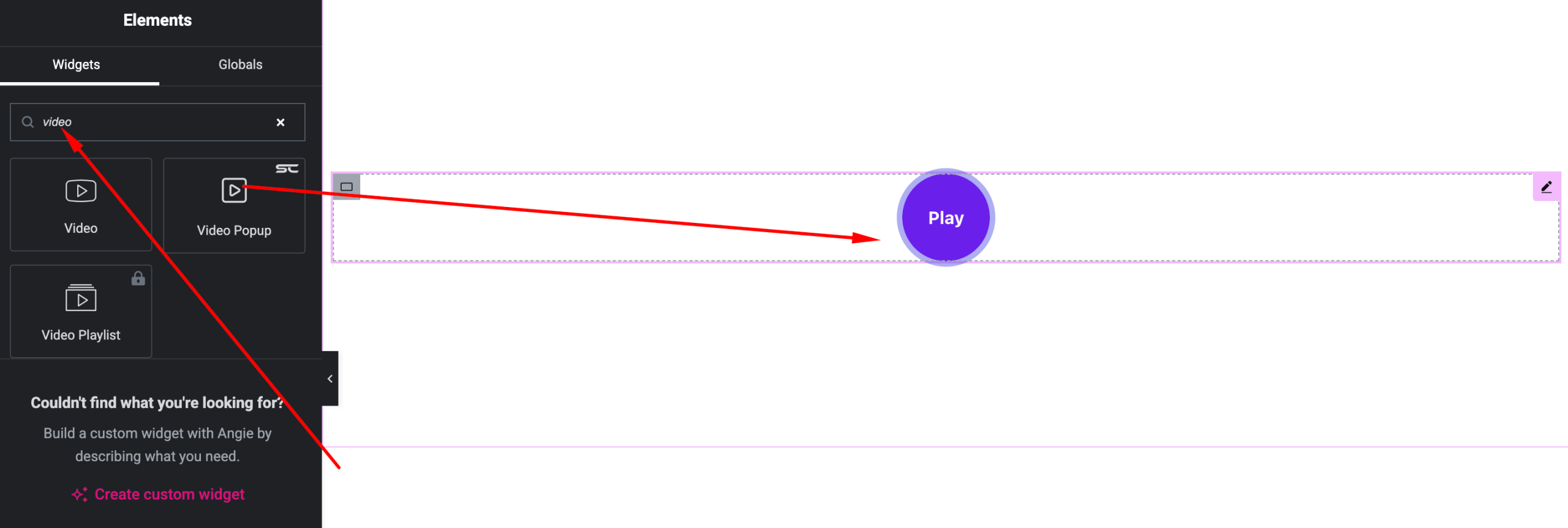
- Open your page with Elementor Editor
- Search for “Video Popup” under SiteCraft widgets
- Drag and drop it into your section
- Choose a layout and start customizing
Content Settings
Control video source and trigger type.
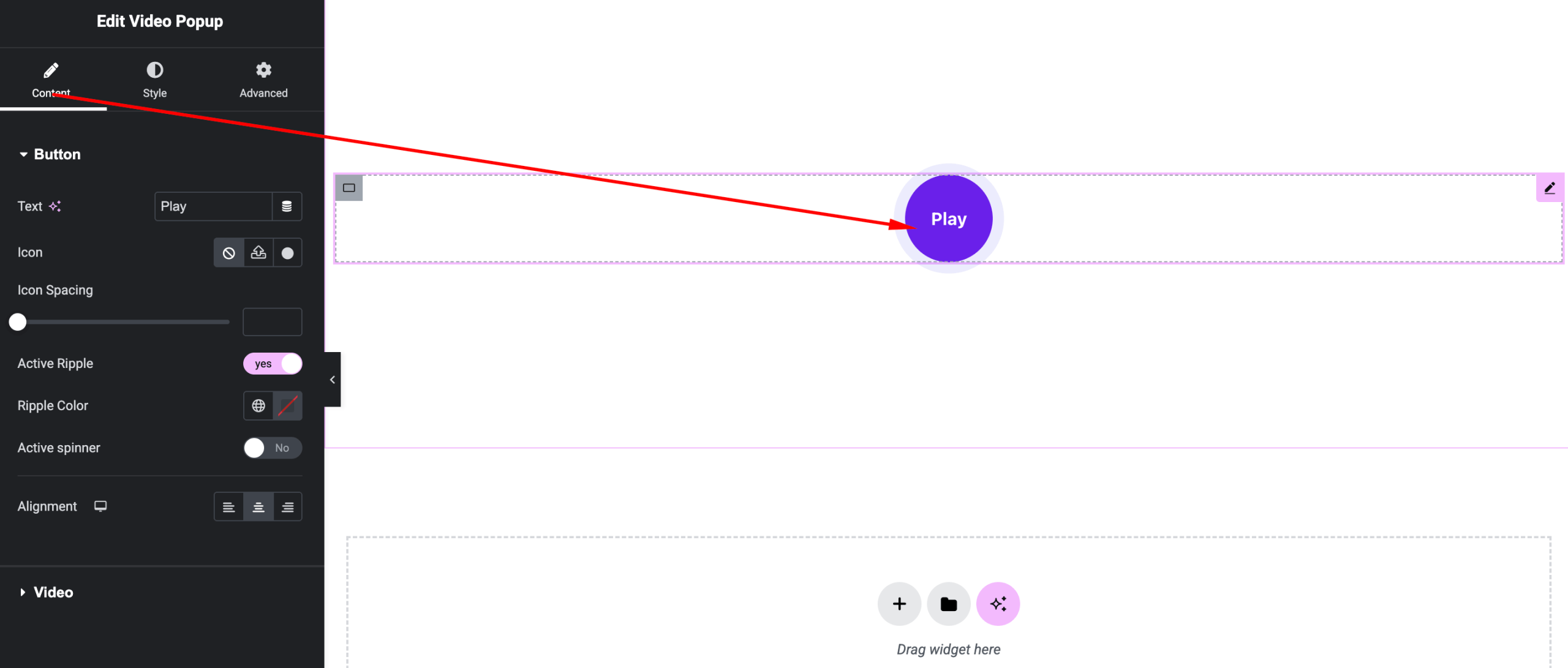
Options:
- Layout – Icon or Circle Image
- Video Link – Add YouTube, Vimeo, or custom URL
- Trigger Image (Circle Layout) – Upload thumbnail image
- Play Icon – Select or customize icon
- Alignment – Left, Center, Right
Style Settings
Customize the visual appearance.
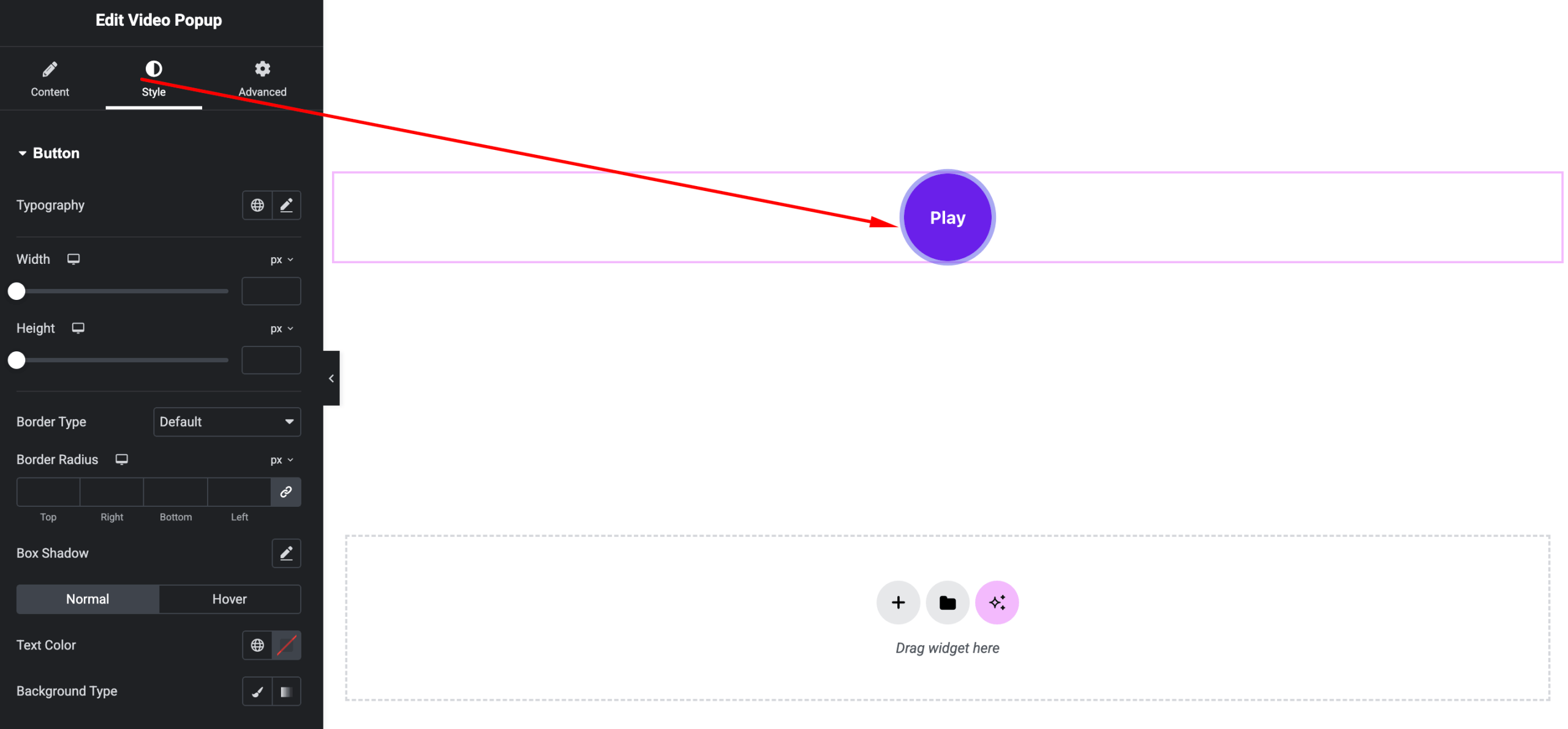
Available Controls:
- Icon Styling – Size, color, background
- Circle Image – Size, border radius, overlay
- Play Button – Size, color, position
- Hover Effects – Animations and transitions
- Overlay Color – Customize hover overlay
Advanced Settings
Fine-tune layout and responsiveness.
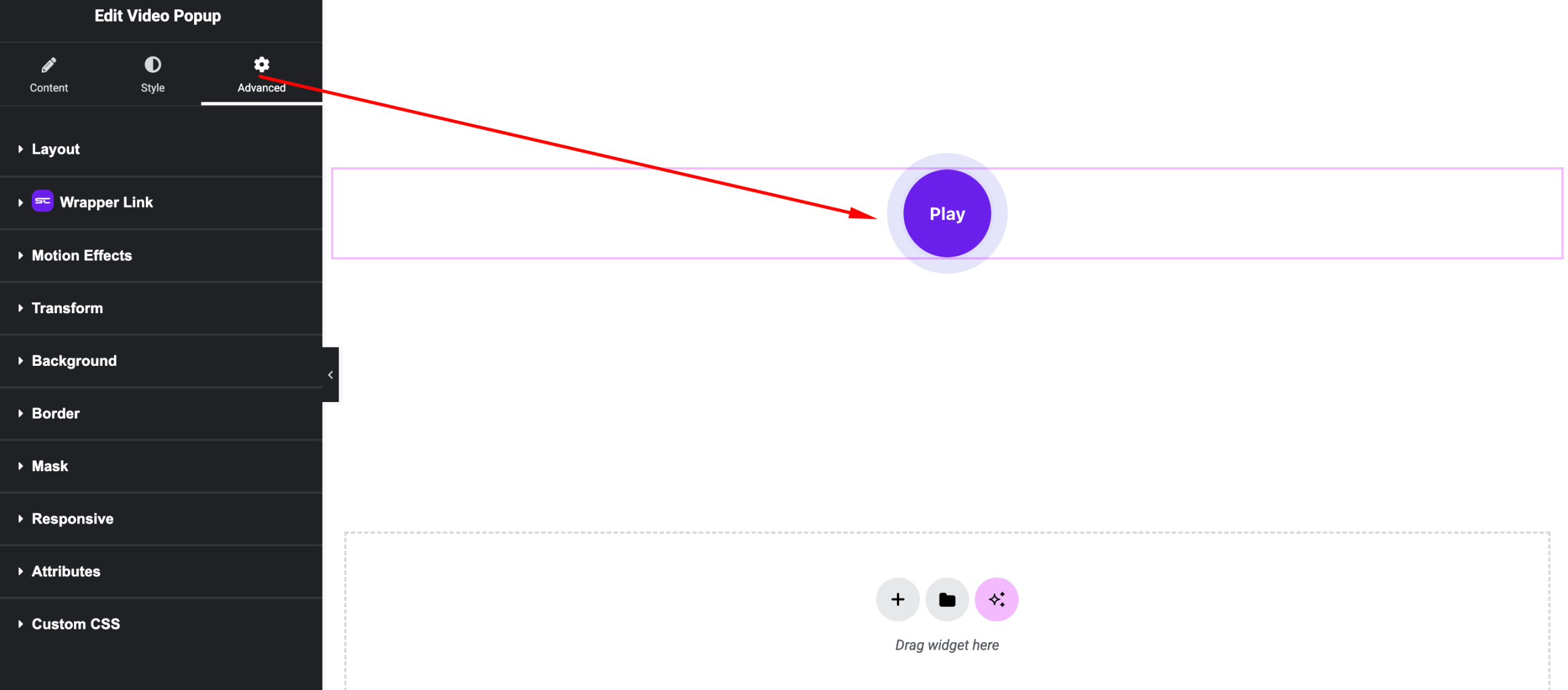
Includes:
- Margin & padding
- Responsive visibility
- Motion effects
- Positioning
- Background & border
Use Cases
Perfect for:
- Promo or intro videos
- Product showcases
- Tutorials and guides
- Hero section video triggers
Result
You can now create engaging video experiences using the SiteCraft Video Popup Widget, with flexible trigger styles and smooth popup playback.