
Overview
The Social Icons widget in SiteCraft allows you to display social media links with customizable icons and styles. It helps you connect your website with your social profiles using clean layouts and flexible design options.
Key Features
- Multiple social icons support
- Custom links for each platform
- Icon style options (default, rounded, circle, etc.)
- Alignment control (left, center, right)
- Icon size and spacing control
- Color and background customization
- Hover effects and transitions
- Fully responsive design
How to Enable the Widget
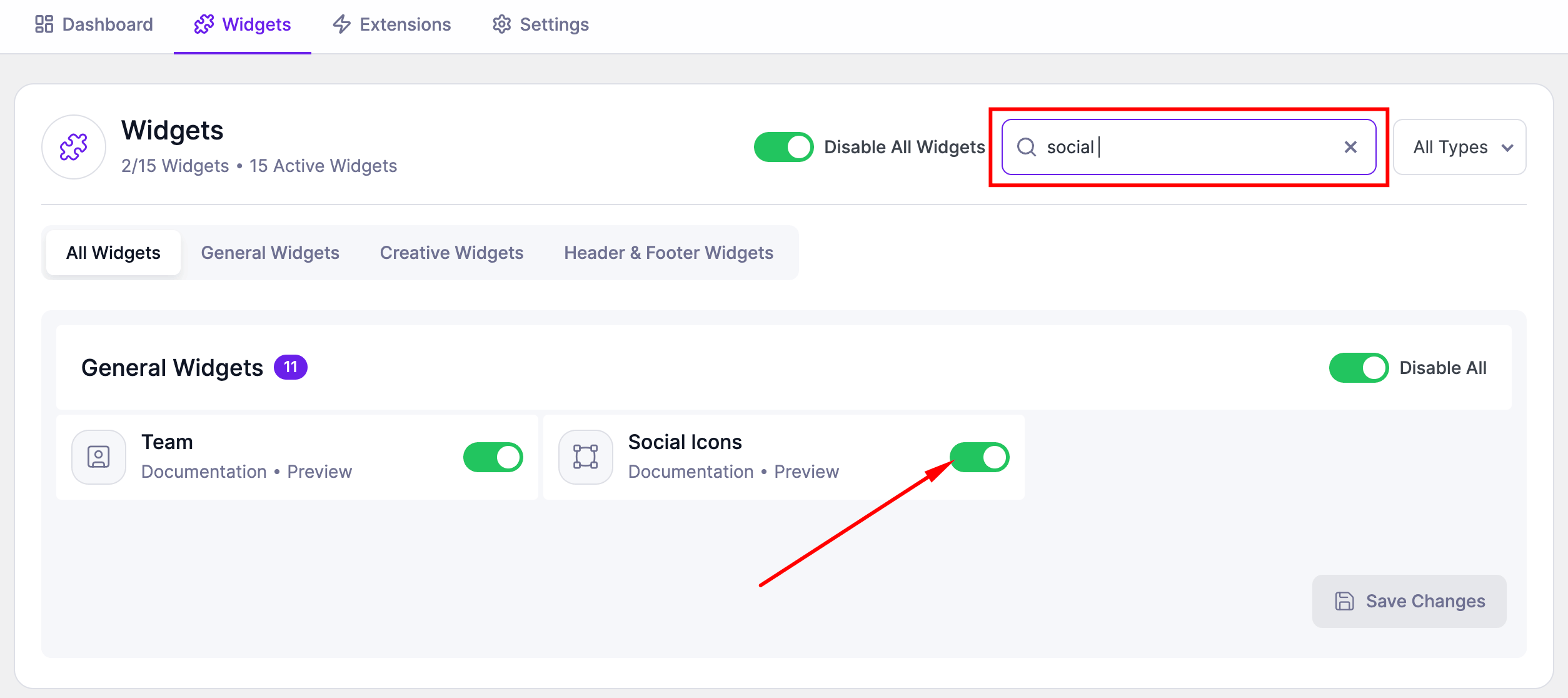
Before using the Social Icons widget, make sure it is enabled.
Steps:
- Go to SiteCraft → Dashboard → Widgets
- Find Social Icons Widget
- Toggle to enable it
- Click Save Changes
How to Add the Widget in Elementor
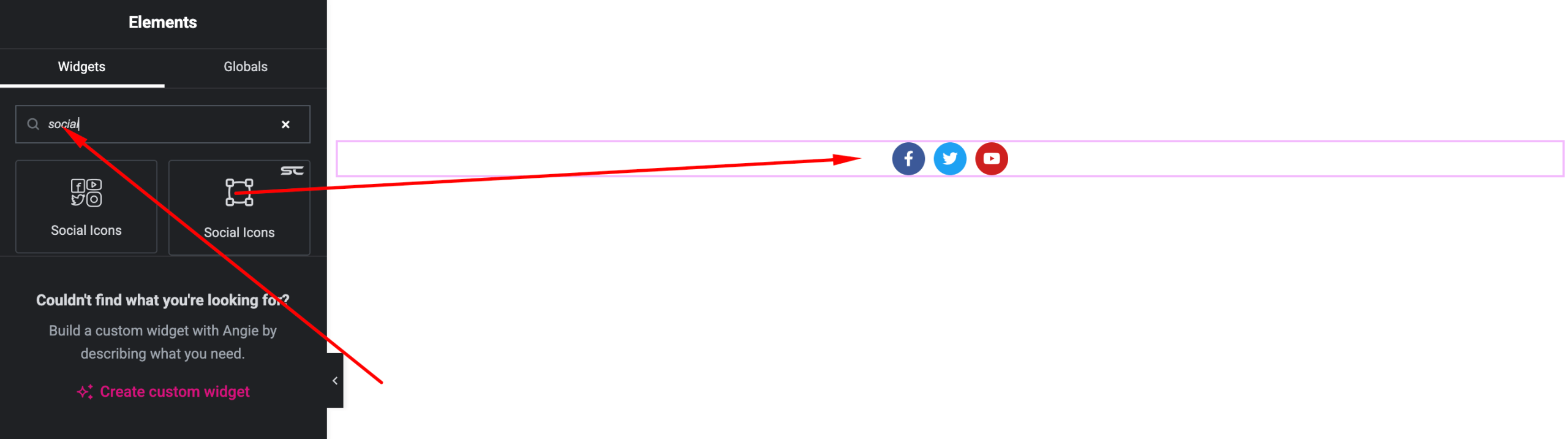
- Open your page with Elementor Editor
- Search for “Social Icons” under SiteCraft widgets
- Drag and drop it into your section
- Add icons and customize styles
Content Settings
Manage your social links and icons.
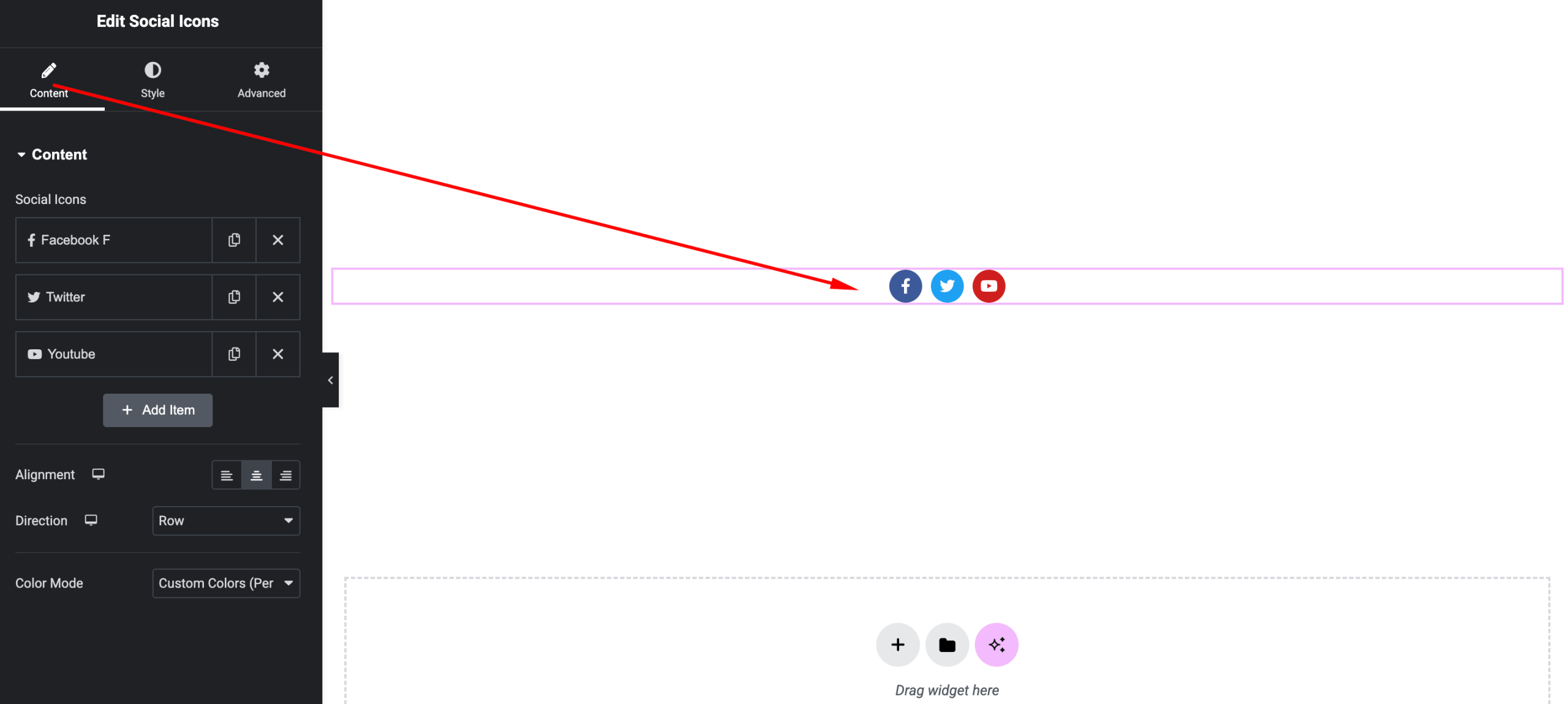
Options:
- Social Icons List – Add multiple icons
- Icon – Choose social platform
- Link – Add profile URL
- Layout/Style – Select icon style (if available)
- Alignment – Left, Center, Right
Style Settings
Customize the appearance of icons.
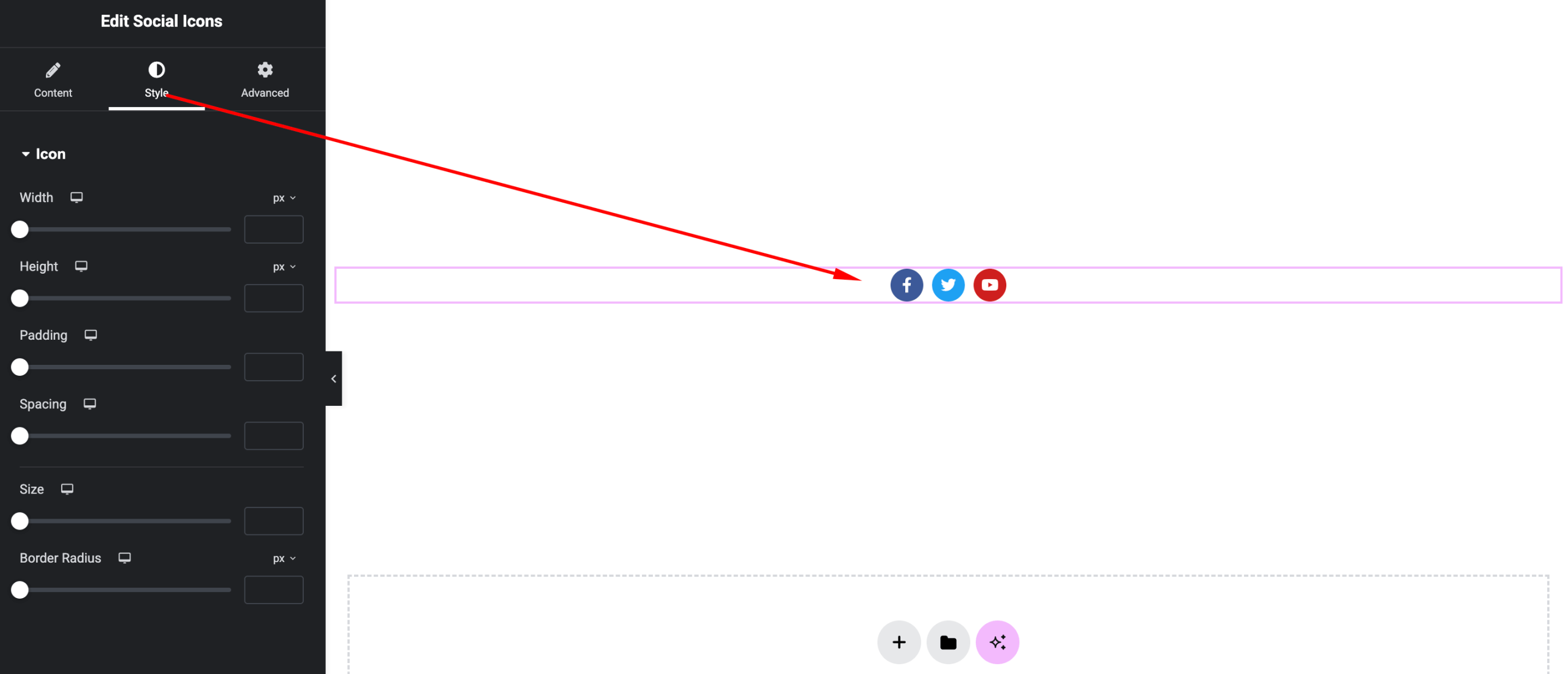
Available Controls:
- Icon Size – Adjust icon dimensions
- Spacing – Control gap between icons
- Color – Icon color (normal & hover)
- Background – Background color and shape
- Border Radius – Rounded or circular icons
- Hover Effects – Animation and transitions
Advanced Settings
Fine-tune layout and responsiveness.
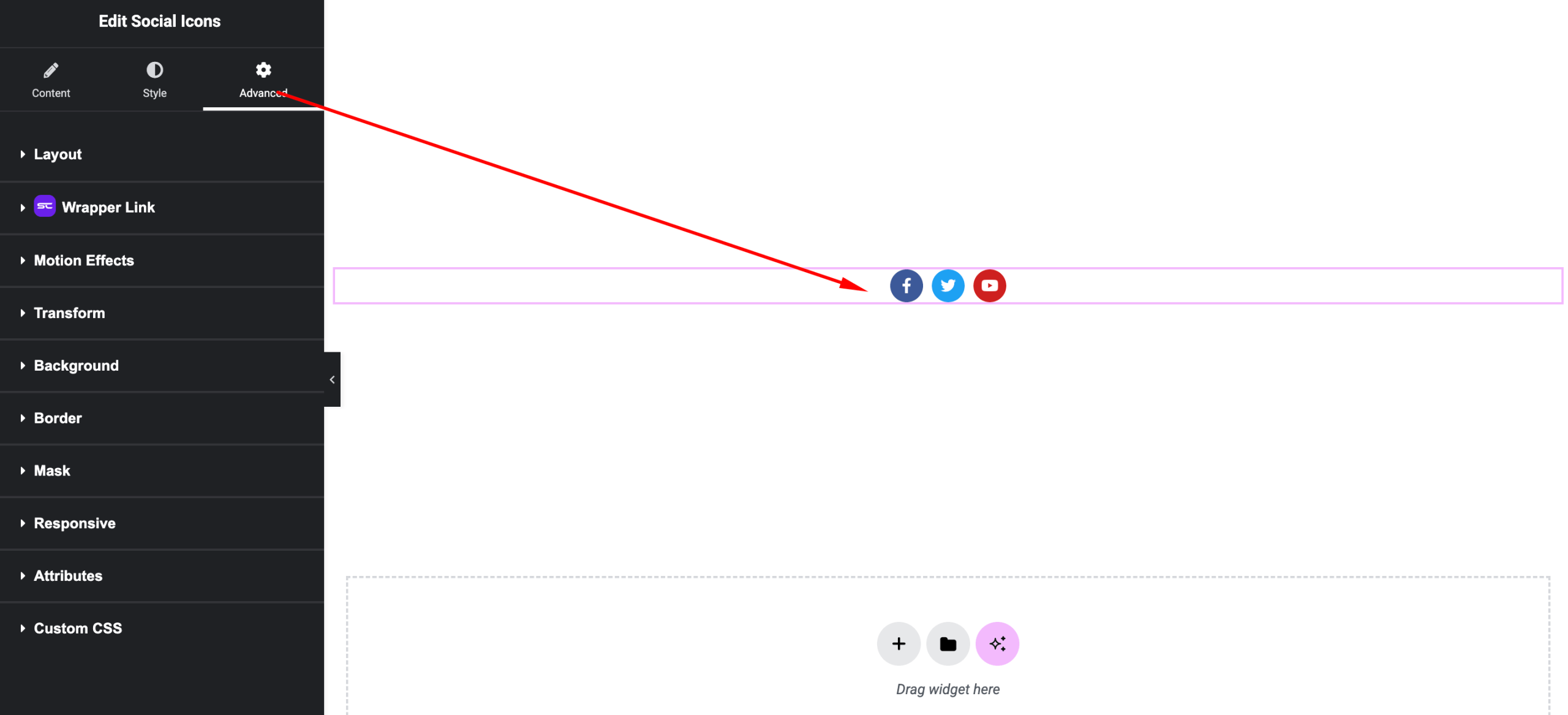
Includes:
- Margin & padding
- Responsive visibility
- Motion effects
- Positioning
- Background & border
Use Cases
Perfect for:
- Website headers and footers
- Contact sections
- Personal or business profiles
- Blog author sections
Result
You can now display stylish and customizable social media icons using the SiteCraft Social Icons Widget, helping users easily connect with your platforms.