
Overview
The Button widget in SiteCraft lets you create stylish and interactive buttons with multiple layout options. With 6 pre-designed layouts and full styling control, you can easily design call-to-action buttons that match your website’s look and feel.
Key Features
- 6 unique button layouts
- Custom text and link support
- Icon support (before/after text)
- Alignment control (left, center, right)
- Typography customization
- Background, border, and color controls
- Hover effects and transitions
- Fully responsive design
How to Enable the Widget
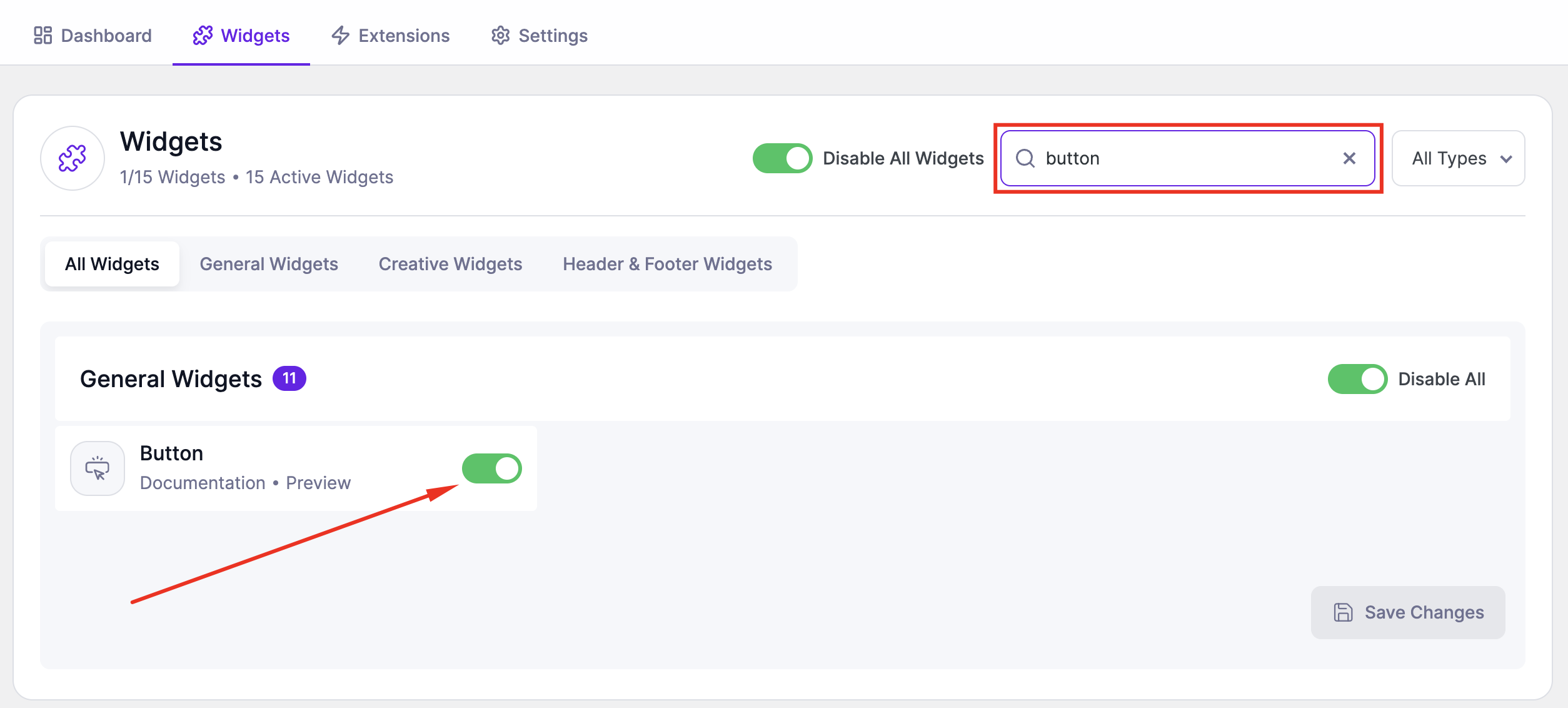
Before using the Button widget, make sure it is enabled.
Steps:
- Go to SiteCraft → Dashboard → Widgets
- Find Button Widget
- Toggle to enable it
- Click Save Changes
How to Add the Widget in Elementor
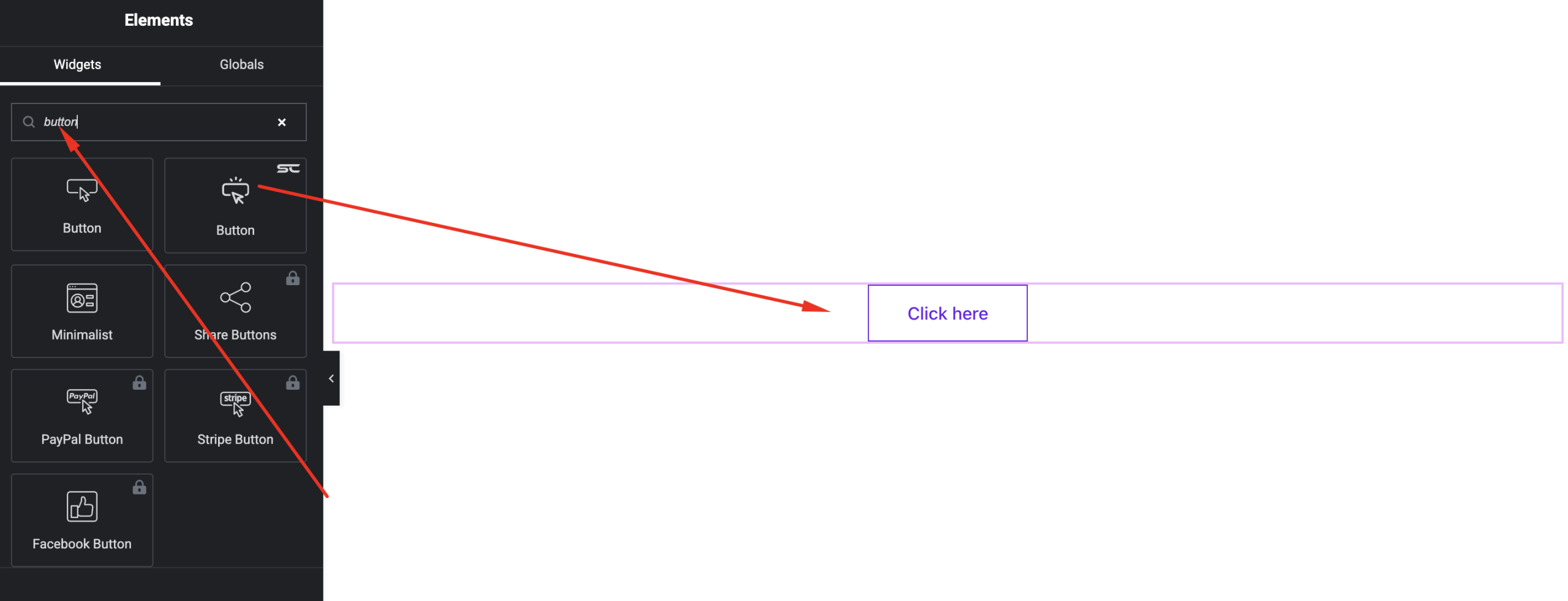
- Open your page with Elementor Editor
- Search for “Button” under SiteCraft widgets
- Drag and drop it into your section
- Select a layout and start customizing
Content Settings
Control button content and structure.
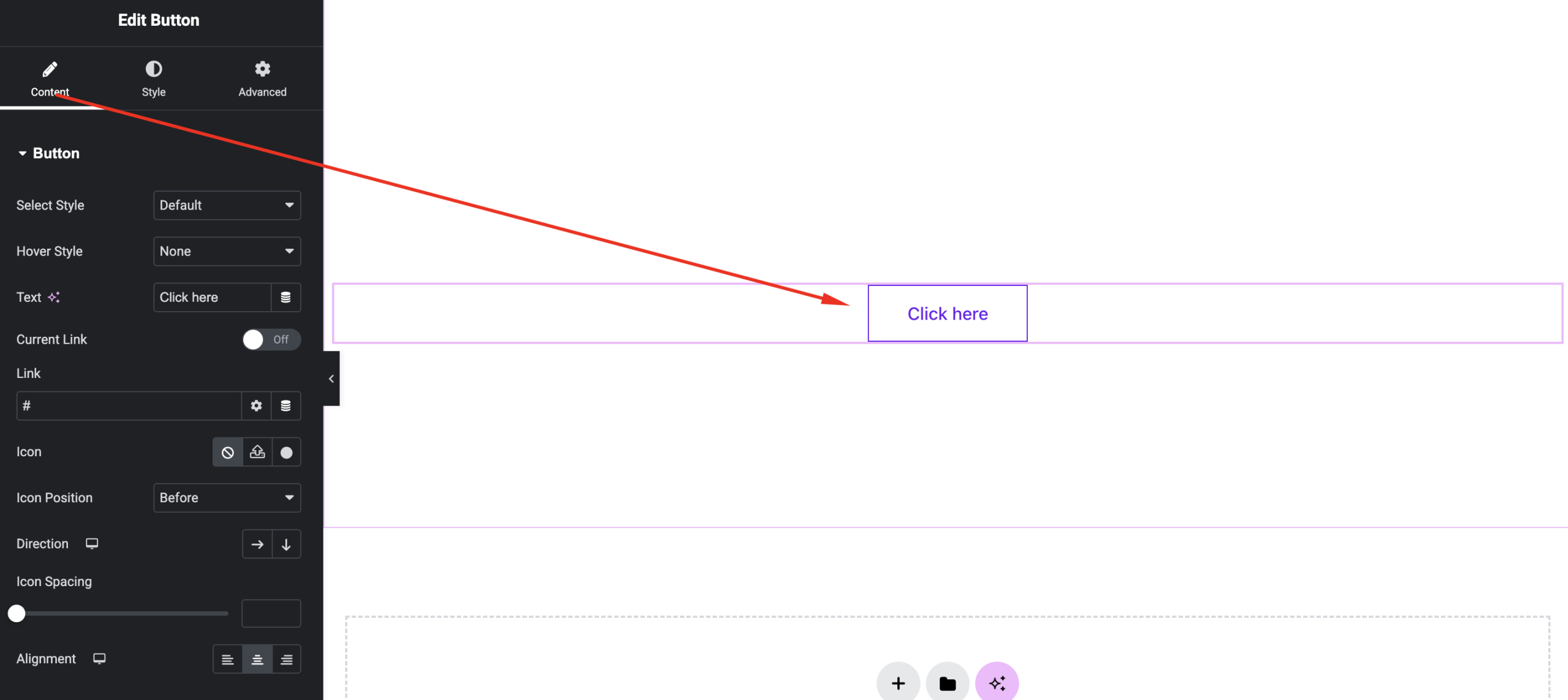
Options:
- Text – Enter button label
- Link – Add URL and target option
- Layout – Choose from 6 button styles
- Icon – Select icon and position (before/after text)
- Alignment – Left, Center, Right
Style Settings
Customize the appearance of your button.
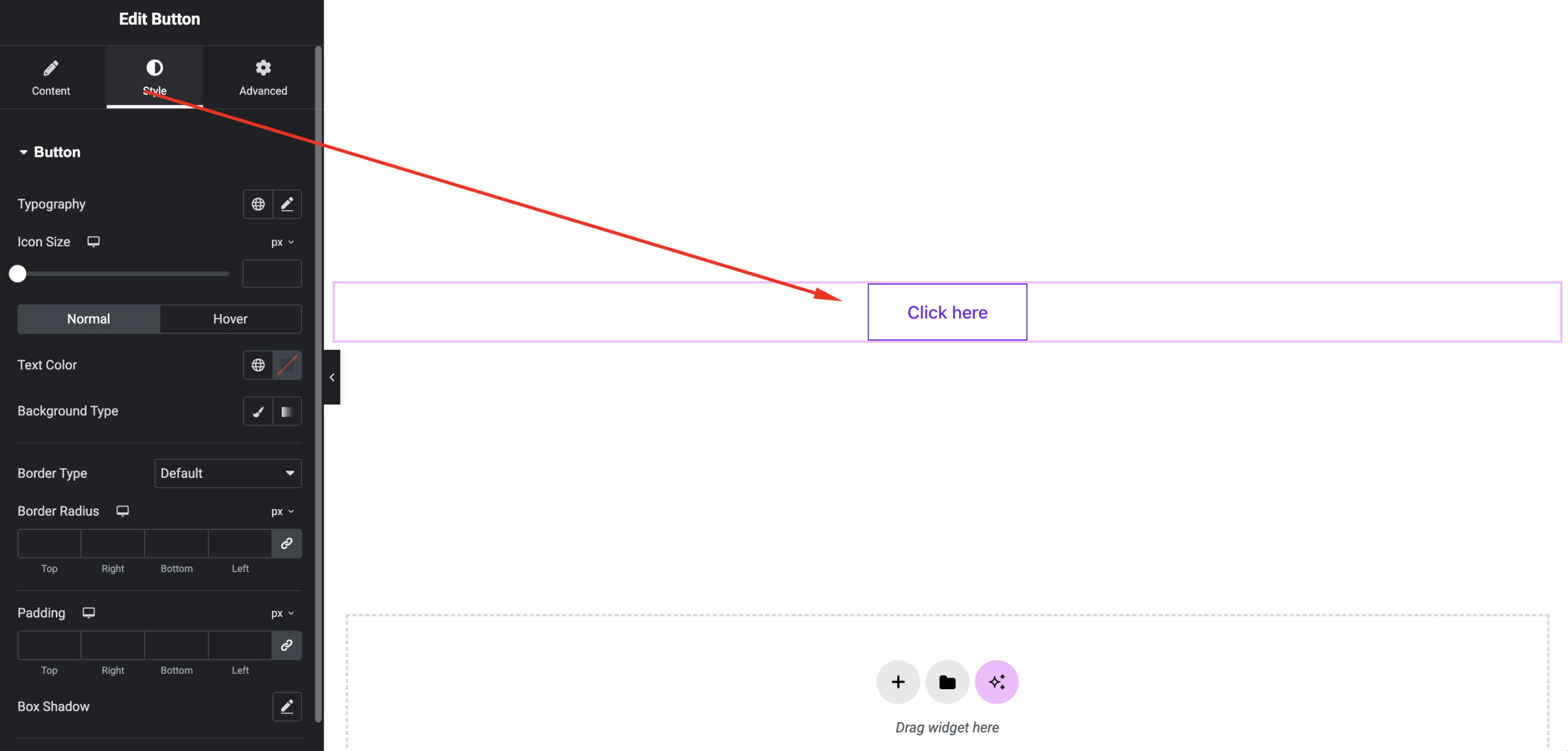
Available Controls:
- Typography – Font, size, weight
- Text Color – Normal and hover states
- Background Color – Normal and hover
- Border – Width, style, radius
- Padding – Inner spacing
- Icon Spacing – Adjust gap between icon and text
- Hover Effects – Smooth transitions and animations
Advanced Settings
Fine-tune layout and responsiveness.
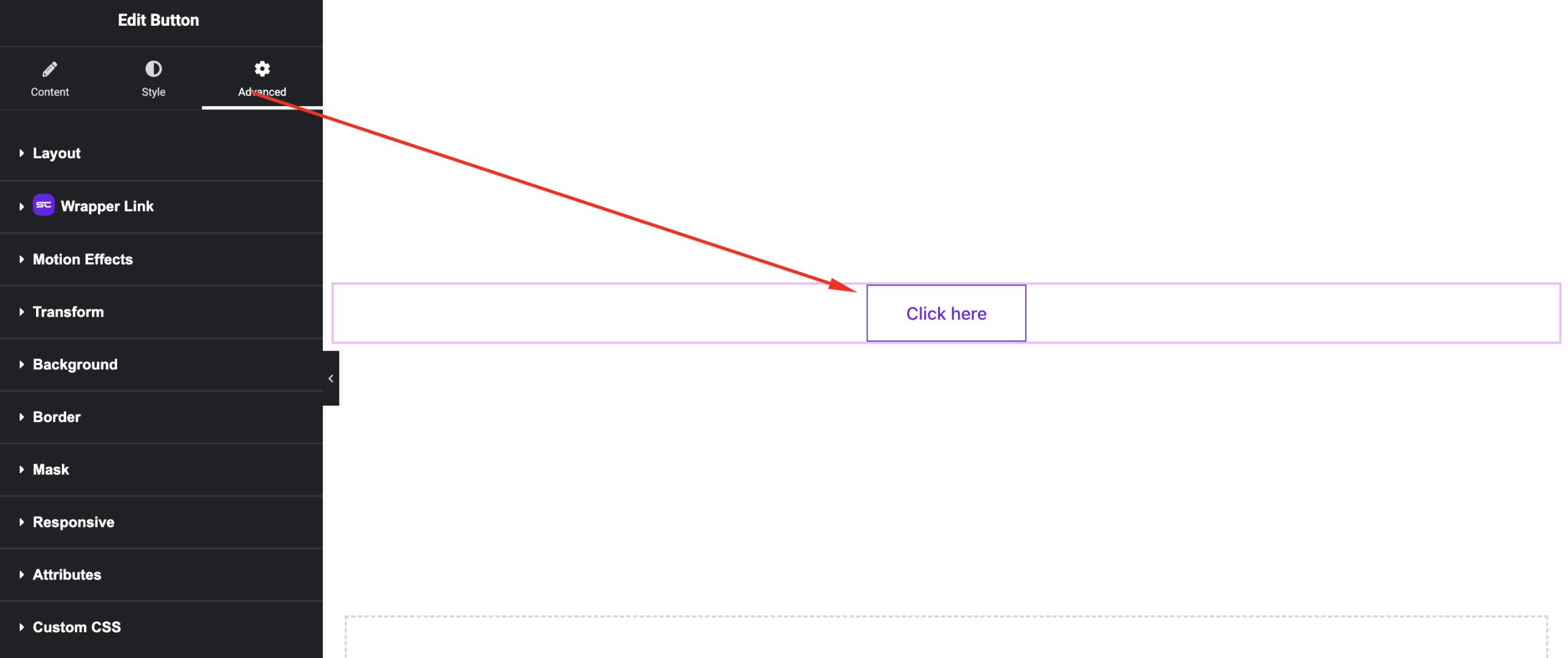
Includes:
- Margin & padding
- Responsive visibility
- Motion effects
- Positioning
- Background & border
Use Cases
Perfect for:
- Call-to-action buttons
- Download links
- Contact buttons
- Promotional sections
Result
You can now create attractive and fully customizable buttons using the SiteCraft Button Widget, with multiple layouts and interactive styles.