
Overview
The Post Meta widget in SiteCraft displays important post information such as author, date, categories, tags, and comments. It helps provide context and additional details for posts within single or archive templates.
Key Features
- Dynamic post meta display
- Show/hide individual meta elements
- Supports author, date, categories, tags, comments
- Custom separators between meta items
- Icon support for each meta field (if available)
- Alignment and spacing control
- Fully responsive design
Requirements
Can be used in:
- Single Post Templates
- Archive Templates
How to Enable the Widget
Before using the Post Meta widget, make sure it is enabled.
Steps:
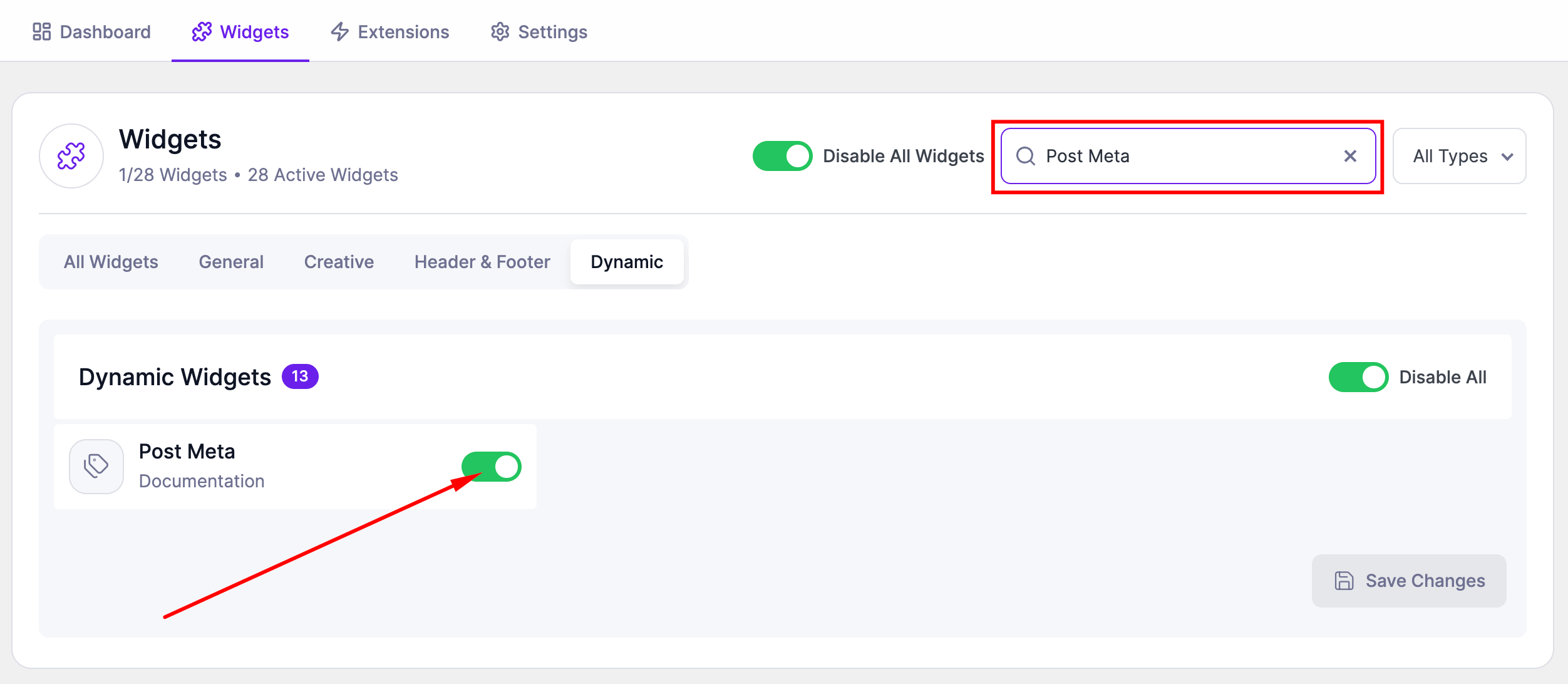
- Go to SiteCraft → Dashboard → Widgets
- Find Post Meta Widget
- Toggle to enable it
- Click Save Changes
How to Add the Widget in Elementor
- Open your template (Single or Archive) with Elementor
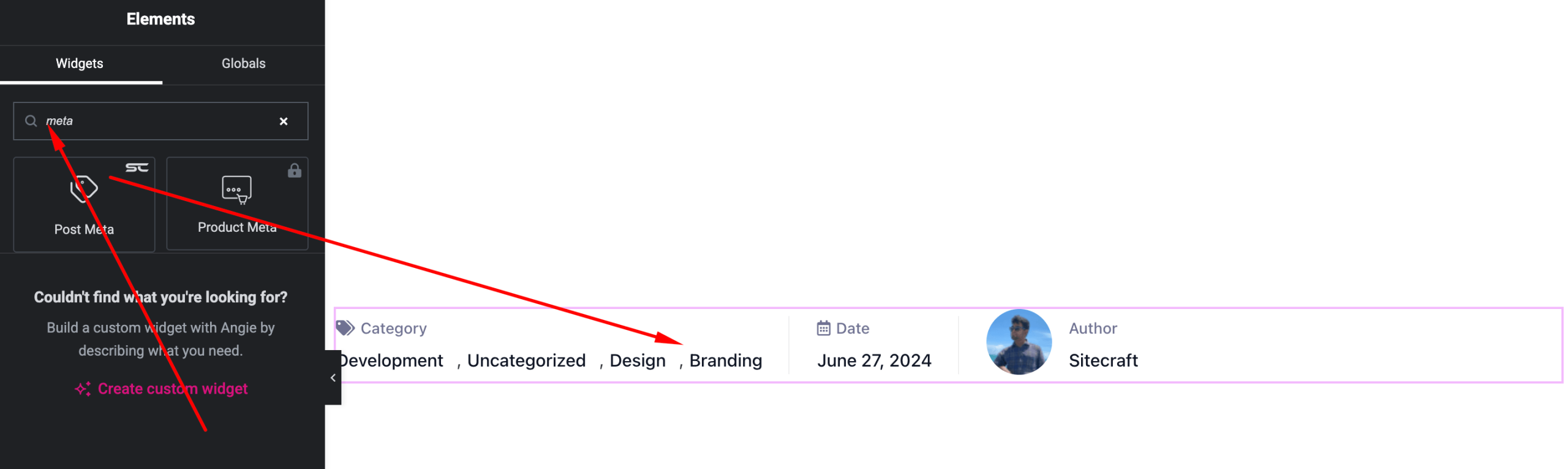
- Search for “Post Meta” under SiteCraft widgets
- Drag and drop it into your layout
- Select and arrange meta elements
Content Settings
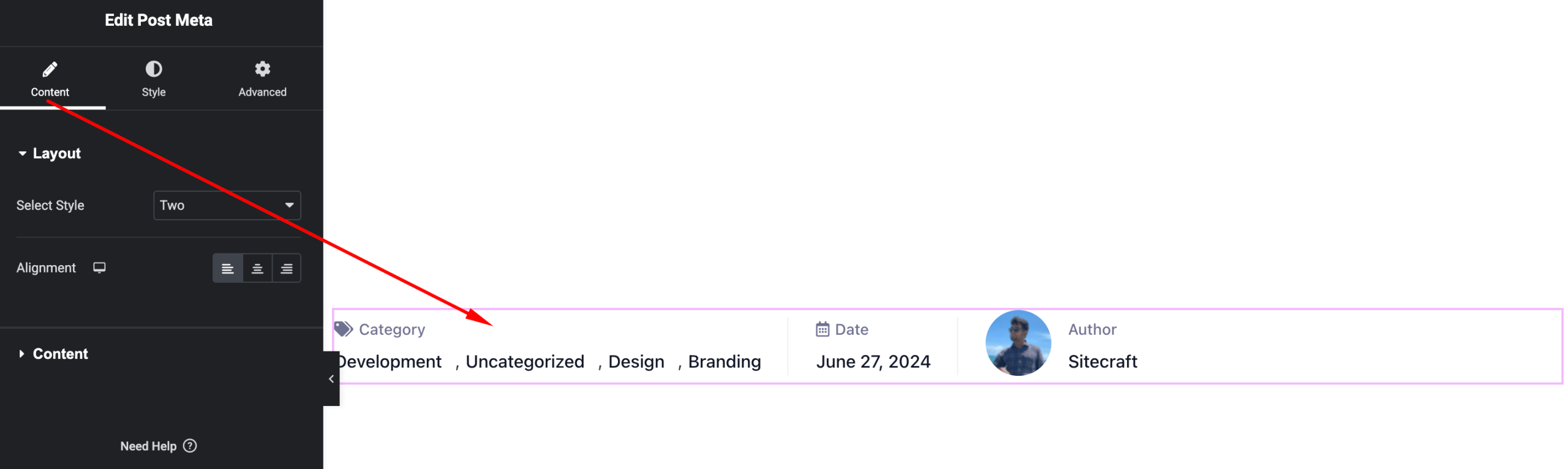
Control which meta information is displayed.
Options:
- Meta Elements – Enable/disable:
- Author
- Date
- Categories
- Tags
- Comments count
- Order – Arrange meta items
- Separator – Customize divider between items
- Icons (if available) – Show/hide icons
- Alignment – Left, Center, Right
Style Settings
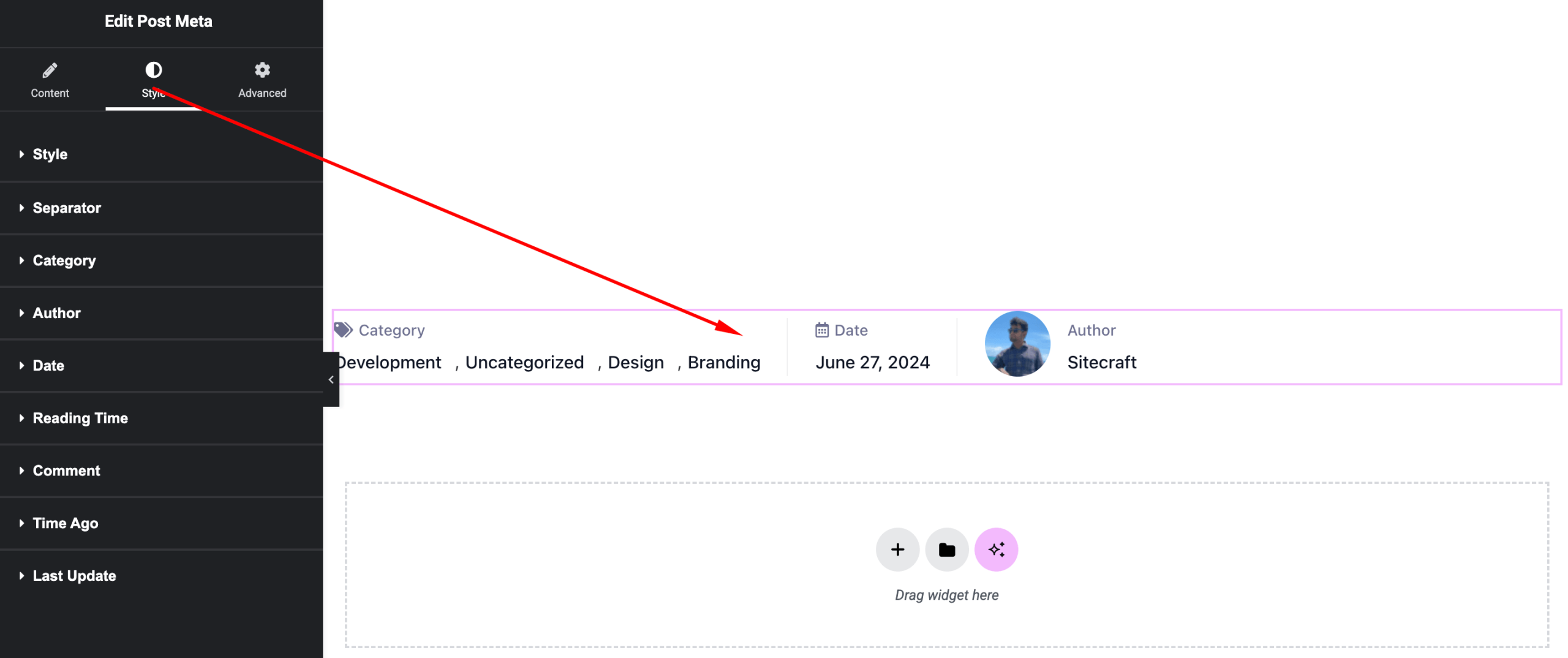
Customize the appearance of meta information.
Available Controls:
- Typography – Font, size, weight
- Text Color – Customize color
- Icon Styling (if available) – Size, color, spacing
- Spacing – Gap between meta items
- Separator Styling – Color and spacing
Advanced Settings
Fine-tune layout and responsiveness.
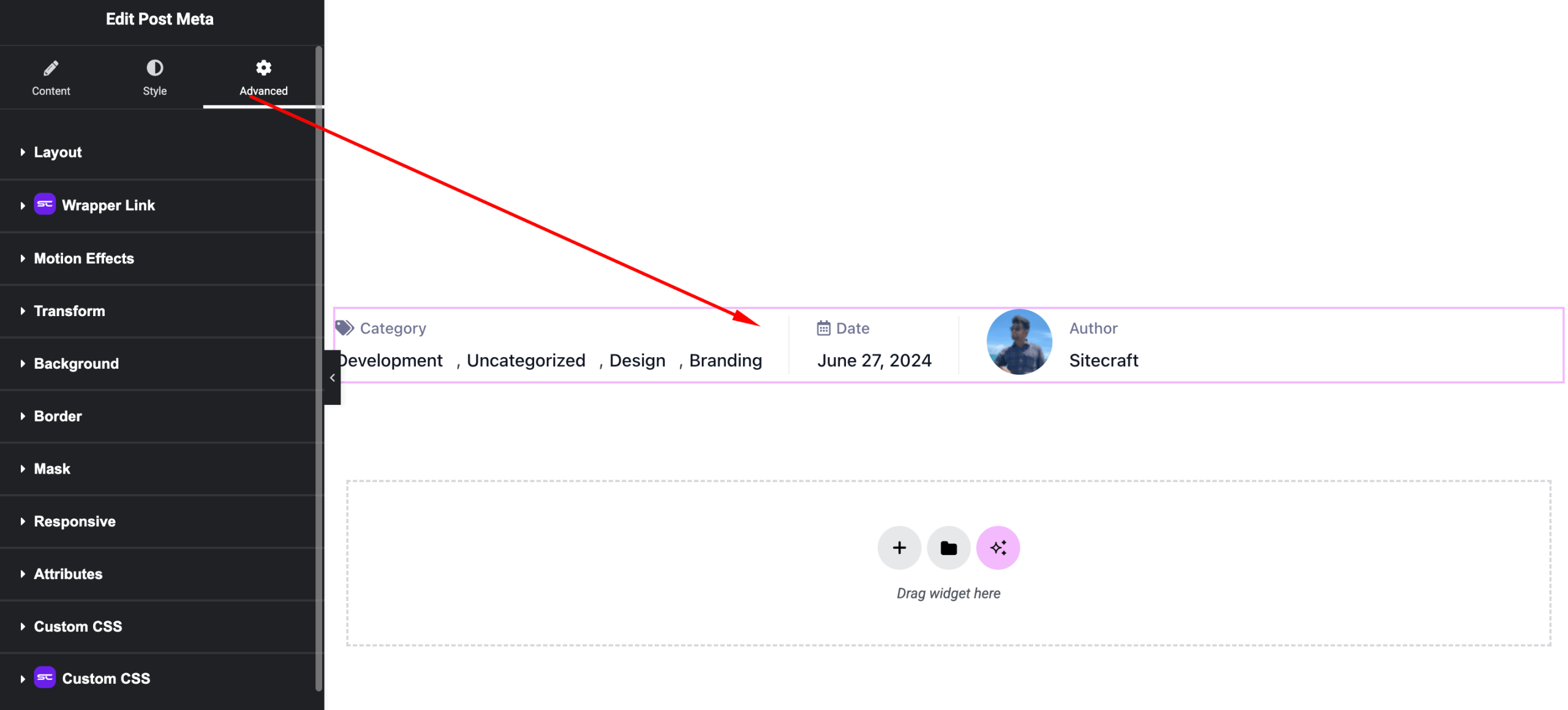
Includes:
- Margin & padding
- Responsive visibility
- Motion effects
- Positioning
- Background & border
Use Cases
Perfect for:
- Blog post headers
- Article metadata display
- Archive listings
- News and magazine layouts
Result
You can now display structured post information using the SiteCraft Post Meta Widget, improving content clarity and user experience.