
Overview
The Heading widget in SiteCraft helps you create eye-catching and customizable titles for any section of your website. It includes powerful styling options like highlighted text, typography control, and visual effects — all without needing custom CSS.
Key Features
- Highlight specific words using bracket format:
[Your Text] - Text alignment control (left, center, right)
- Advanced blend mode effects
- Text stroke (outline) customization
- Text shadow support
- Full typography controls
- Custom colors for normal and highlighted text
- Fully responsive design
How to Enable the Widget
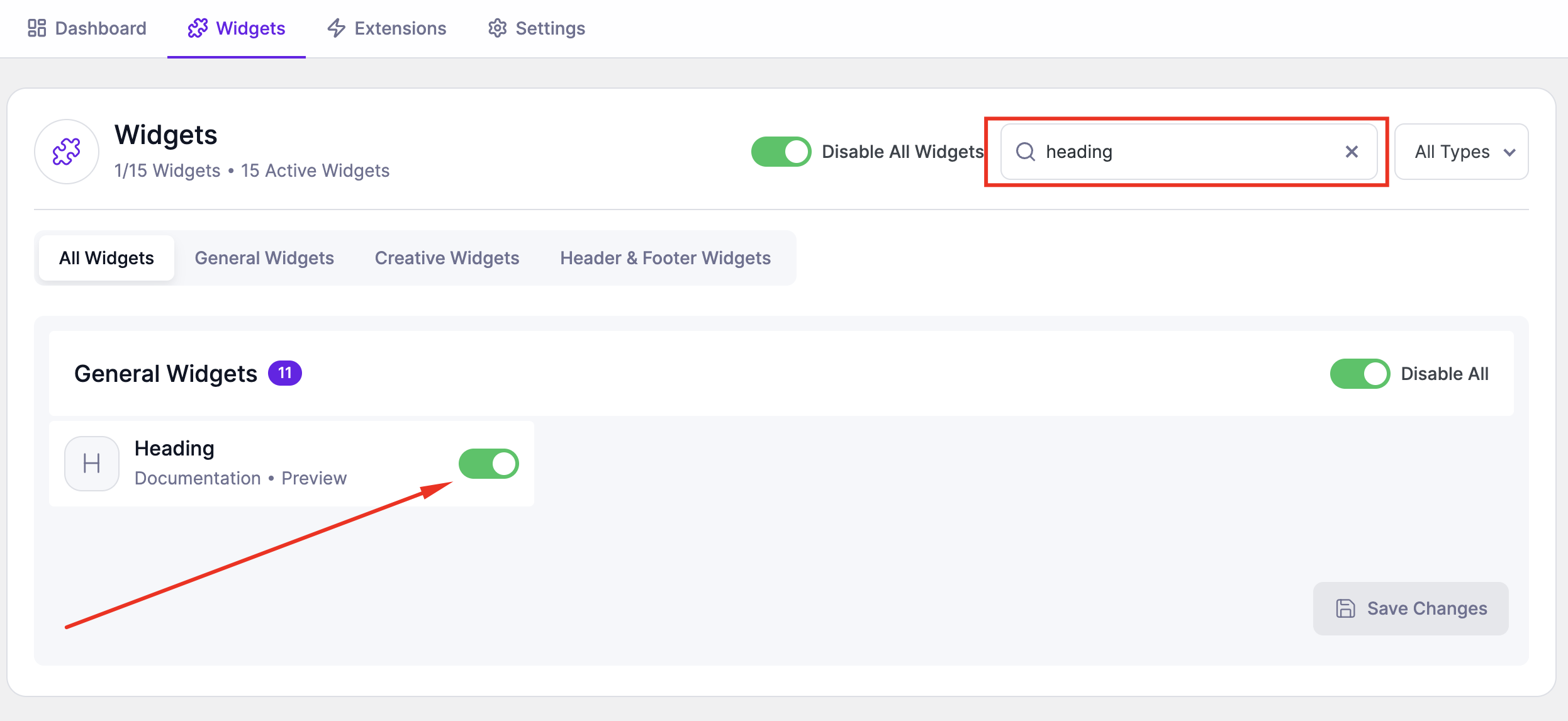
Before using the Heading widget, ensure it is enabled in SiteCraft.
Steps:
- Go to SiteCraft → Dashboard → Widgets
- Locate Heading Widget
- Toggle to enable it
- Click Save Changes
How to Add the Widget in Elementor
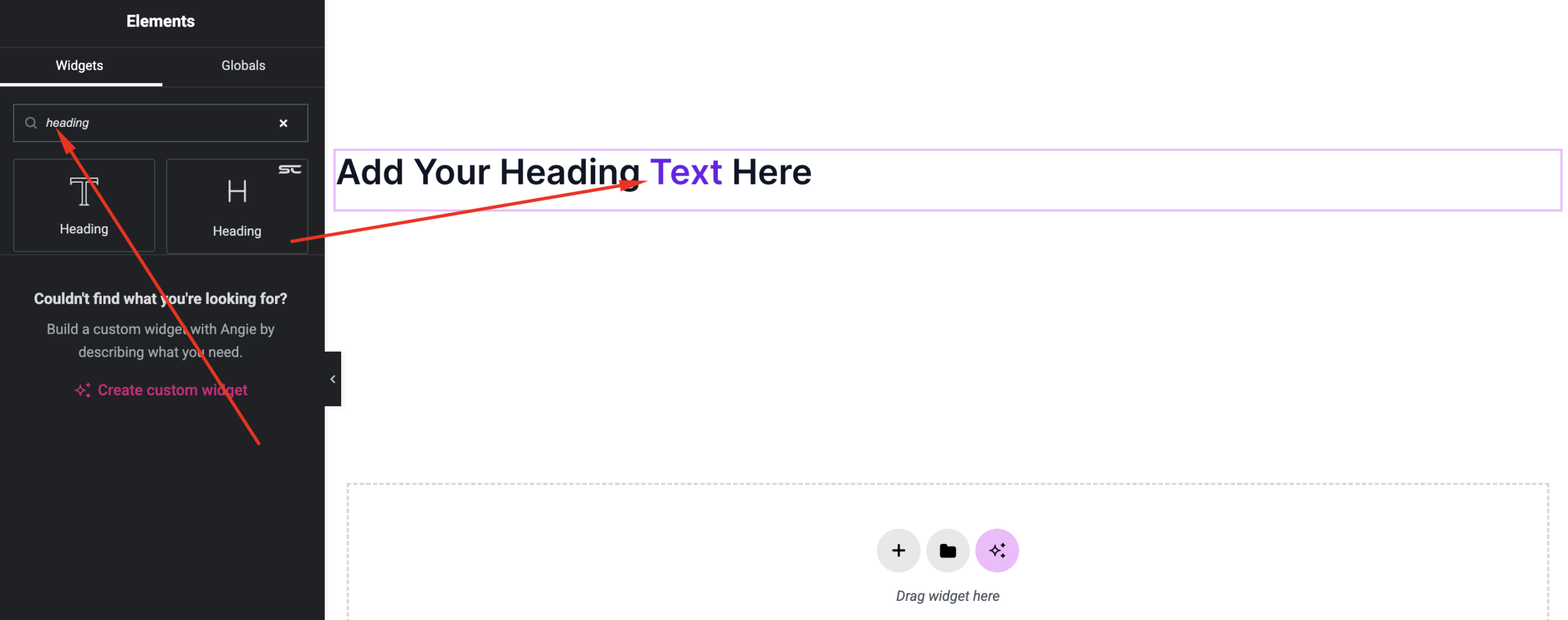
- Open a page with Elementor Editor
- Search for “Heading” under SiteCraft widgets
- Drag and drop it into your section
- Customize via Content, Style, and Advanced tabs
Content Settings
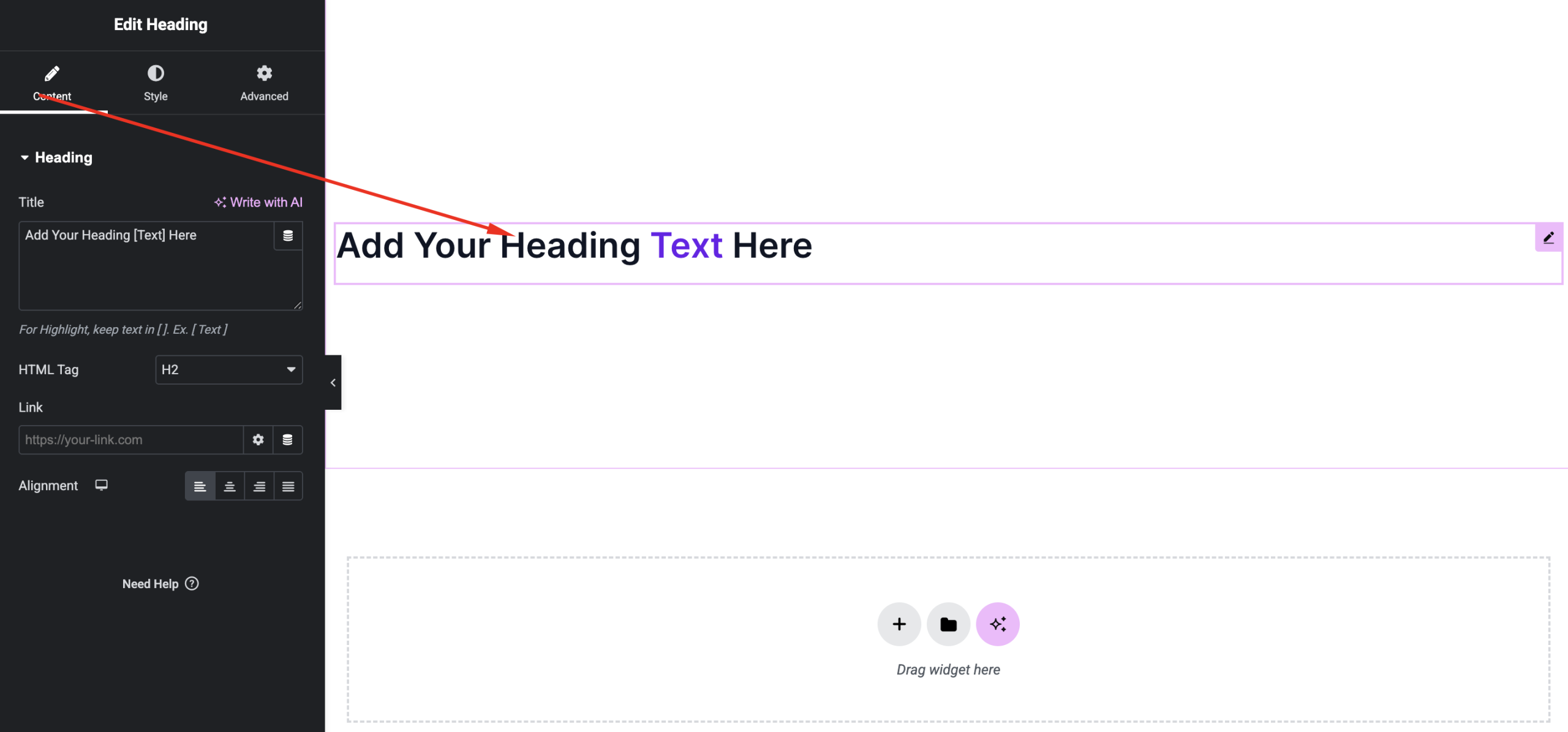
Control the structure and basic setup of your heading.
Options:
- Title – Enter your text
- Use brackets to highlight:
We Build [Creative] Websites
- Use brackets to highlight:
- HTML Tag – Choose H1–H6 for SEO
- Alignment – Left, Center, Right
Style Settings
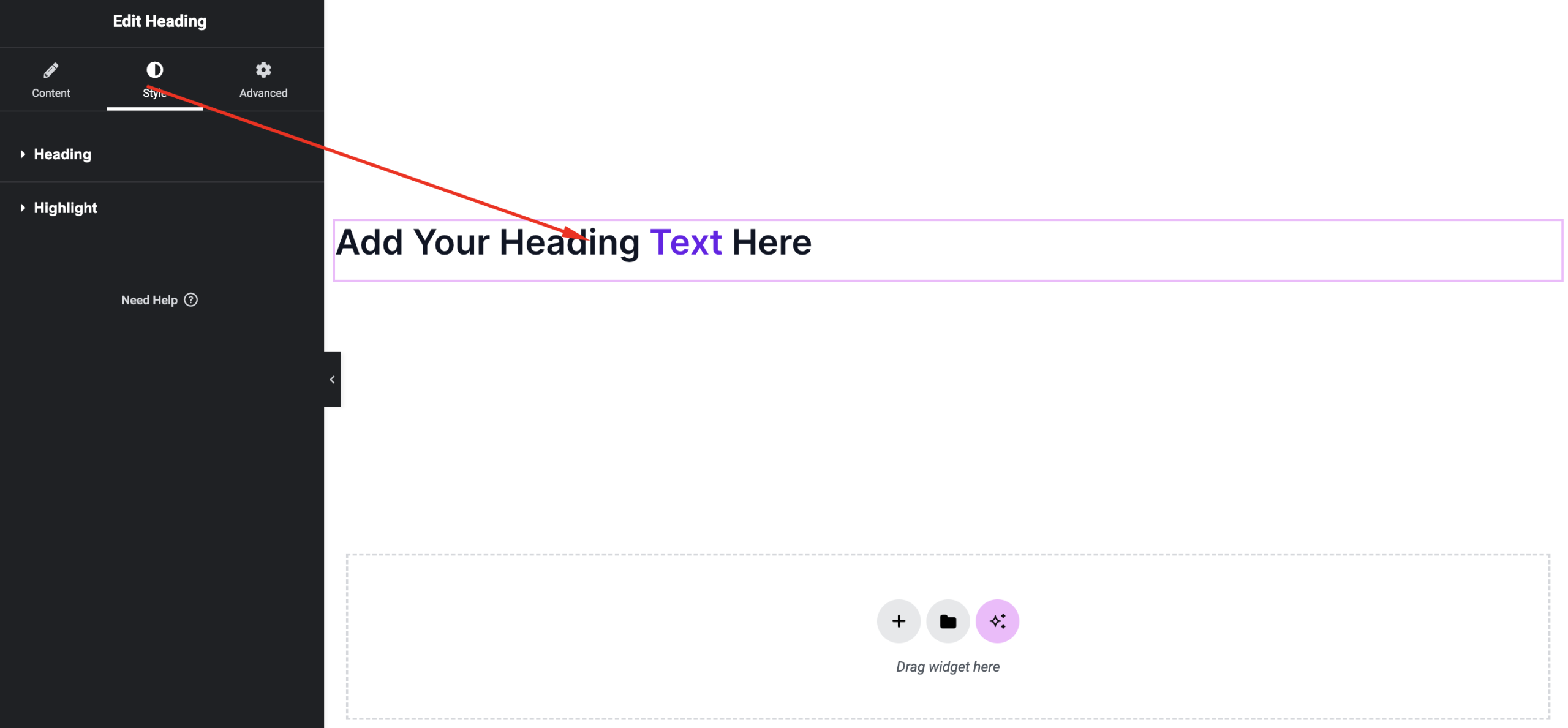
Customize the visual appearance of your heading.
Available Controls:
- Typography – Font, size, weight, spacing
- Text Color – Main heading color
- Highlight Color – Bracket text color
- Blend Mode – Creative visual effects
- Text Stroke – Outline width & color
- Text Shadow – Shadow blur, offset, color
Advanced Settings
Fine-tune layout and responsiveness.
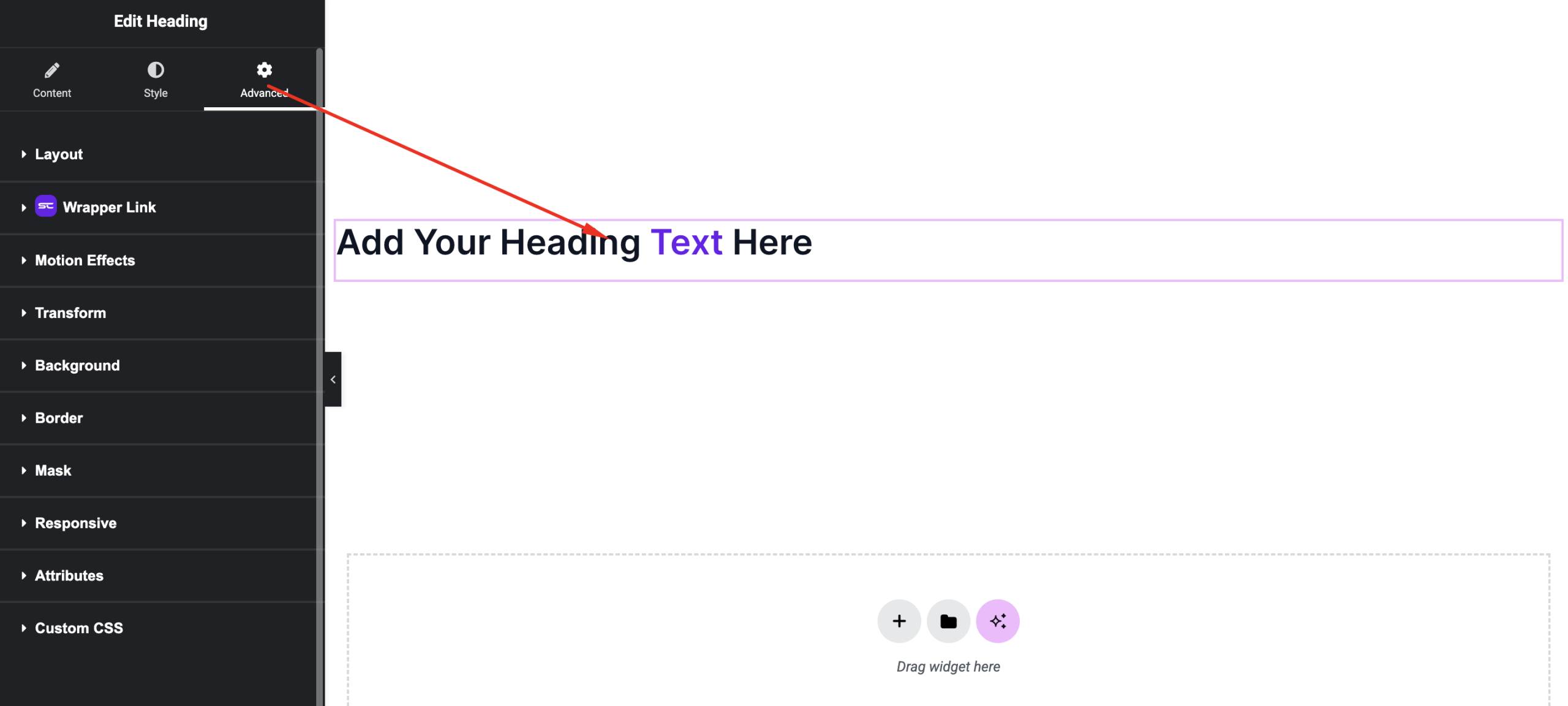
Includes:
- Margin & padding
- Responsive visibility
- Motion effects
- Positioning
- Background & border
Use Cases
Perfect for:
- Hero section titles
- Section headings
- Feature highlights
- Promotional banners
Result
You can now create visually engaging headings with highlight effects and advanced styling using the SiteCraft Heading Widget.