
Overview
The Contact Form 7 widget in SiteCraft allows you to easily add and style forms created with the Contact Form 7 plugin inside Elementor. It provides design flexibility so you can match your form with your website layout without writing custom CSS.
Key Features
- Integration with Contact Form 7
- Select and display any existing form
- Full typography and color controls
- Input field and button styling
- Label, placeholder, and spacing customization
- Error and success message styling
- Fully responsive design
Requirements
Make sure the Contact Form 7 plugin is installed and activated before using this widget.
How to Enable the Widget
Before using the Contact Form 7 widget, make sure it is enabled.
Steps:
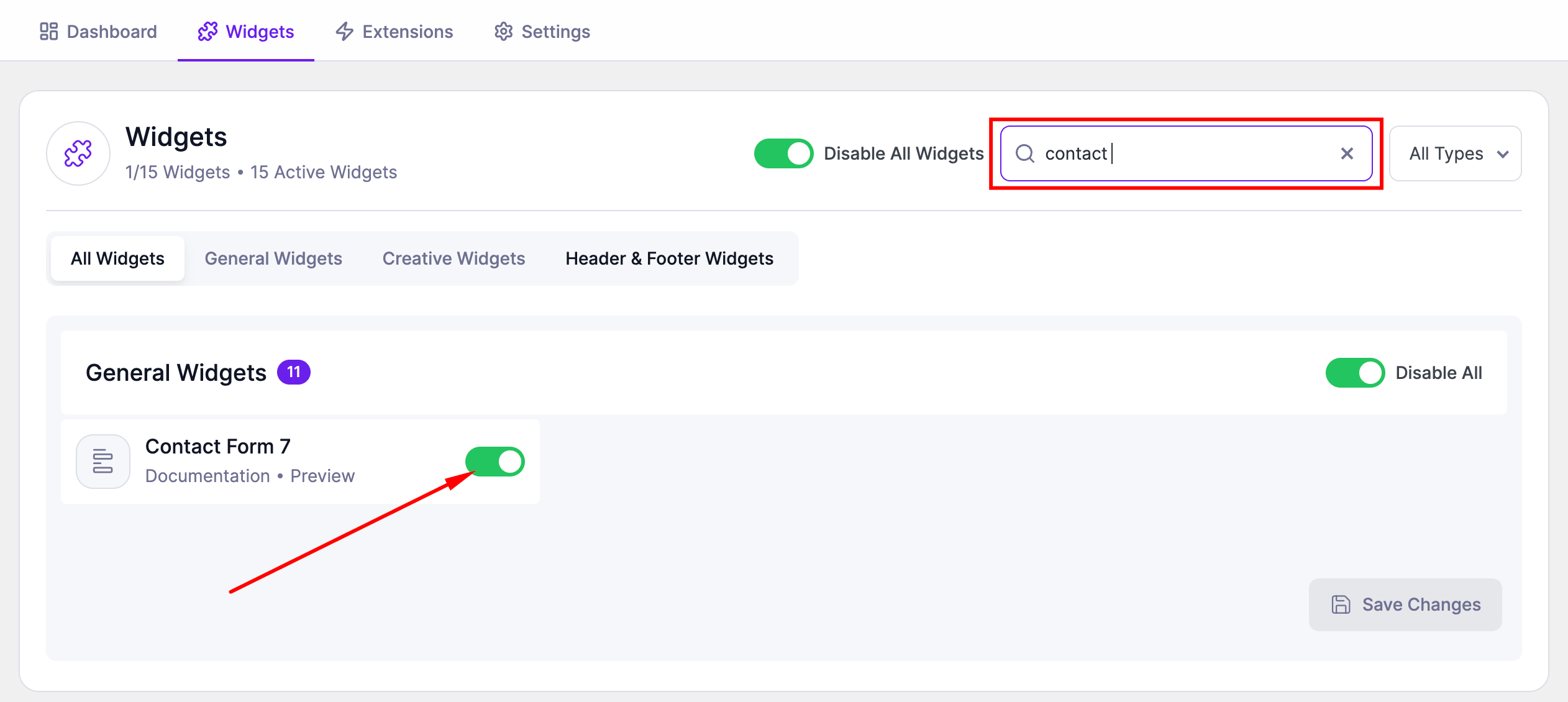
- Go to SiteCraft → Dashboard → Widgets
- Find Contact Form 7 Widget
- Toggle to enable it
- Click Save Changes
How to Add the Widget in Elementor
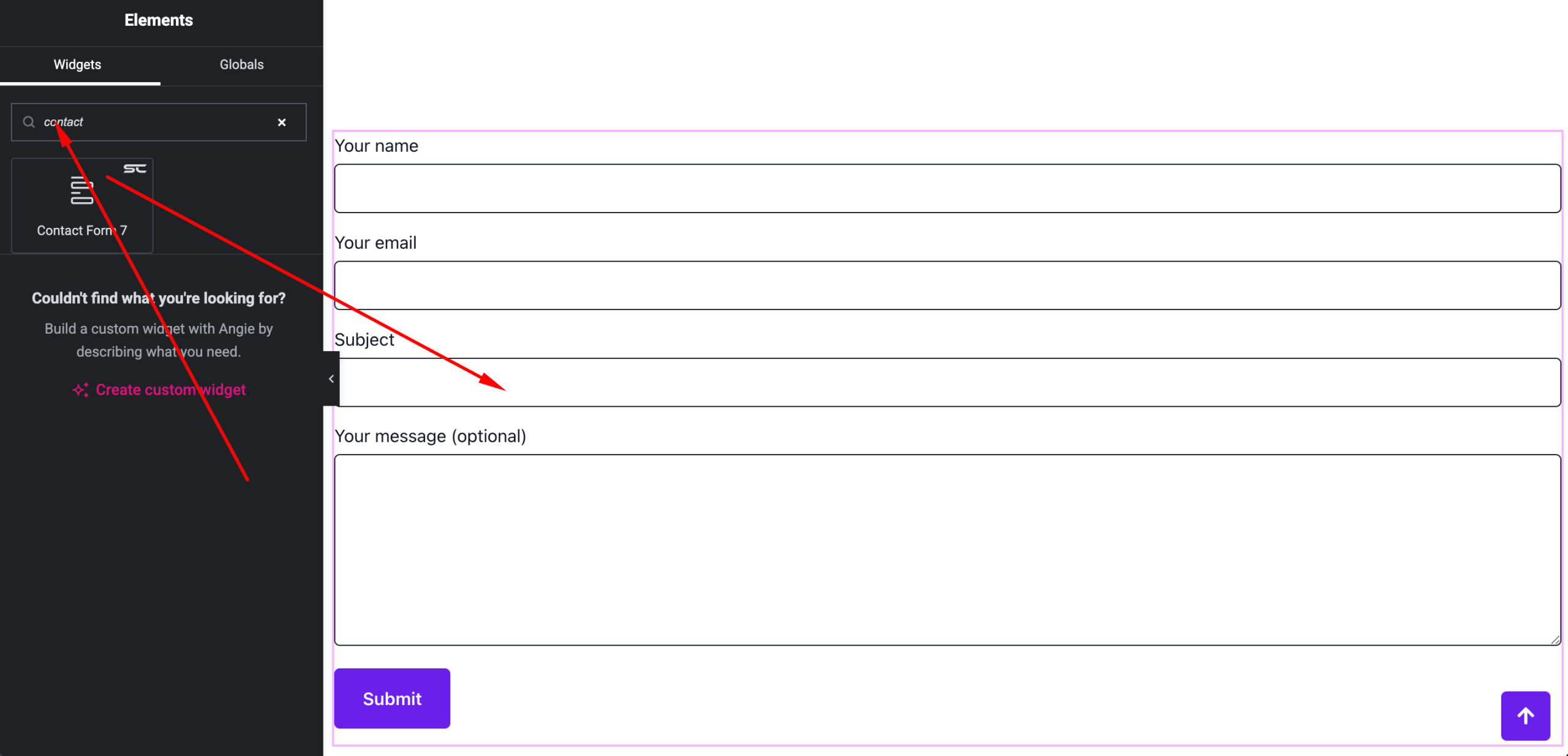
- Open your page with Elementor Editor
- Search for “Contact Form 7” under SiteCraft widgets
- Drag and drop it into your section
- Select your form and start customizing
Content Settings
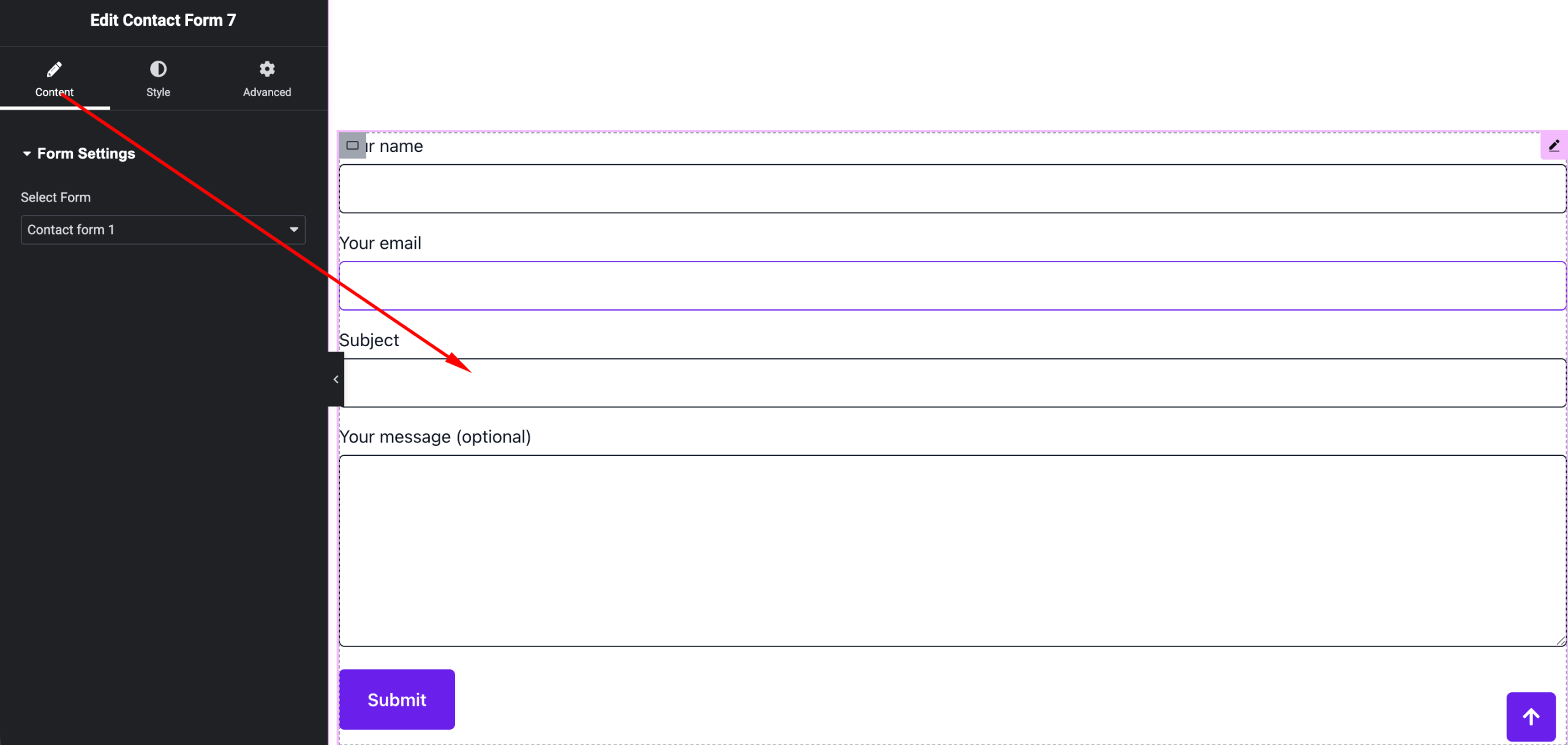
Select and display your form.
Options:
- Select Form – Choose from available Contact Form 7 forms
- Form Title/Description – Show or hide (if available)
Style Settings
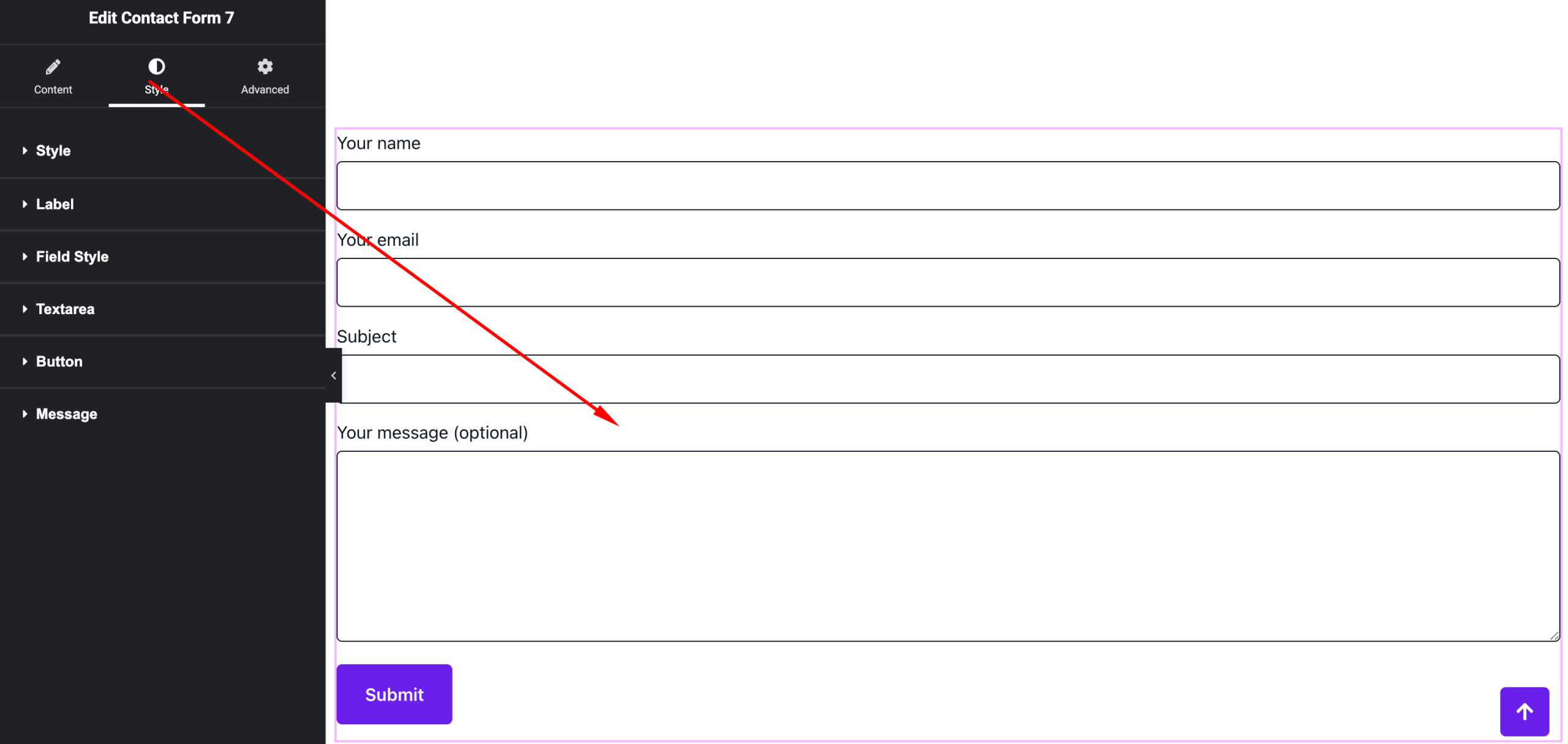
Customize the form appearance.
Available Controls:
- Input Fields – Height, padding, border, background
- Typography – Labels, inputs, and button text
- Text Color – Input and label colors
- Button Styling – Color, background, border, hover effects
- Spacing – Gap between fields
- Messages – Success and error message styling
Advanced Settings
Fine-tune layout and responsiveness.
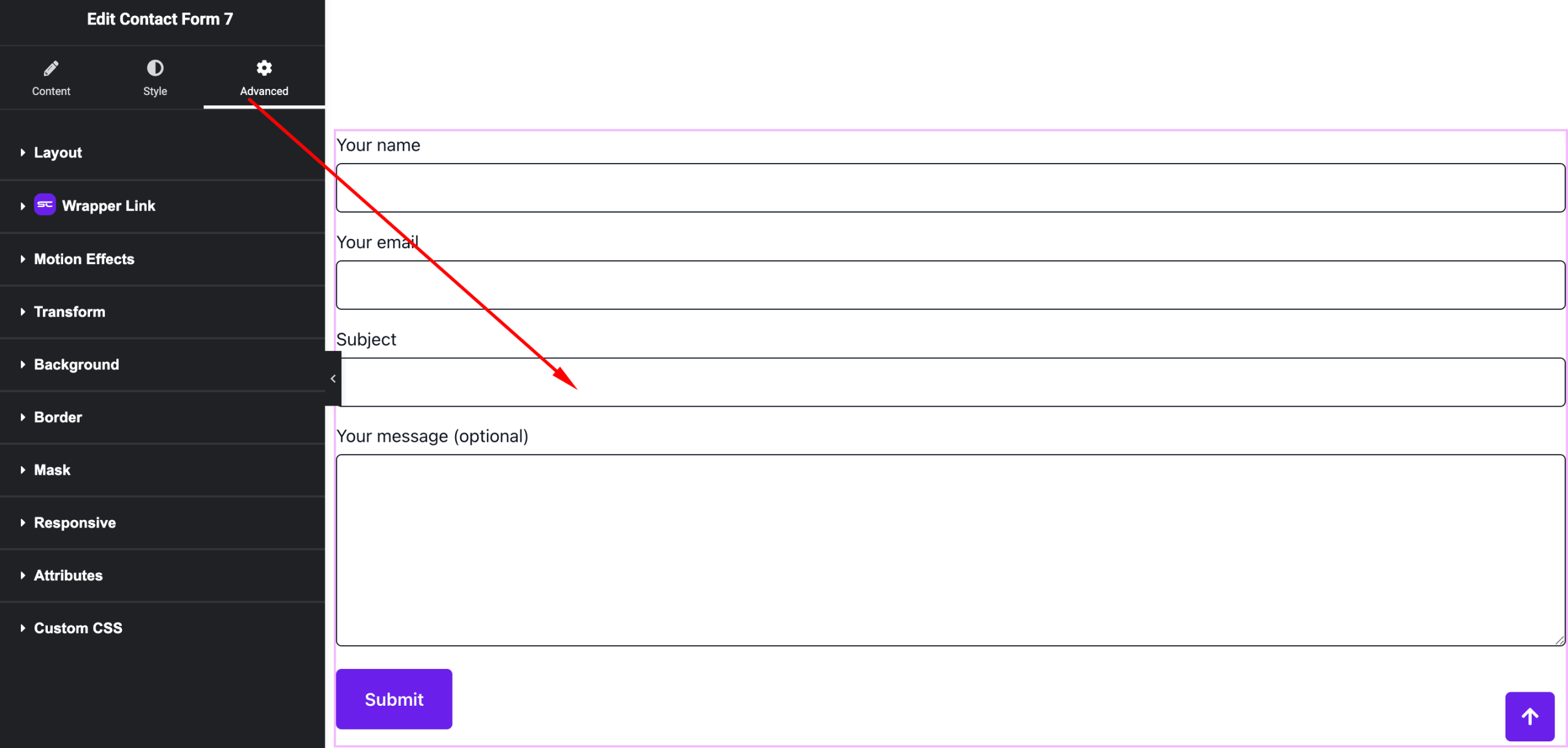
Includes:
- Margin & padding
- Responsive visibility
- Motion effects
- Positioning
- Background & border
Use Cases
Perfect for:
- Contact forms
- Inquiry forms
- Support forms
- Newsletter signups
Result
You can now display and fully customize your forms using the SiteCraft Contact Form 7 Widget, ensuring a consistent design across your website.