
Overview
The Post Featured Image widget in SiteCraft dynamically displays the featured image of a post or custom post type. It is commonly used in single and archive templates to visually represent content with flexible styling options.
Key Features
- Dynamic featured image display
- Works with posts and custom post types
- Image size control (thumbnail, medium, large, full)
- Alignment and positioning options
- Optional link to post (if available)
- Border radius and styling controls
- Fully responsive design
Requirements
- Ensure a featured image is set for your posts
- Can be used in Single and Archive Templates
How to Enable the Widget
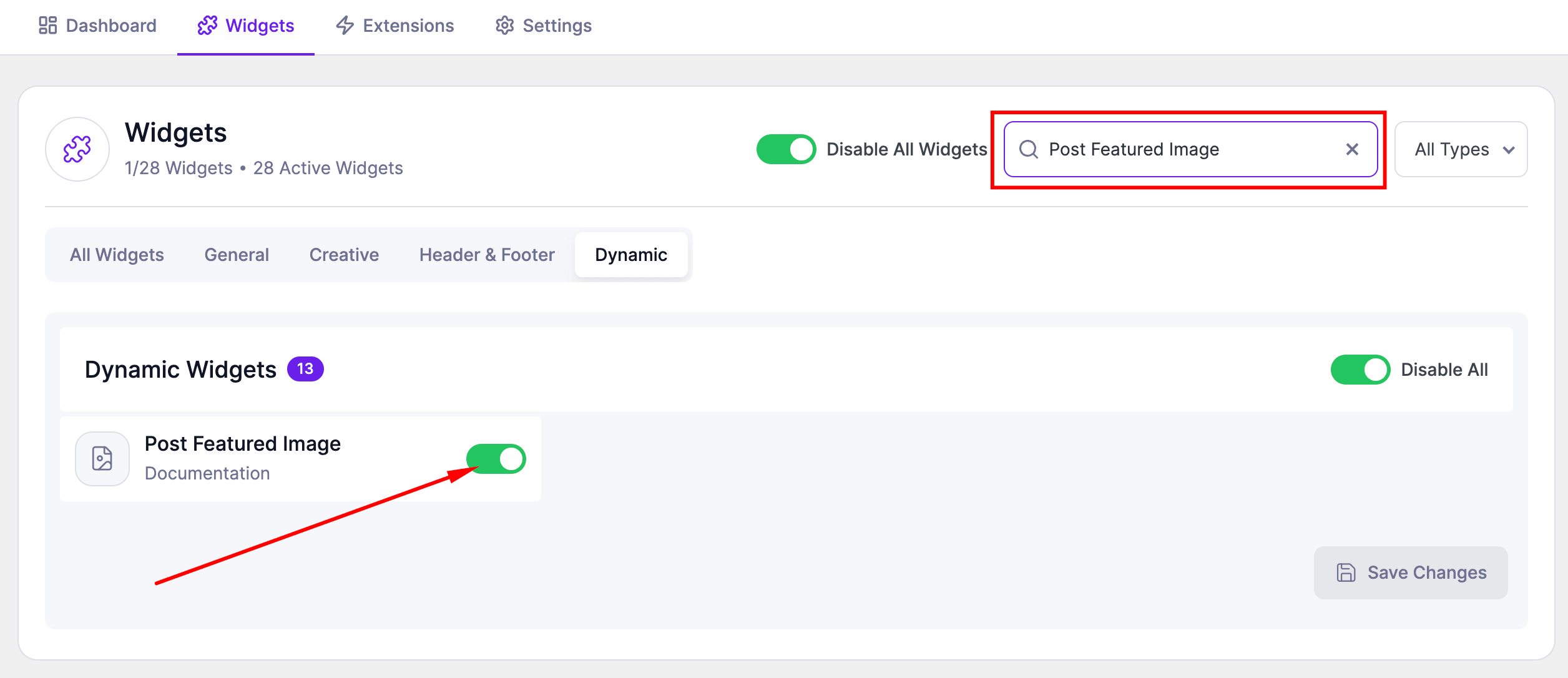
Before using the Post Featured Image widget, make sure it is enabled.
Steps:
- Go to SiteCraft → Dashboard → Widgets
- Find Post Featured Image Widget
- Toggle to enable it
- Click Save Changes
How to Add the Widget in Elementor
- Open your template (Single or Archive) with Elementor
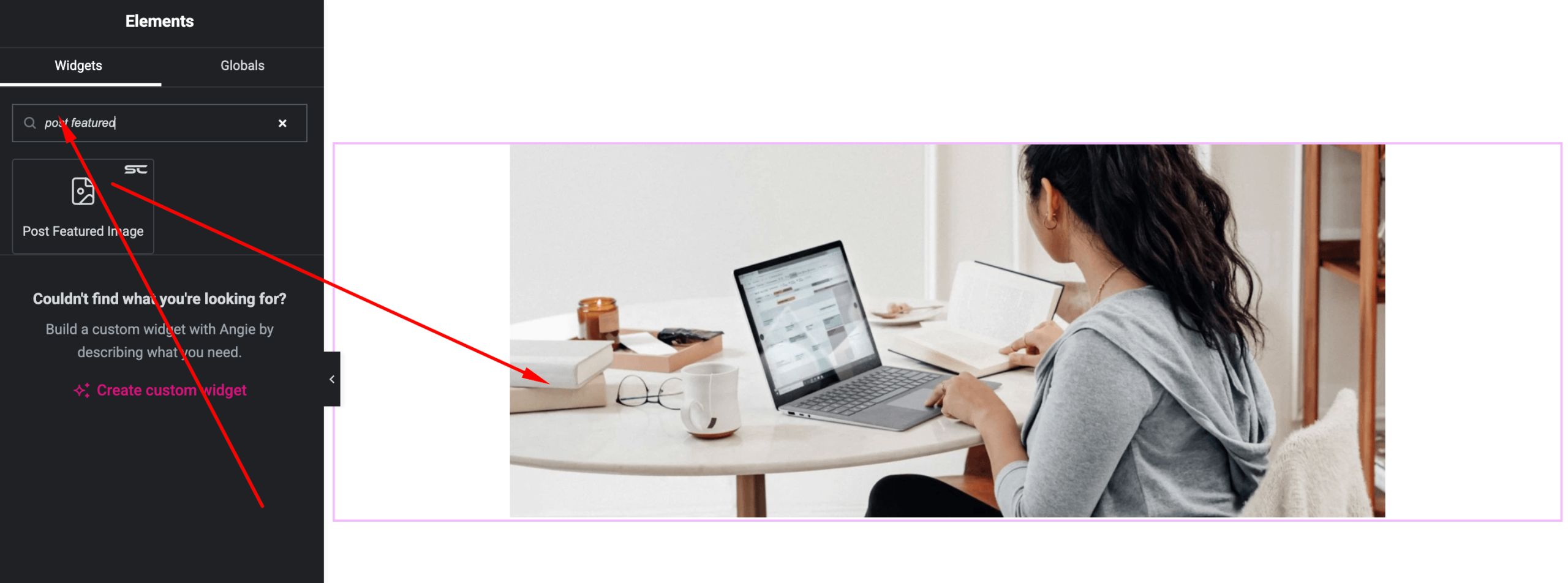
- Search for “Post Featured Image” under SiteCraft widgets
- Drag and drop it into your layout
- Adjust size and styling
Content Settings
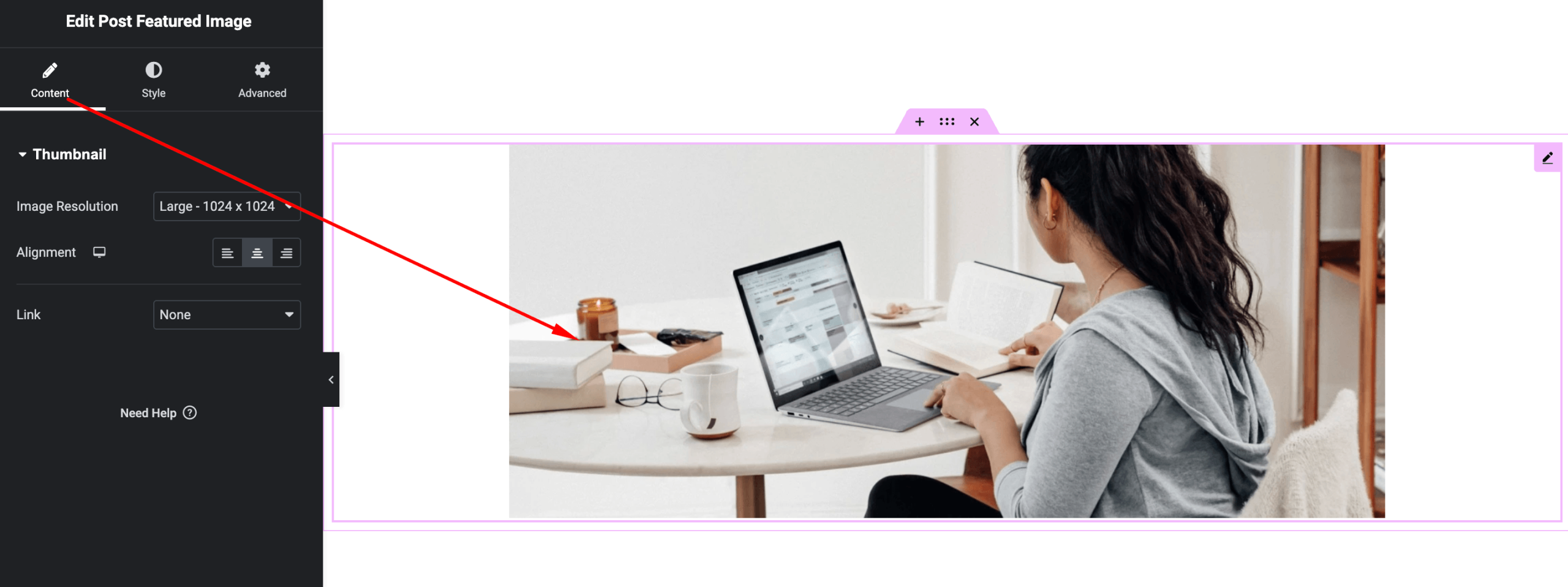
Control how the featured image is displayed.
Options:
- Image Source – Dynamic featured image
- Image Size – Thumbnail, Medium, Large, Full
- Link (optional) – Link to post or custom URL
- Alignment – Left, Center, Right
Style Settings
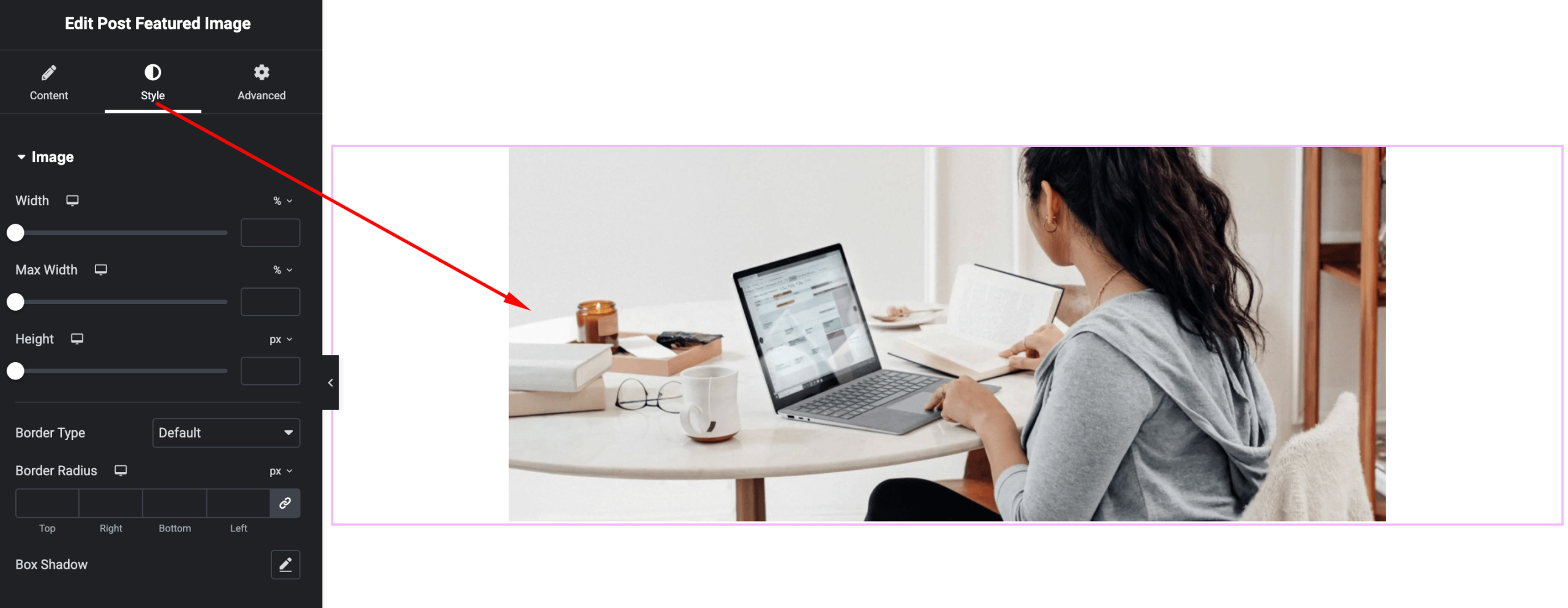
Customize the appearance of the image.
Available Controls:
- Width/Height – Adjust dimensions
- Border Radius – Rounded corners
- Box Shadow – Add depth
- Spacing – Margin and padding
- Hover Effects (if available) – Zoom or overlay
Advanced Settings
Fine-tune layout and responsiveness.
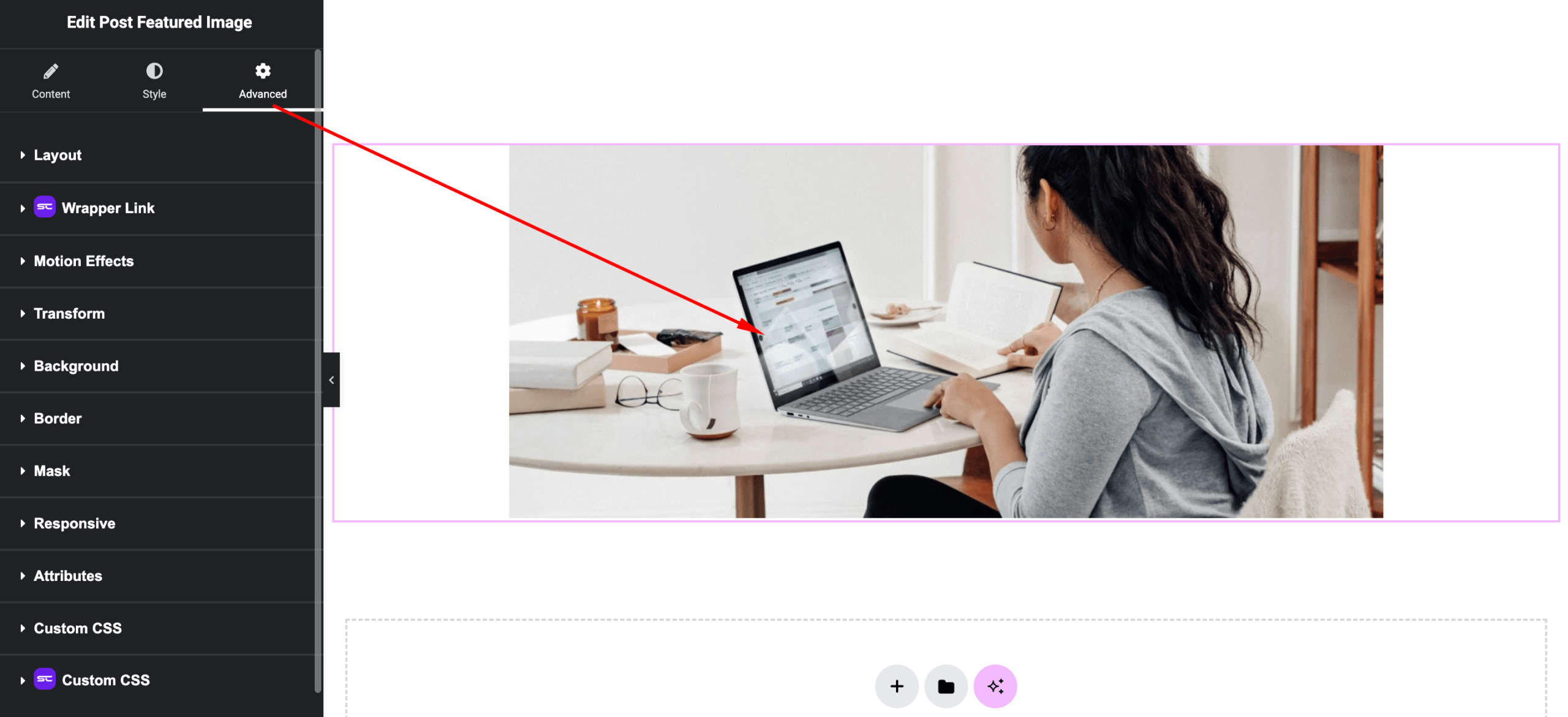
Includes:
- Margin & padding
- Responsive visibility
- Motion effects
- Positioning
- Background & border
Use Cases
Perfect for:
- Blog post headers
- Archive grids
- Featured content sections
- Portfolio showcases
Result
You can now dynamically display and style images using the SiteCraft Post Featured Image Widget, enhancing visual presentation across your website.