
Overview
The Advanced Accordion widget in SiteCraft allows you to organize content into collapsible sections for better readability and user experience. It’s ideal for FAQs, feature lists, or any content that needs to be structured in expandable panels.
Key Features
- Multiple accordion items support
- Expand/collapse functionality
- Option to keep single or multiple items open
- Title and content customization
- Icon support for toggle indicators
- Smooth animations and transitions
- Fully responsive design
How to Enable the Widget
Before using the Advanced Accordion widget, make sure it is enabled.
Steps:
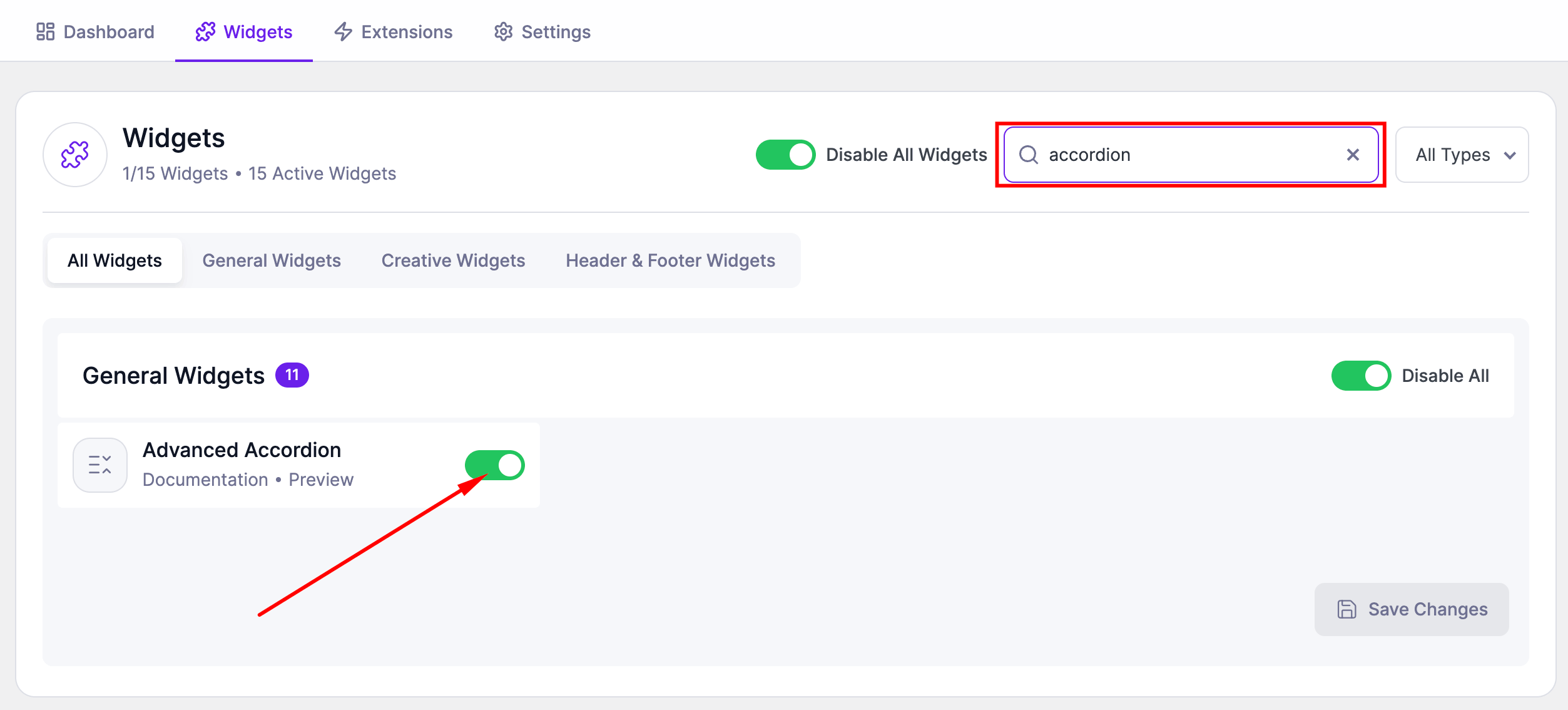
- Go to SiteCraft → Dashboard → Widgets
- Find Advanced Accordion Widget
- Toggle to enable it
- Click Save Changes
How to Add the Widget in Elementor
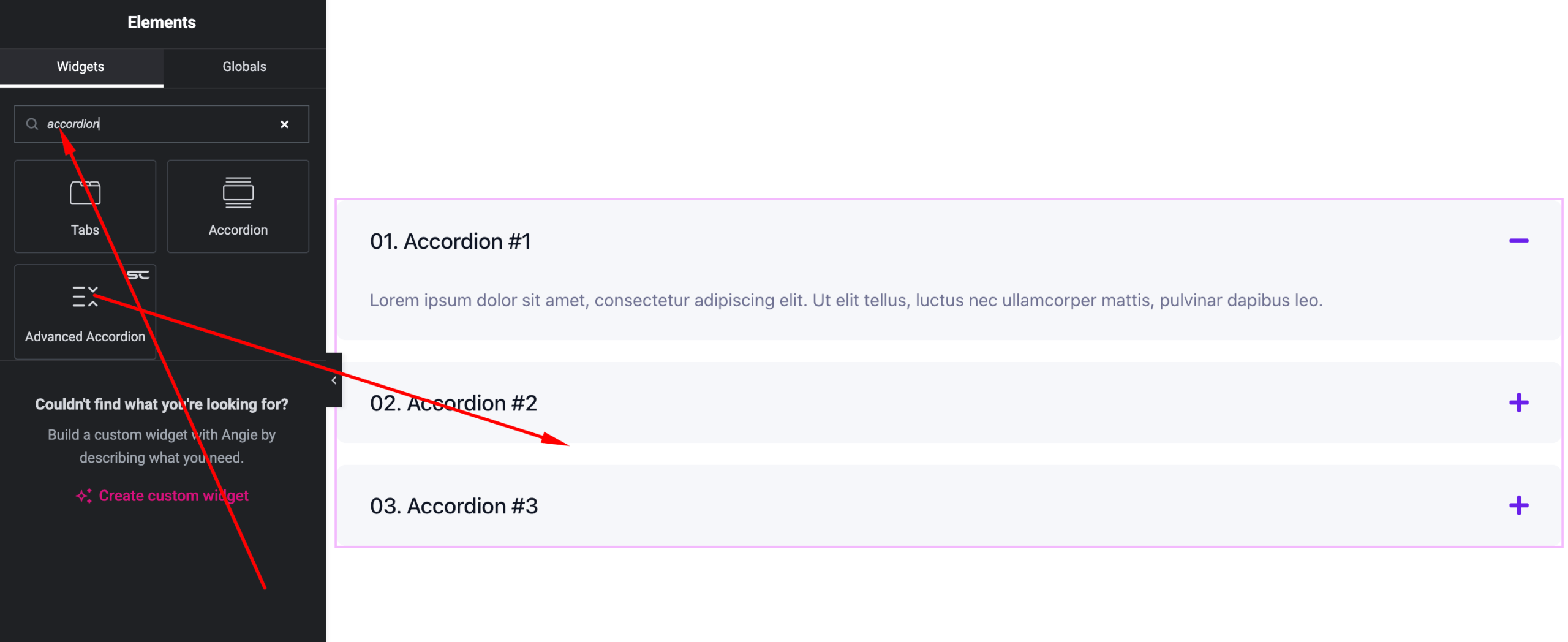
- Open your page with Elementor Editor
- Search for “Advanced Accordion” under SiteCraft widgets
- Drag and drop it into your section
- Add accordion items and start customizing
Content Settings
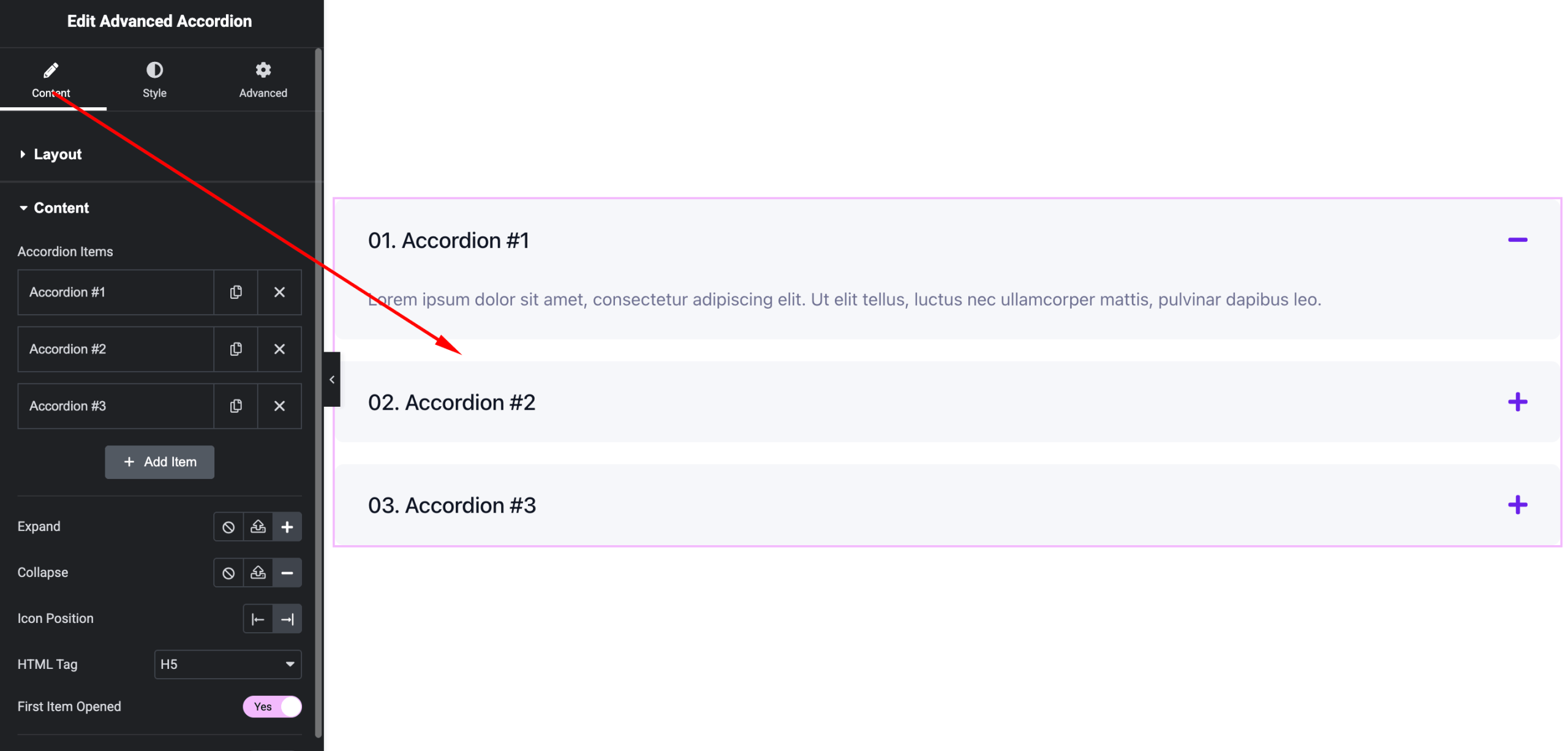
Manage accordion items and behavior.
Options:
- Accordion Items – Add multiple sections
- Title – Accordion heading
- Content – Text or HTML content
- Default Active Item – Set which item opens first
- Toggle Behavior –
- Single open item
- Multiple open items
- Icon – Choose expand/collapse indicator
Style Settings
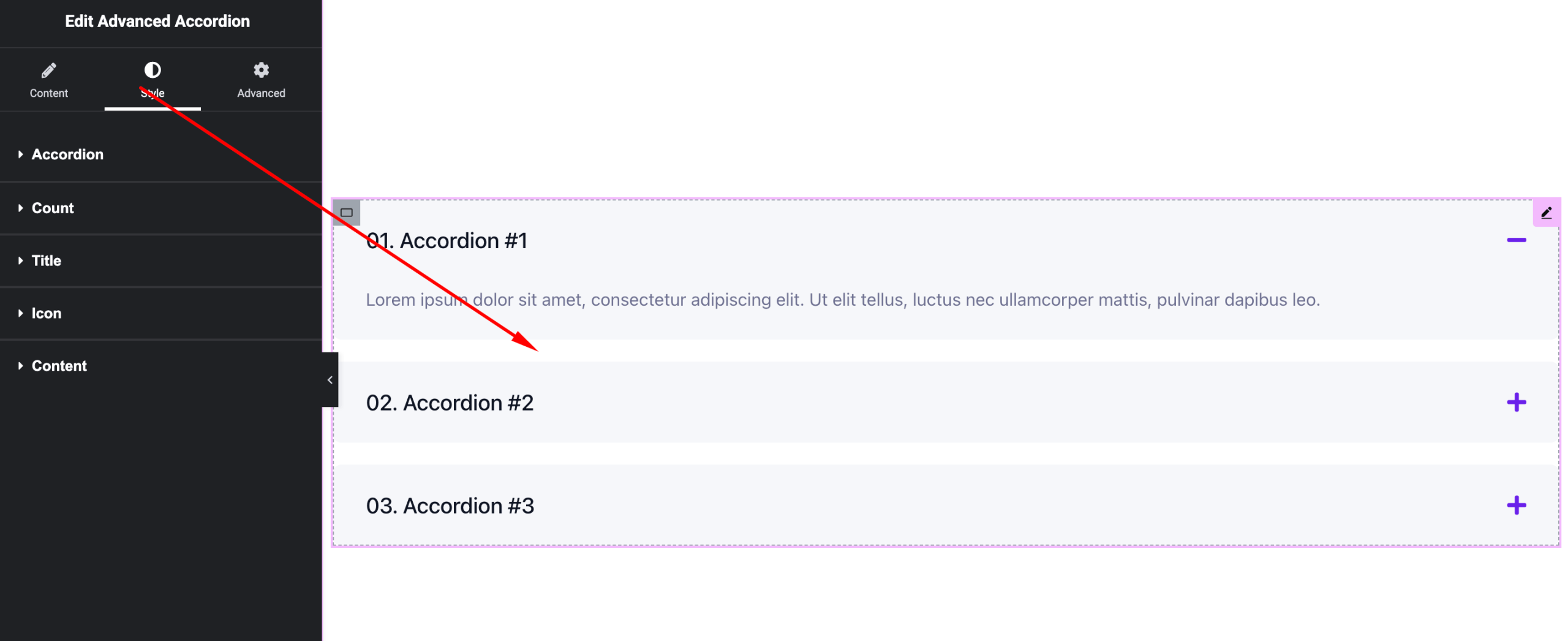
Customize the accordion appearance.
Available Controls:
- Title Typography – Font, size, weight
- Content Typography – Text styling
- Colors – Title, content, background
- Border – Width, style, radius
- Spacing – Gap between items
- Icon Styling – Size, color, position
- Active State Styling – Highlight opened item
Advanced Settings
Fine-tune layout and responsiveness.
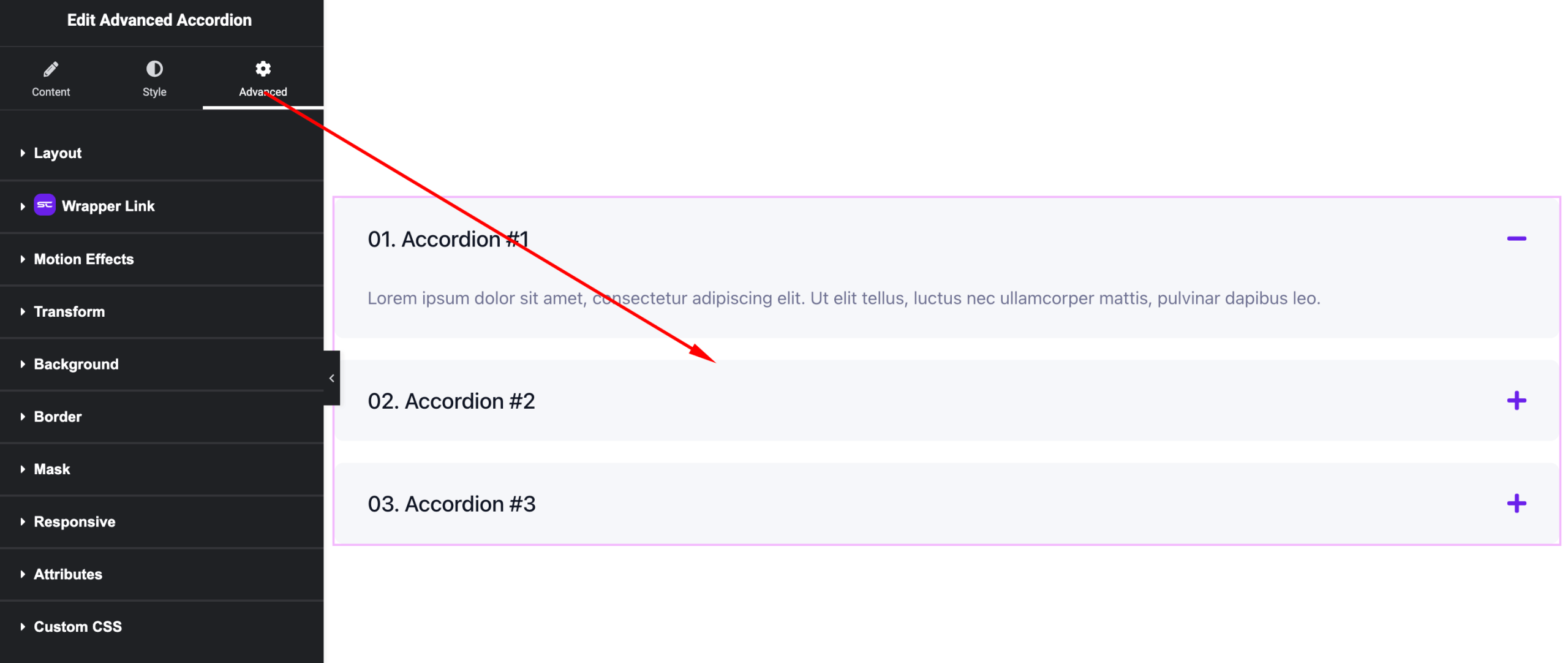
Includes:
- Margin & padding
- Responsive visibility
- Motion effects
- Positioning
- Background & border
Use Cases
Perfect for:
- FAQ sections
- Feature explanations
- Service details
- Help or support content
Result
You can now create structured, user-friendly content sections using the SiteCraft Advanced Accordion Widget, improving readability and interaction.