
Overview
The Search Form widget in SiteCraft allows you to add a customizable search bar to your website. It helps users quickly find posts, pages, or custom content with a clean and responsive search interface.
Key Features
- WordPress native search integration
- Custom search input field styling
- Search button customization
- Icon or text-based button support (if available)
- Placeholder text control
- Alignment options (left, center, right)
- Fully responsive design
How to Enable the Widget
Before using the Search Form widget, make sure it is enabled.
Steps:
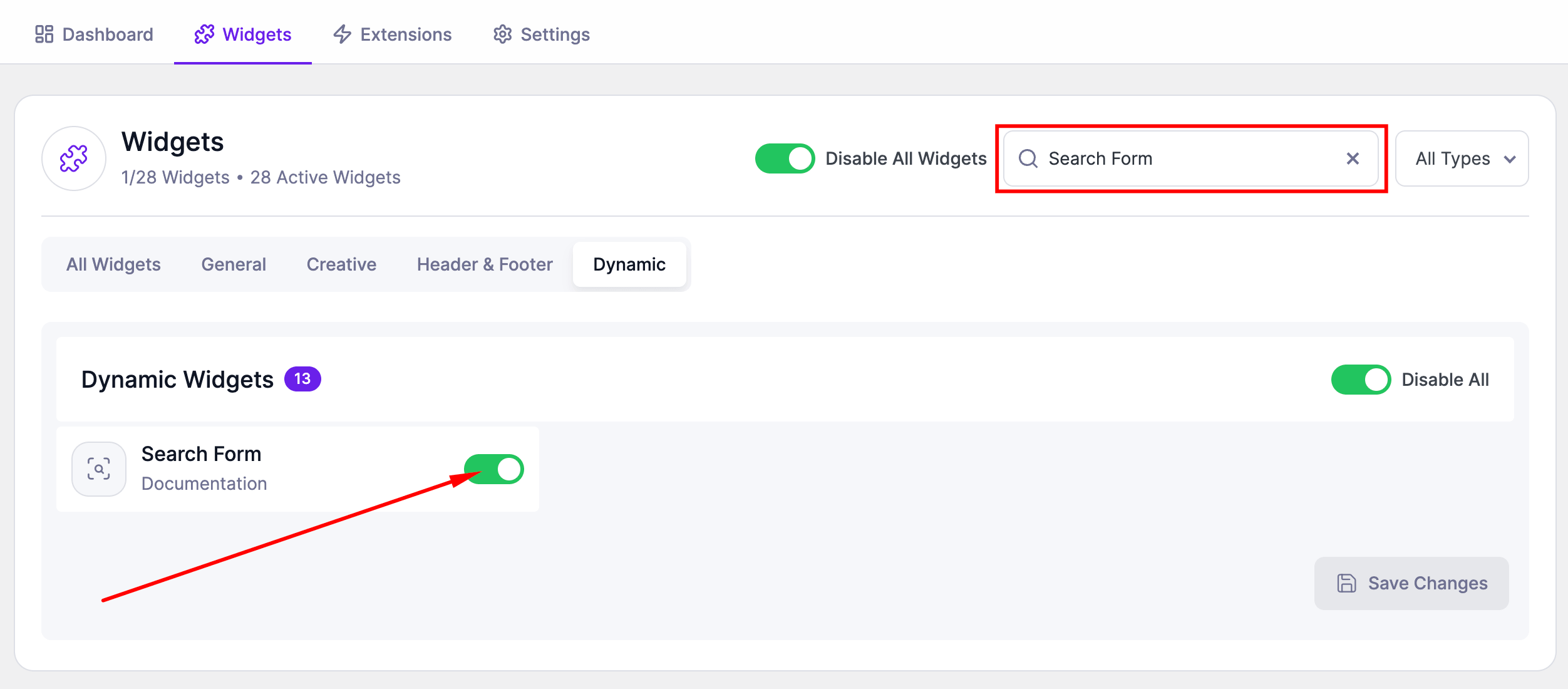
- Go to SiteCraft → Dashboard → Widgets
- Find Search Form Widget
- Toggle to enable it
- Click Save Changes
How to Add the Widget in Elementor
- Open your page with Elementor Editor
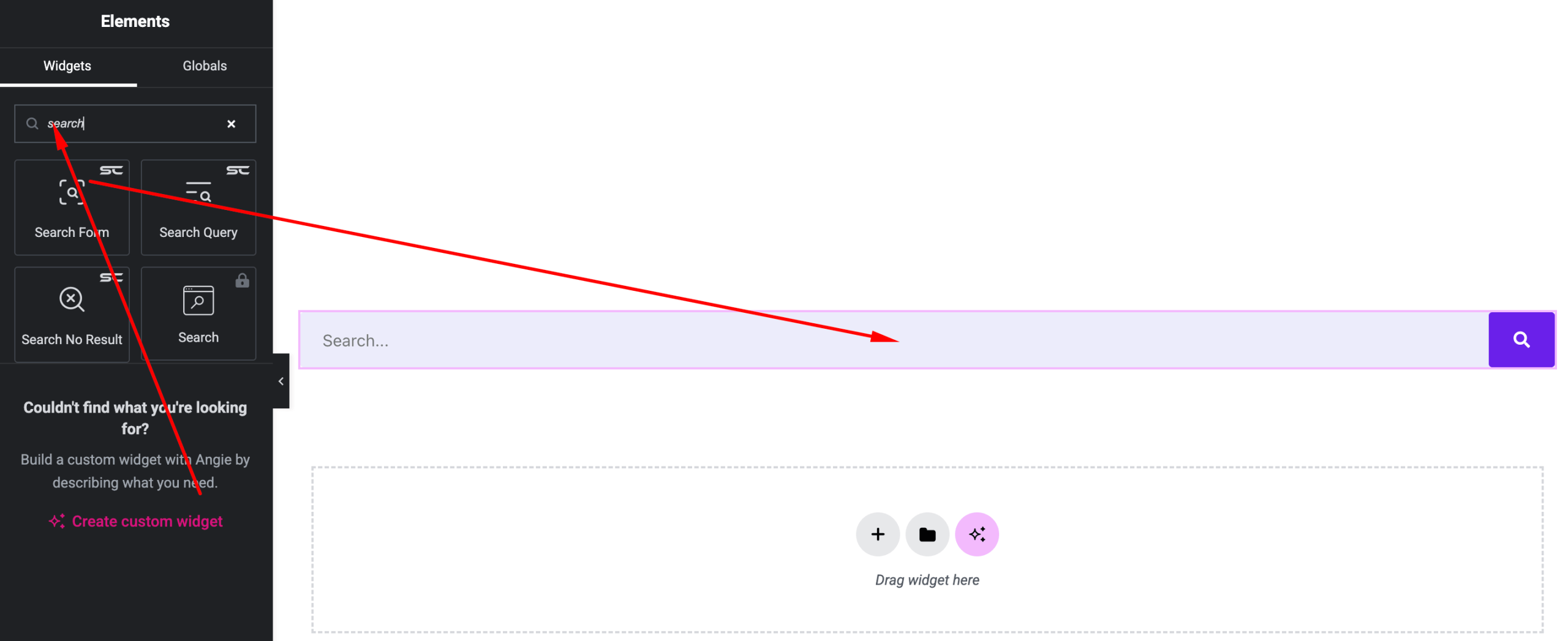
- Search for “Search Form” under SiteCraft widgets
- Drag and drop it into your section
- Customize layout and styling
Content Settings
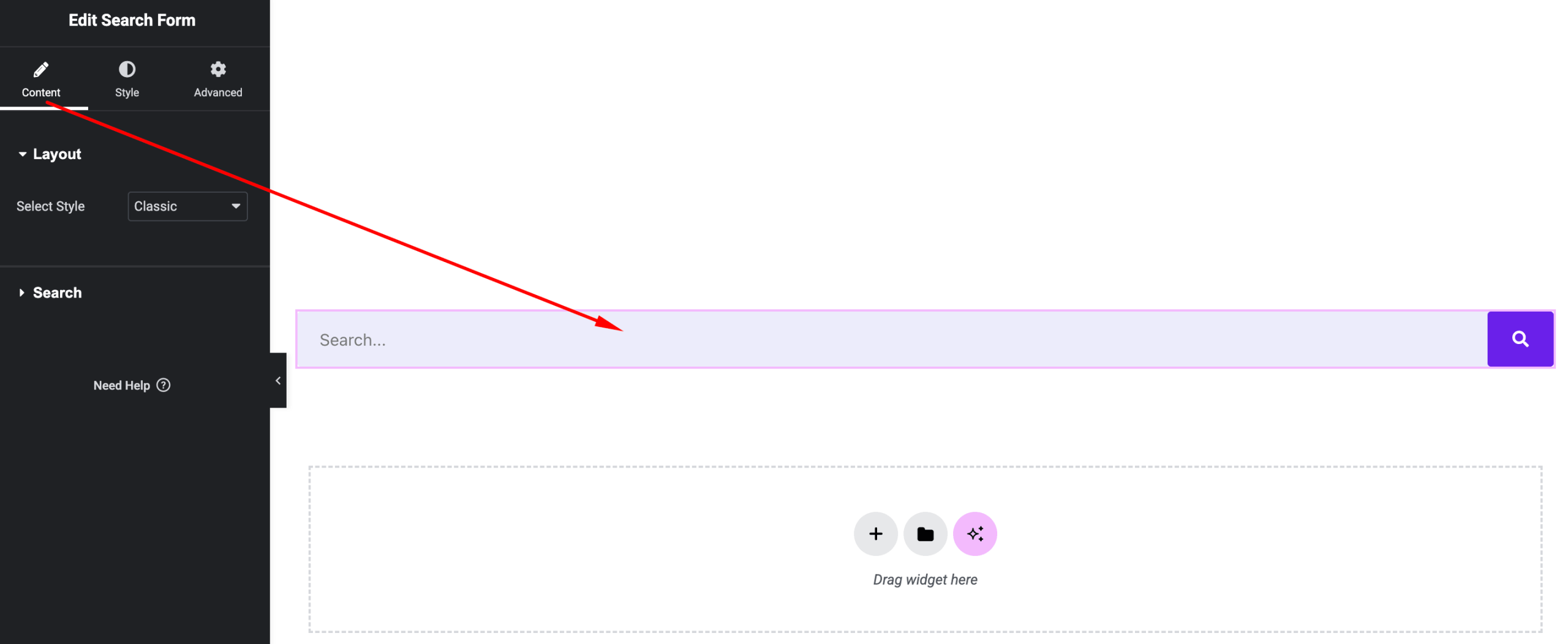
Control search behavior and layout.
Options:
- Placeholder Text – Customize input placeholder
- Search Button – Enable/disable button
- Button Type – Icon or text (if available)
- Alignment – Left, Center, Right
Style Settings
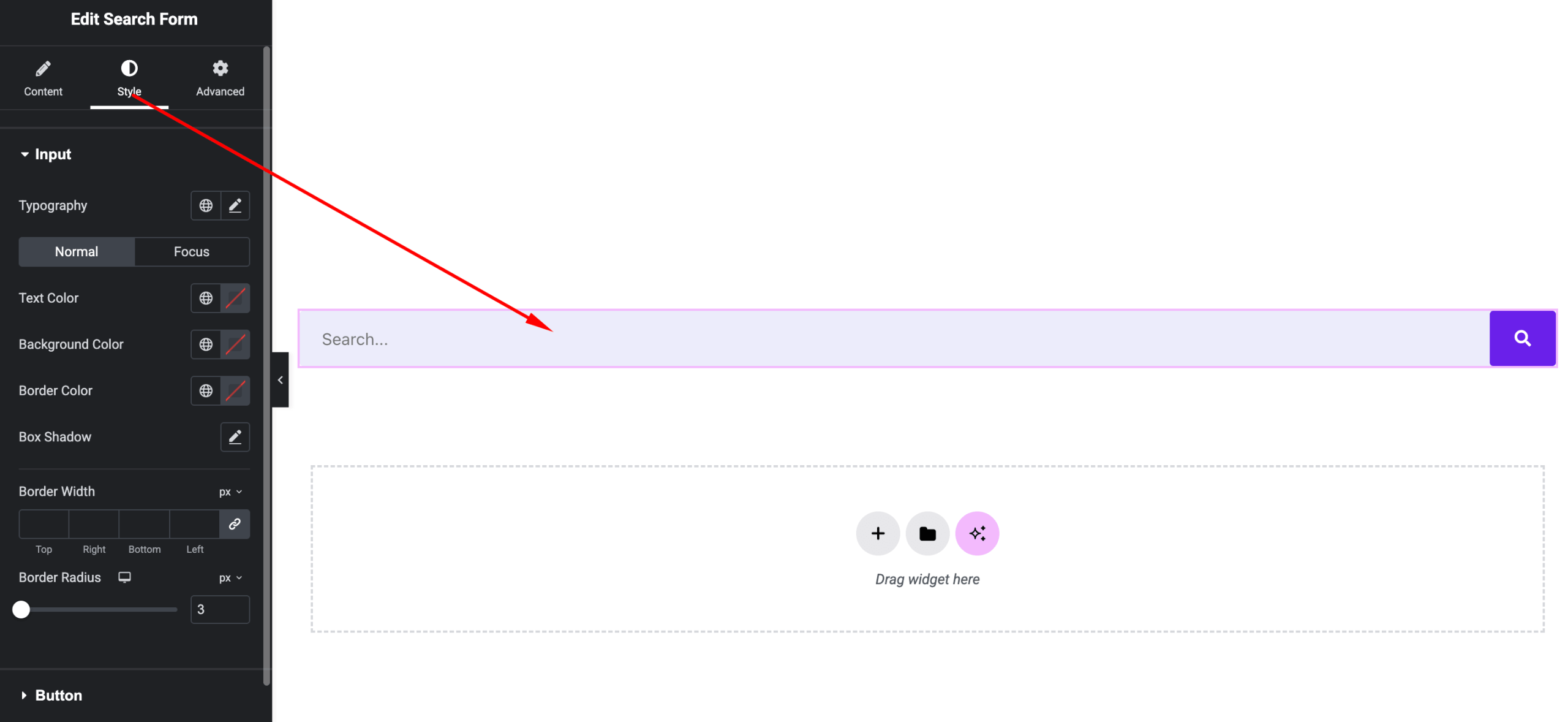
Customize the appearance of the search form.
Available Controls:
- Input Field Styling – Padding, border, background
- Typography – Input and button text styling
- Button Styling – Color, hover effects, border
- Icon Styling (if available) – Size and color
- Spacing – Gap between input and button
- Border Radius – Rounded input/button
Advanced Settings
Fine-tune layout and responsiveness.
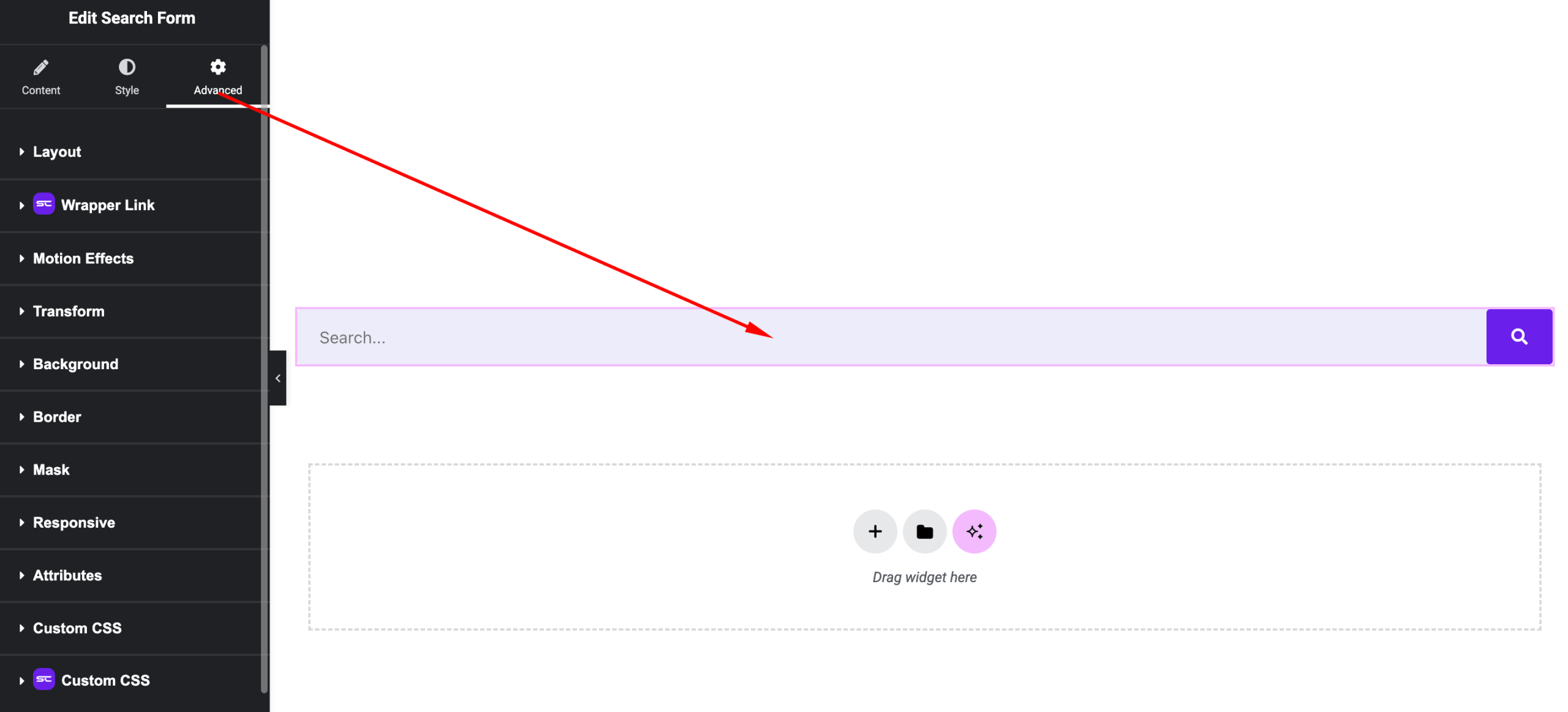
Includes:
- Margin & padding
- Responsive visibility
- Motion effects
- Positioning
- Background & border
Use Cases
Perfect for:
- Blog headers
- Website navigation
- Sidebar search
- Content-heavy websites
Result
You can now add a clean and functional search experience using the SiteCraft Search Form Widget, helping users quickly navigate your content.