
Overview
The Nav Menu widget in SiteCraft allows you to display and customize WordPress menus inside Elementor layouts. It gives you full control over styling, alignment, and responsive behavior to create clean and user-friendly navigation sections.
Key Features
- Display any WordPress menu
- Horizontal and vertical layouts (if available)
- Dropdown (submenu) support
- Alignment control (left, center, right, justified)
- Typography and color customization
- Hover and active state styling
- Responsive menu behavior (mobile-friendly)
- Fully responsive design
Requirements
Create a menu in Appearance → Menus before using this widget.
How to Enable the Widget
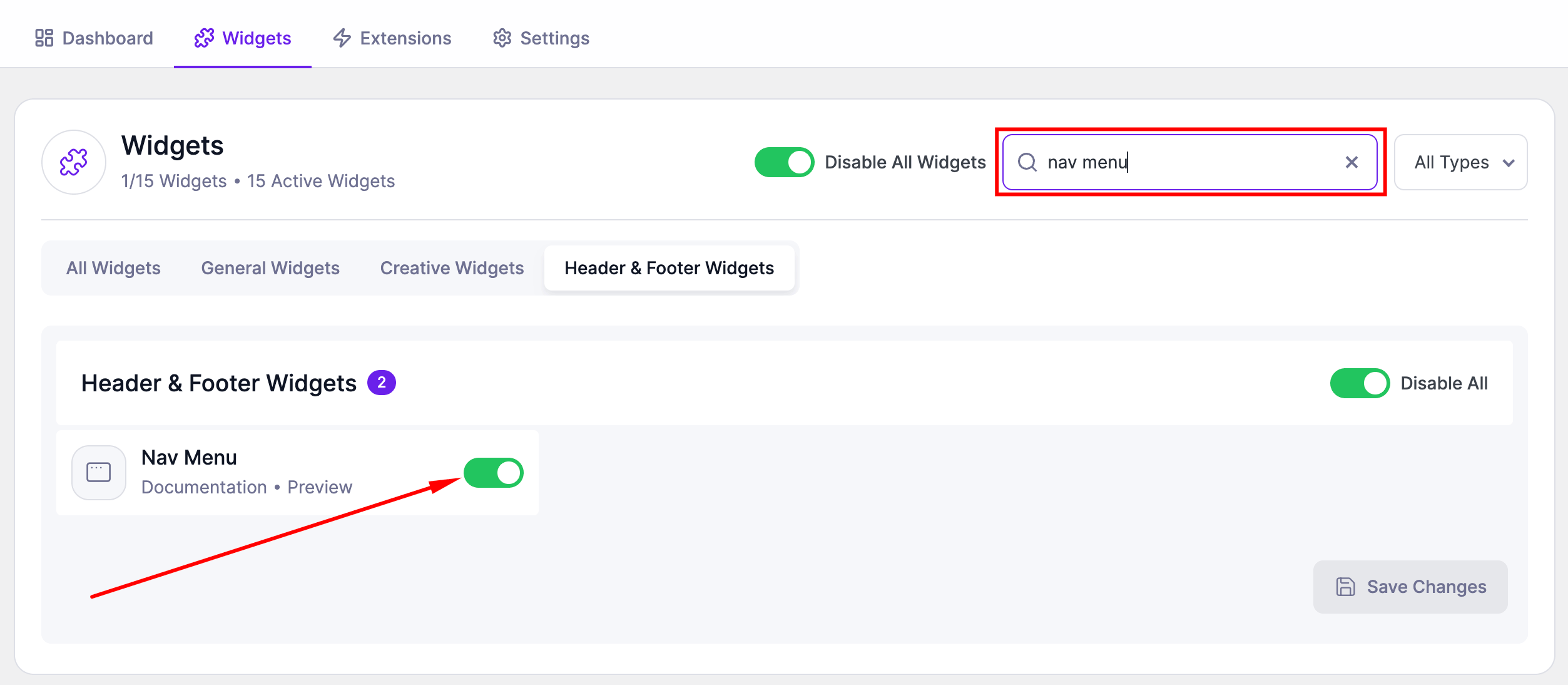
Before using the Nav Menu widget, make sure it is enabled.
Steps:
- Go to SiteCraft → Dashboard → Widgets
- Find Nav Menu Widget
- Toggle to enable it
- Click Save Changes
How to Add the Widget in Elementor
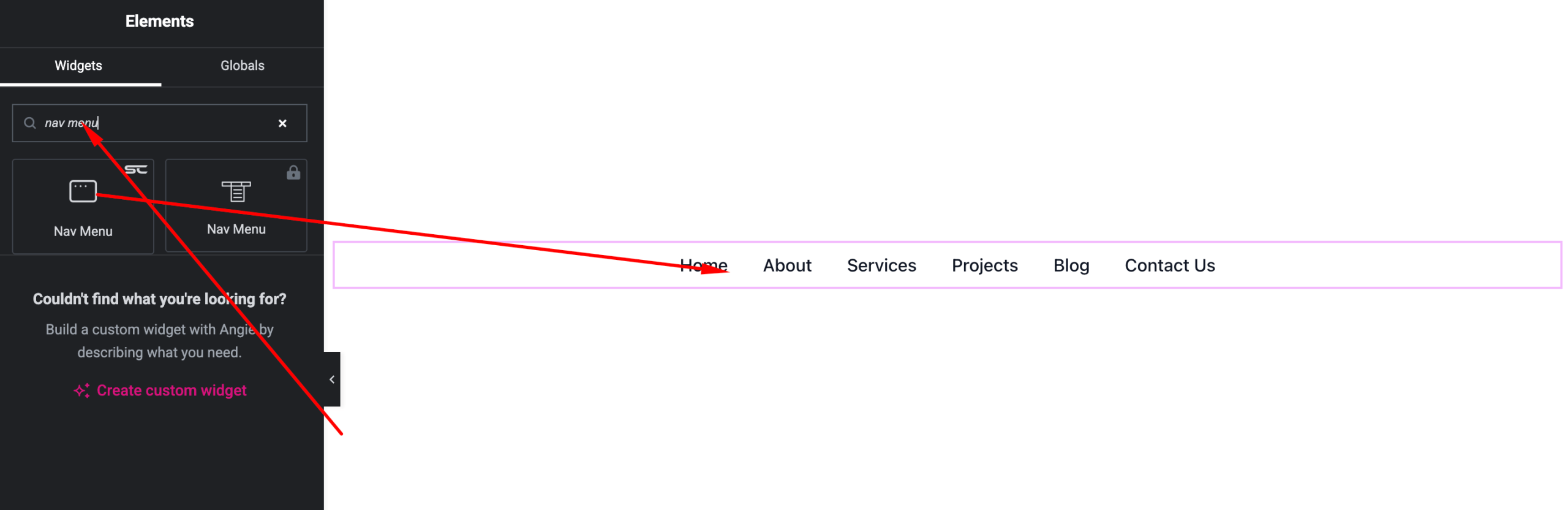
- Open your page with Elementor Editor
- Search for “Nav Menu” under SiteCraft widgets
- Drag and drop it into your section
- Select your menu and customize styles
Content Settings
Select and configure your menu.
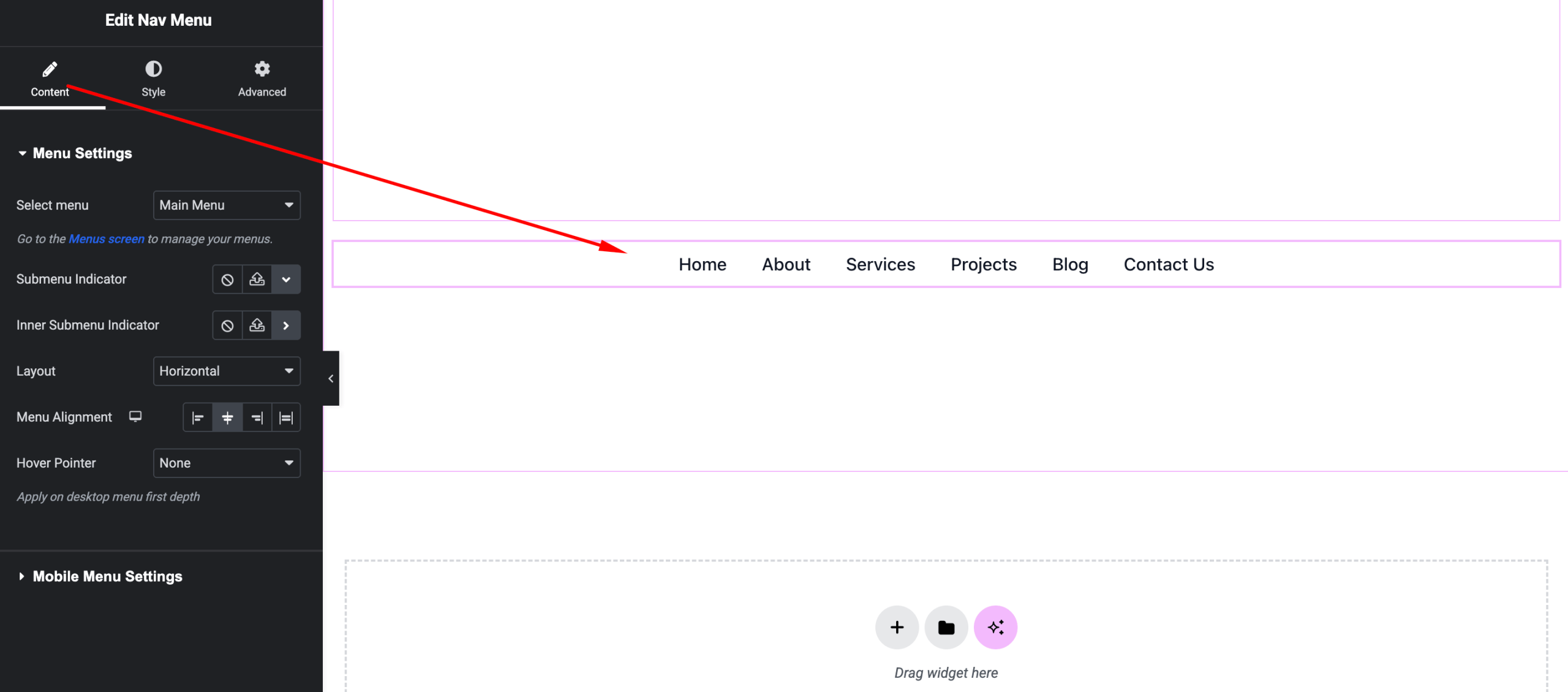
Options:
- Menu – Choose a WordPress menu
- Layout – Horizontal or Vertical (if available)
- Alignment – Left, Center, Right, Justified
- Submenu Indicator – Show/hide dropdown icon
- Mobile Menu (if available) – Toggle or dropdown style
Style Settings
Customize the appearance of the menu.
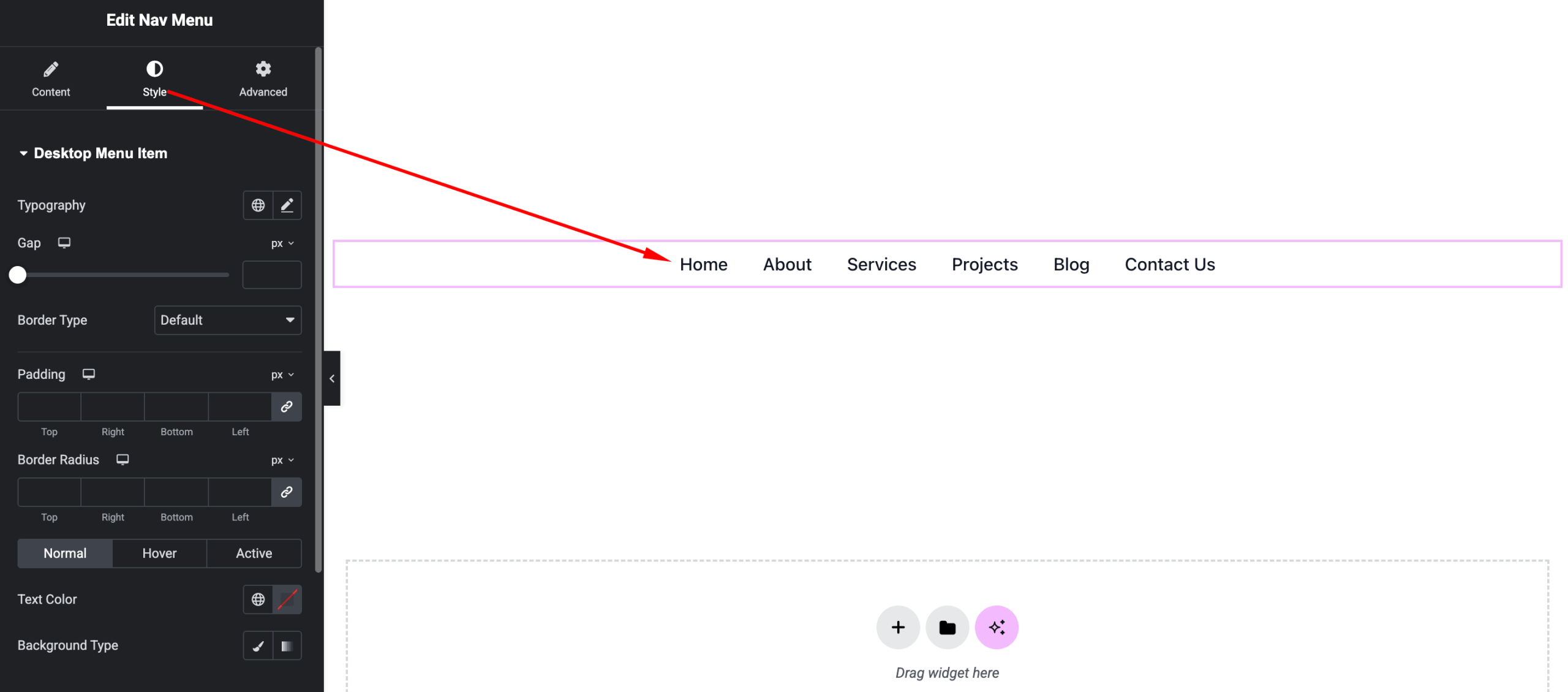
Available Controls:
- Typography – Font, size, weight
- Text Color – Normal, hover, and active states
- Background – Menu and dropdown background
- Spacing – Gap between menu items
- Dropdown Styling – Colors, borders, shadows
- Hover Effects – Animations and transitions
Advanced Settings
Fine-tune layout and responsiveness.
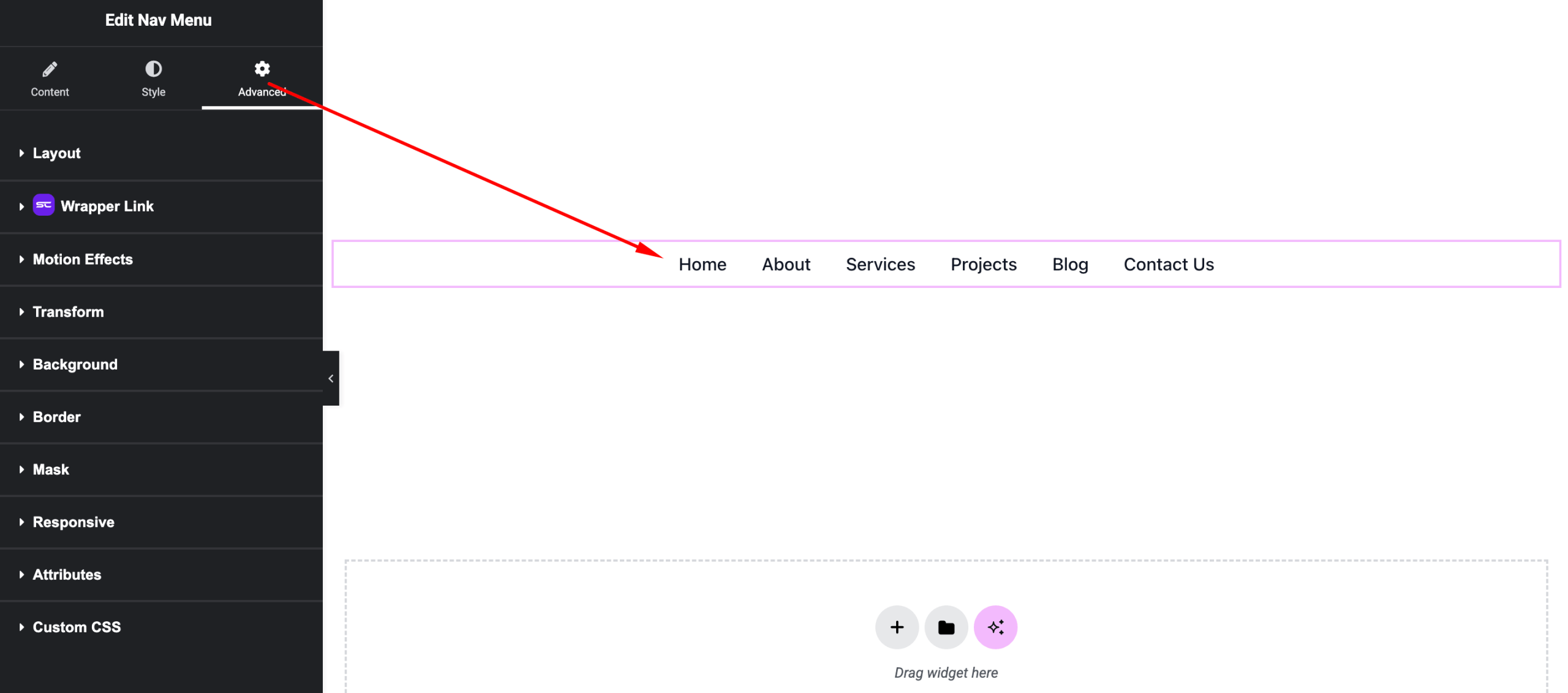
Includes:
- Margin & padding
- Responsive visibility
- Motion effects
- Positioning
- Background & border
Use Cases
Perfect for:
- Website headers
- Navigation bars
- Sidebar menus
- Footer links
Result
You can now create flexible and fully customizable navigation menus using the SiteCraft Nav Menu Widget, improving site usability and structure.