
Overview
The Counter widget in SiteCraft lets you display animated numbers to highlight key statistics and achievements. It’s ideal for showcasing metrics like completed projects, happy clients, or years of experience in a visually engaging way.
Key Features
- Animated number counting effect
- Custom start and end values
- Number prefix and suffix support (e.g., +, %, K)
- Title/label for each counter
- Multiple layout styles (if available)
- Alignment and spacing control
- Smooth animation settings
- Fully responsive design
How to Enable the Widget
Before using the Counter widget, make sure it is enabled.
Steps:
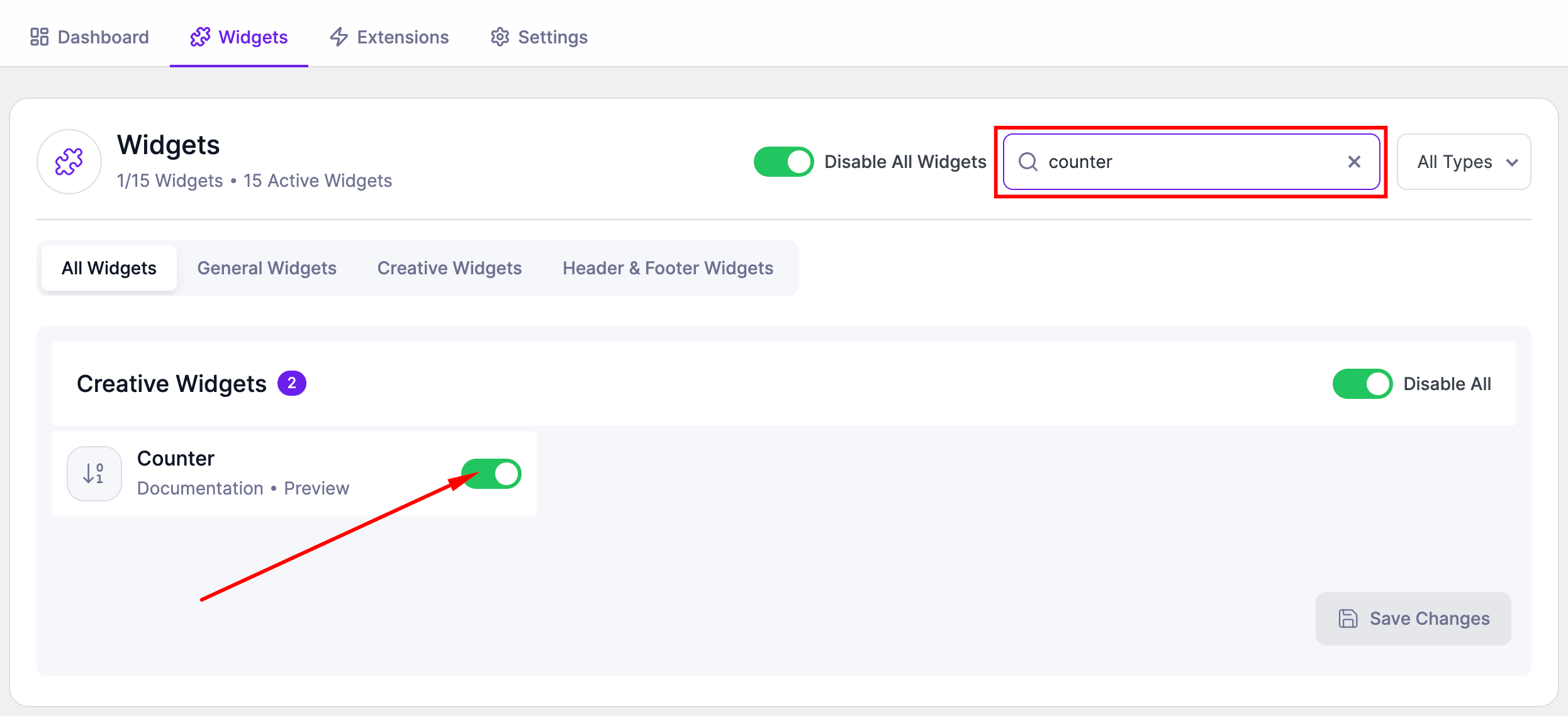
- Go to SiteCraft → Dashboard → Widgets
- Find Counter Widget
- Toggle to enable it
- Click Save Changes
How to Add the Widget in Elementor
- Open your page with Elementor Editor
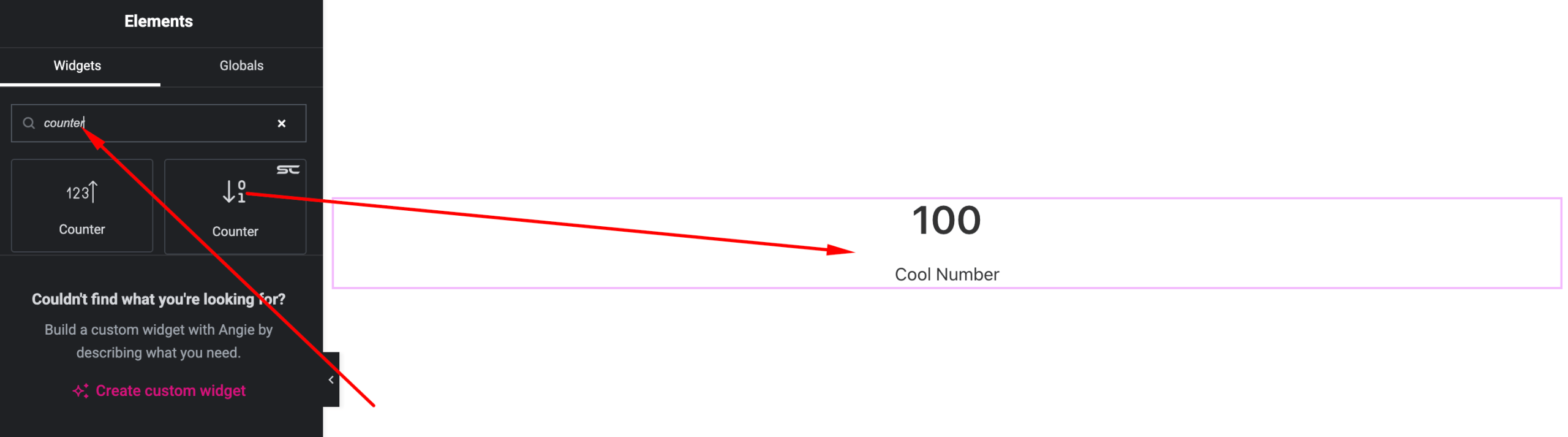
- Search for “Counter” under SiteCraft widgets
- Drag and drop it into your section
- Configure values and customize styles
Content Settings
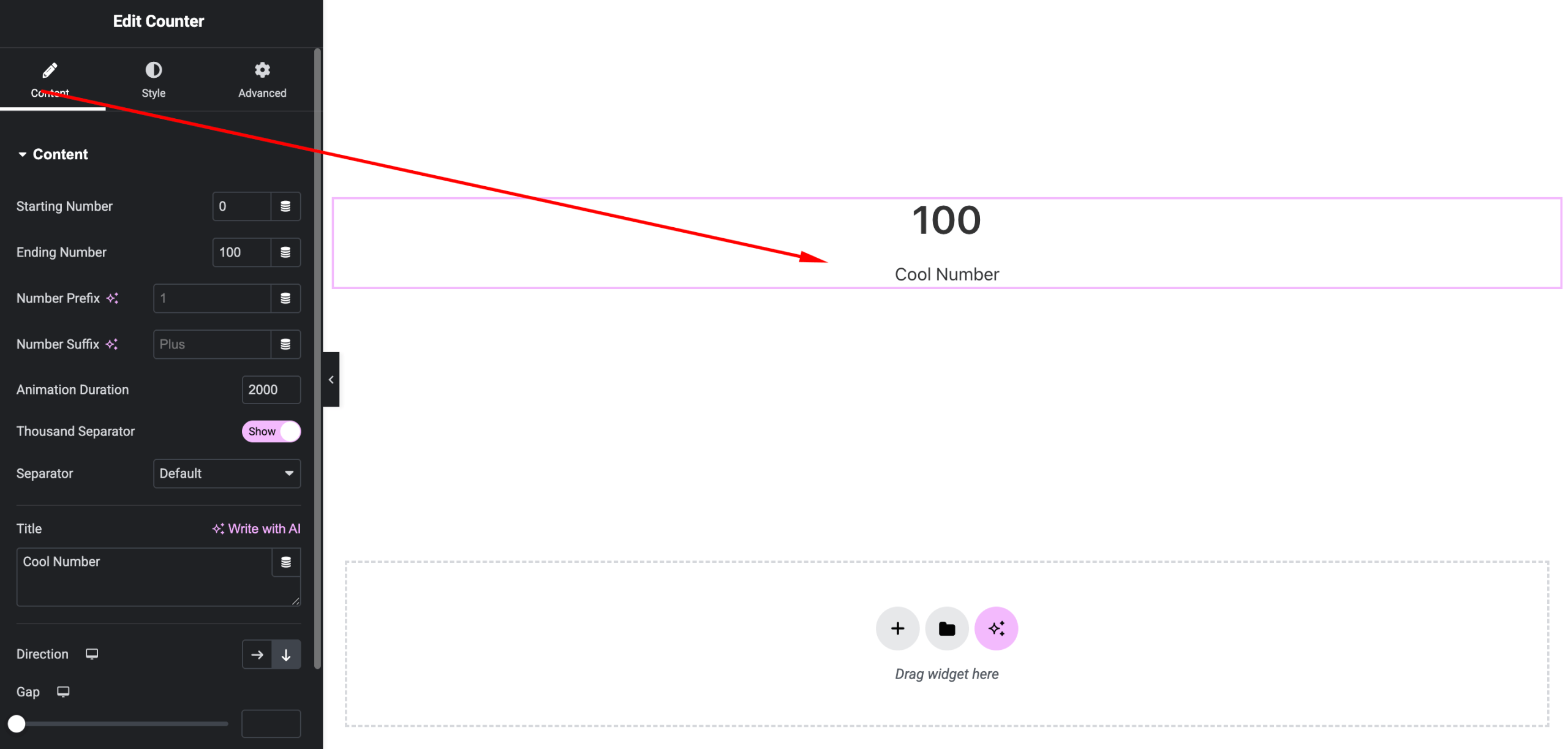
Define the counter values and text.
Options:
- Start Number – Initial value
- End Number – Final value
- Prefix – Text before number (e.g., +, $)
- Suffix – Text after number (e.g., %, K)
- Title – Label below or above the counter
- Duration – Animation speed
- Alignment – Left, Center, Right
Style Settings
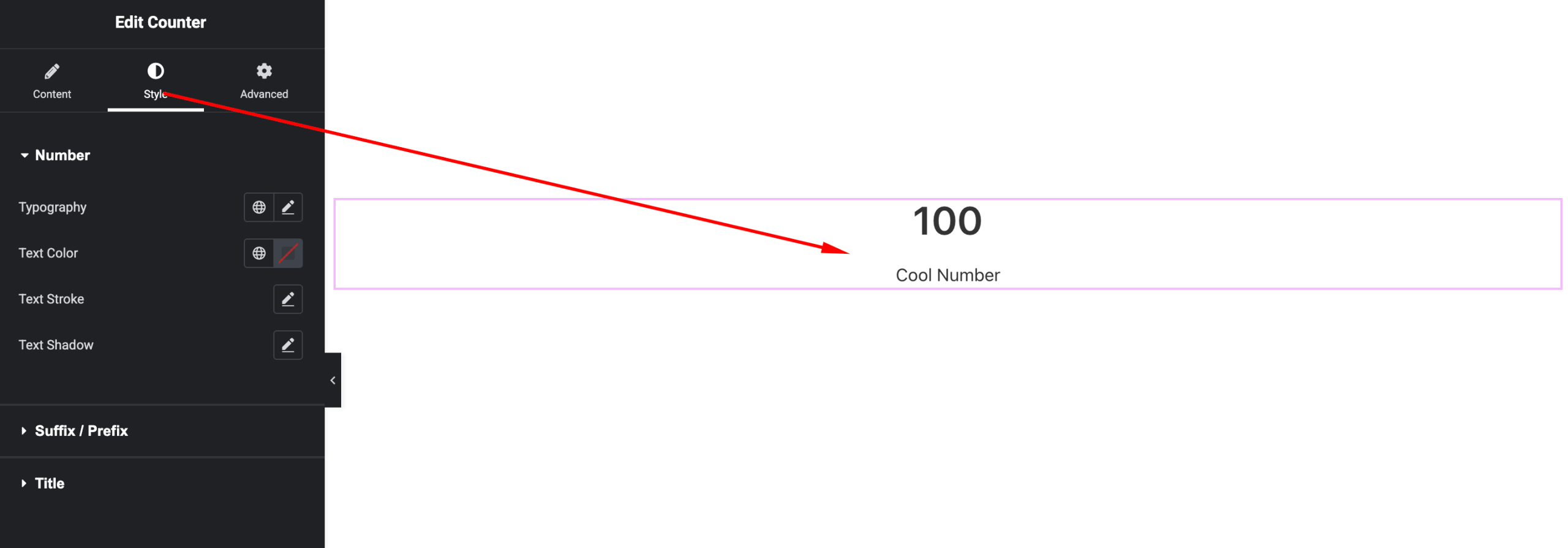
Customize the visual appearance.
Available Controls:
- Number Typography – Font, size, weight
- Title Typography – Styling for label
- Text Color – Number and title colors
- Spacing – Gap between number and title
- Box Styling – Background, padding, border, shadow
- Hover Effects (if available)
Advanced Settings
Fine-tune layout and responsiveness.
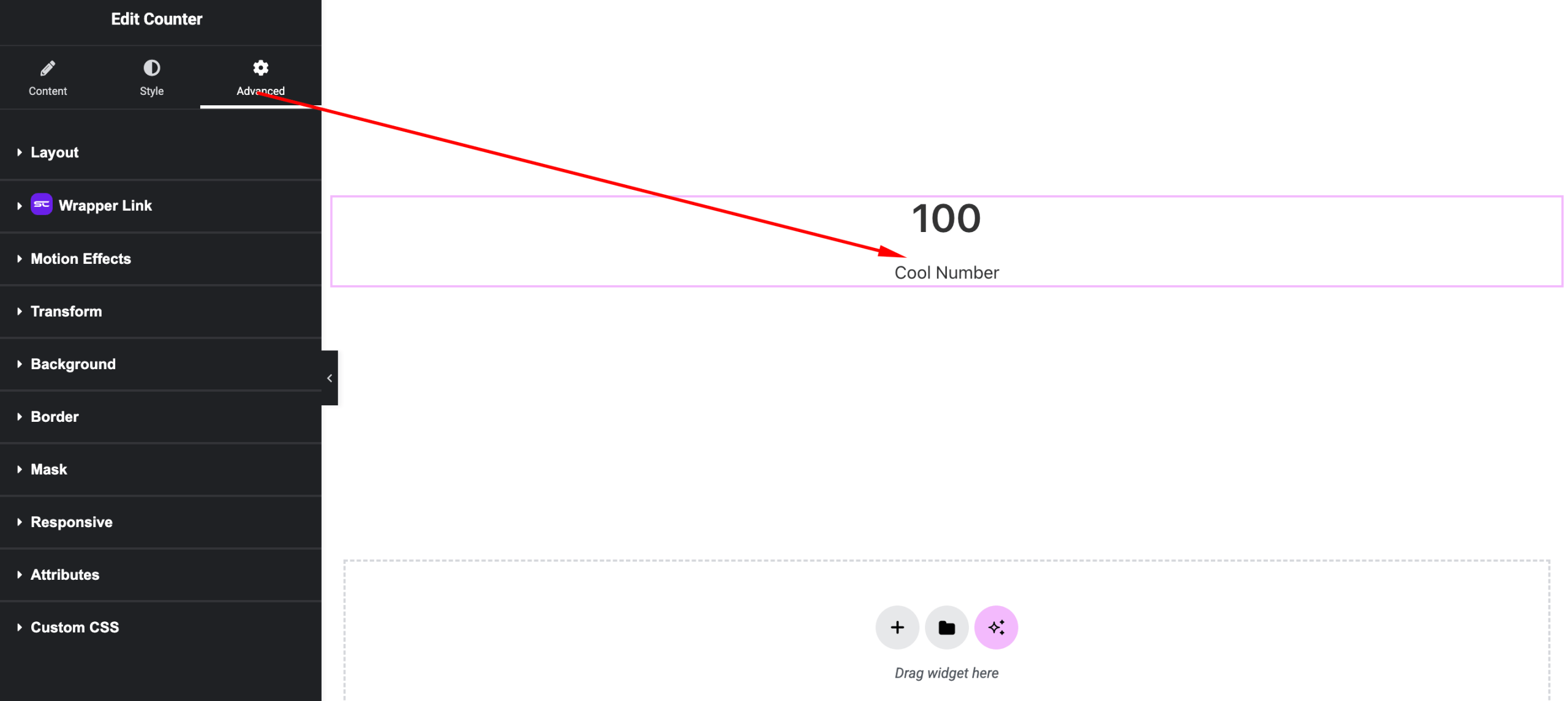
Includes:
- Margin & padding
- Responsive visibility
- Motion effects
- Positioning
- Background & border
Use Cases
Perfect for:
- Business statistics
- Achievement highlights
- Company milestones
- Data-driven sections
Result
You can now create engaging, animated statistics using the SiteCraft Counter Widget, helping highlight important numbers in a visually appealing way.