
Overview
The Search Query widget in SiteCraft dynamically displays search results based on the user’s query. It is designed for search result templates, allowing you to control how posts and content appear after a search is performed.
Key Features
- Dynamic search results display
- Works with posts and custom post types
- Supports keyword-based queries
- Multiple layout options (if available)
- Grid or list display support (if available)
- Customizable no-results message
- Pagination support (if available)
- Fully responsive design
Requirements
Use this widget inside a Search Results Template.
How to Enable the Widget
Before using the Search Query widget, make sure it is enabled.
Steps:
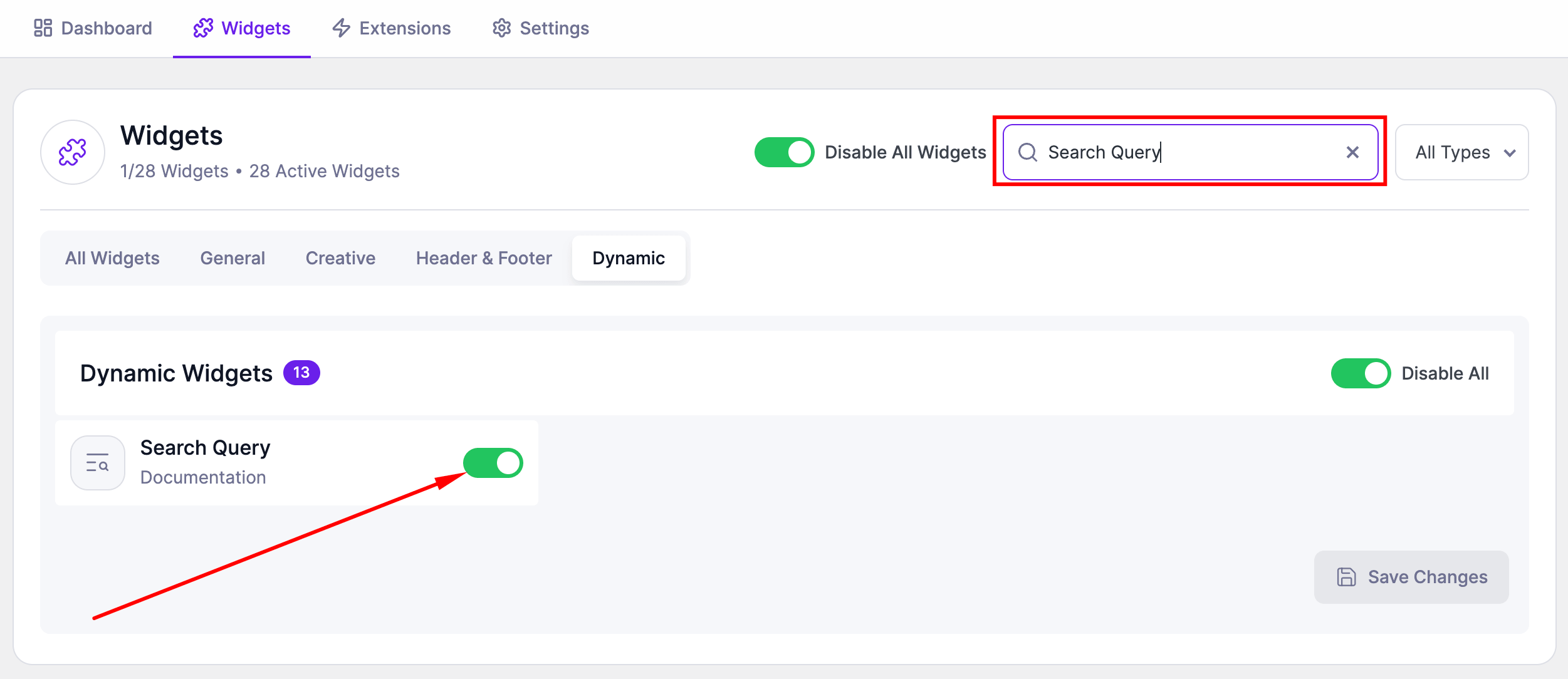
- Go to SiteCraft → Dashboard → Widgets
- Find Search Query Widget
- Toggle to enable it
- Click Save Changes
How to Add the Widget in Elementor
- Open your Search Results Template with Elementor
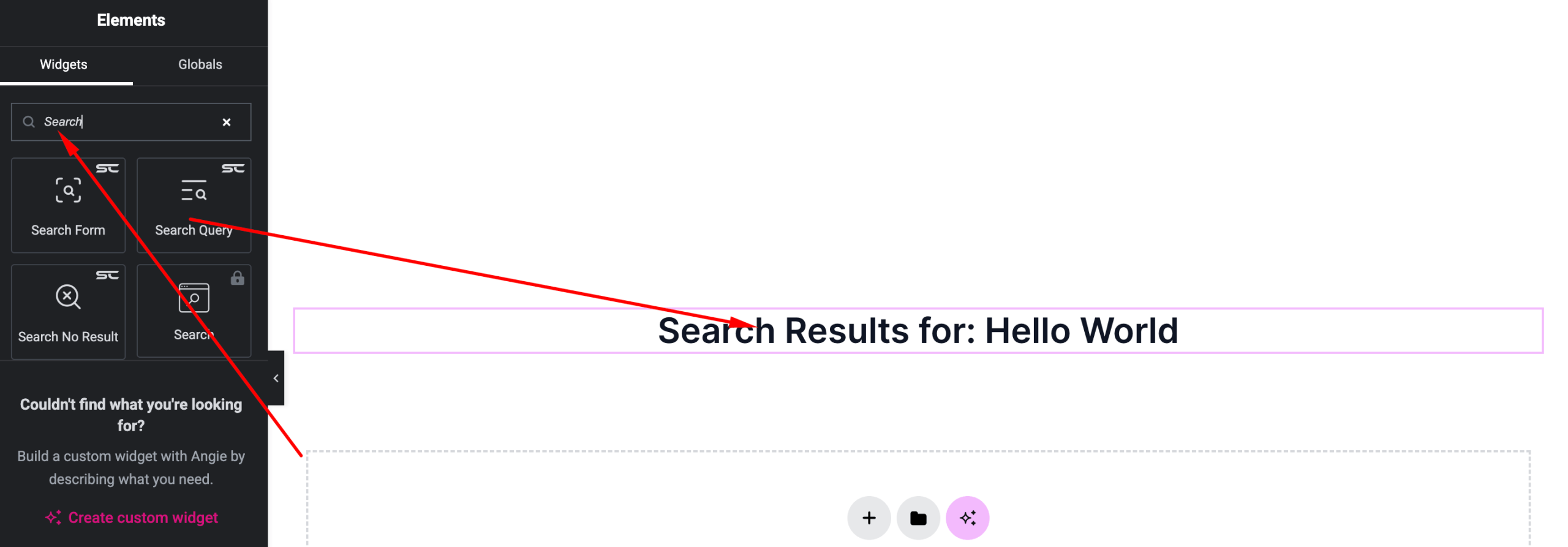
- Search for “Search Query” under SiteCraft widgets
- Drag and drop it into your layout
- Configure layout and display settings
Content Settings
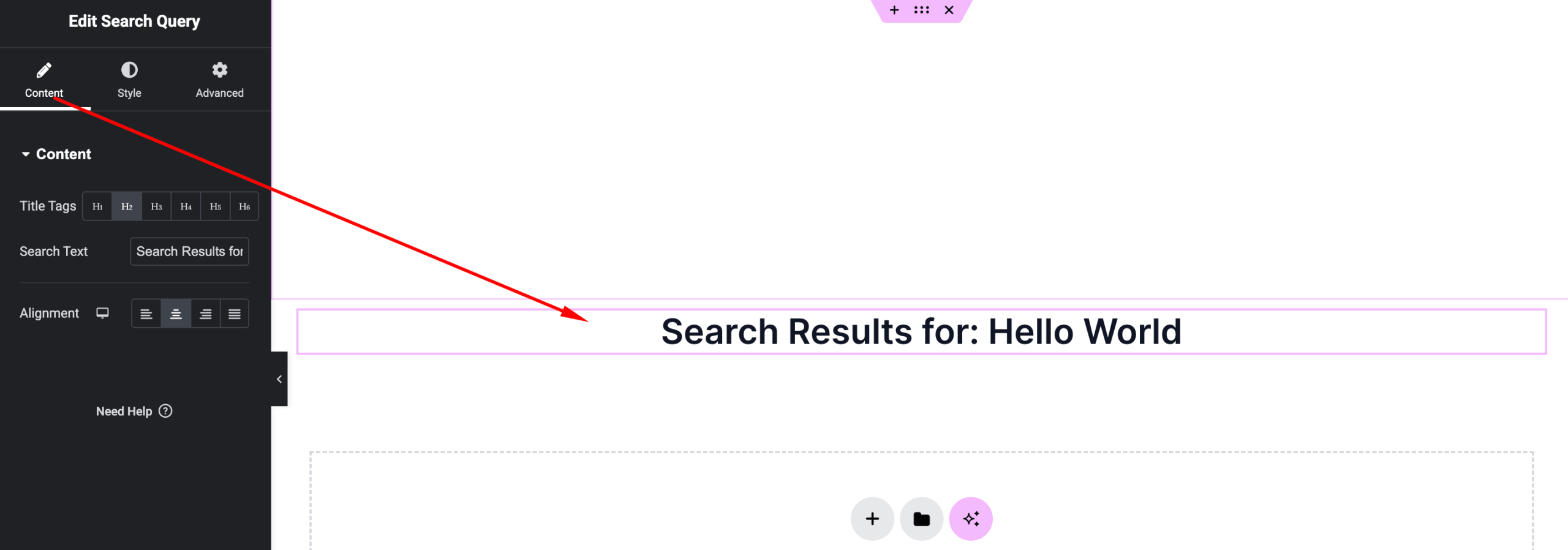
Control how search results are displayed.
Options:
- Query Source – Dynamic search results
- Post Type – Posts or custom post types (if available)
- Layout – Grid or list (if available)
- Posts Per Page – Number of results to show
- No Results Message – Custom text when nothing is found
- Pagination – Enable/disable navigation (if available)
Style Settings
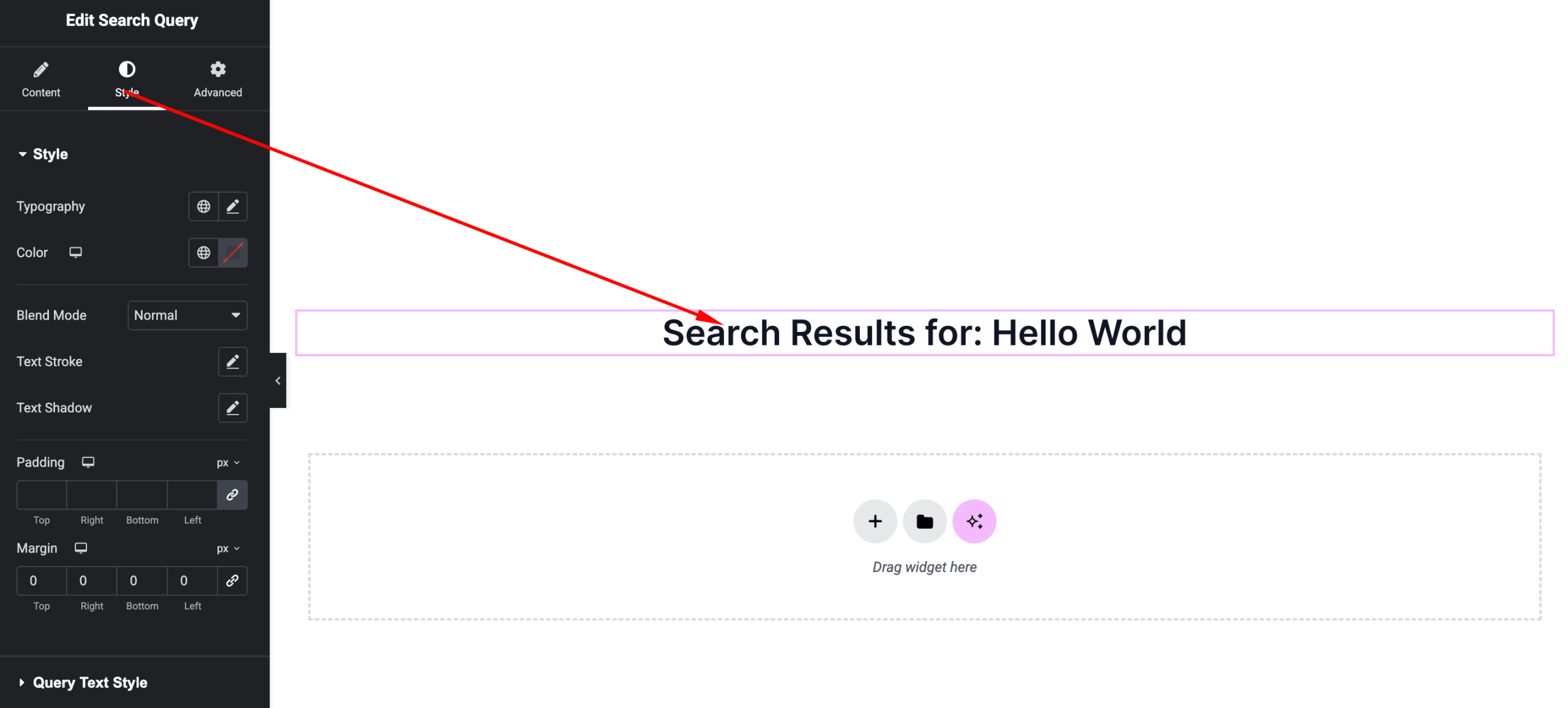
Customize the appearance of search results.
Available Controls:
- Typography – Title, excerpt, and meta styling
- Text Color – Customize result text
- Card Styling – Background, padding, border, shadow
- Image Styling (if available) – Featured image size and radius
- Spacing – Gap between results
- Hover Effects – Animations and transitions
Advanced Settings
Fine-tune layout and responsiveness.
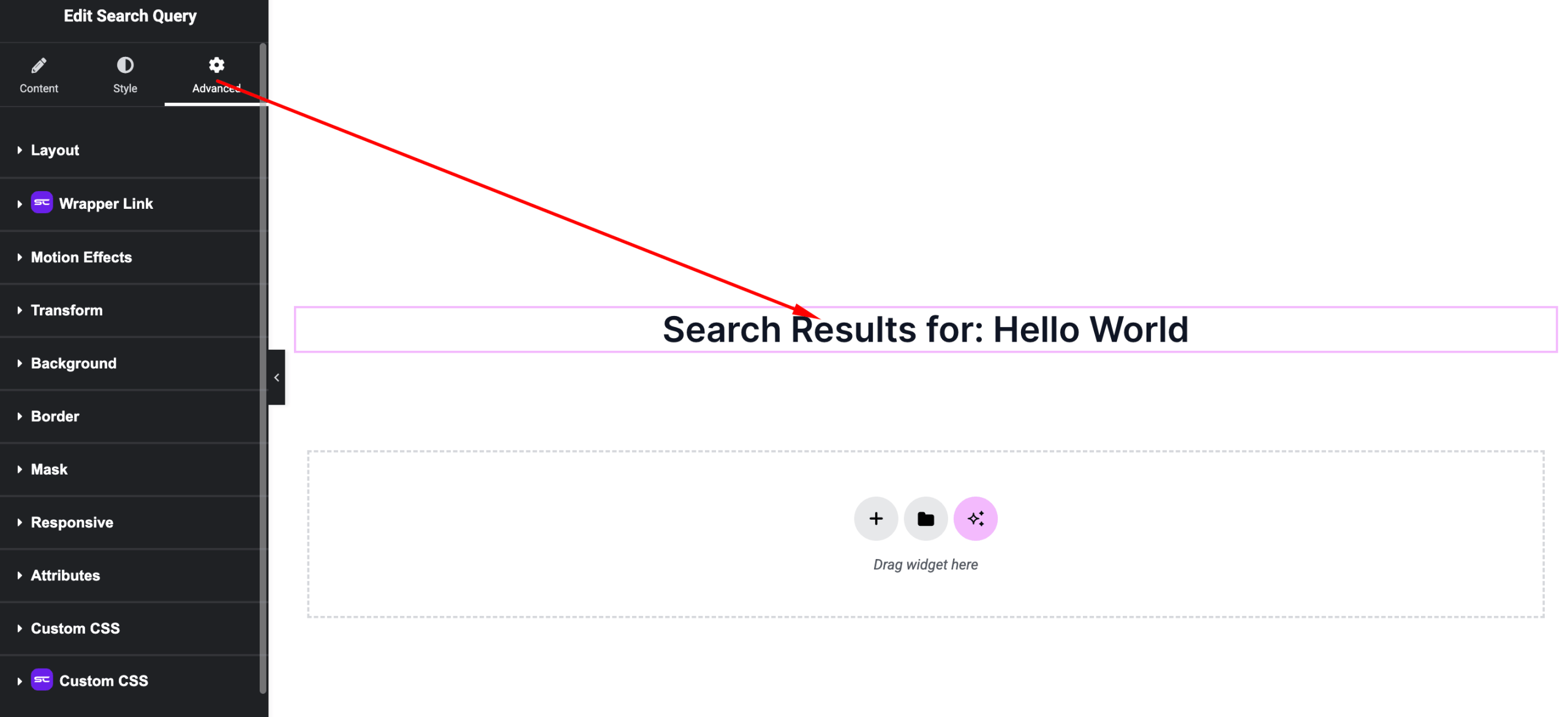
Includes:
- Margin & padding
- Responsive visibility
- Motion effects
- Positioning
- Background & border
Use Cases
Perfect for:
- Search result pages
- Blog and news websites
- Content-heavy sites
- E-commerce search listings
Result
You can now create structured and dynamic search result pages using the SiteCraft Search Query Widget, improving user experience and content discoverability.