
Overview
The Post Comments widget in SiteCraft displays the WordPress comment section for posts or custom post types. It allows users to view existing comments and submit new ones directly within your custom single post layouts.
Key Features
- Displays native WordPress comments
- Supports comment form and comment list
- Works with posts and custom post types
- Inherits WordPress discussion settings
- Styling controls for form and comments
- Fully responsive design
Requirements
- Comments must be enabled in WordPress Discussion Settings
- Use this widget inside a Single Post Template
How to Enable the Widget
Before using the Post Comments widget, make sure it is enabled.
Steps:
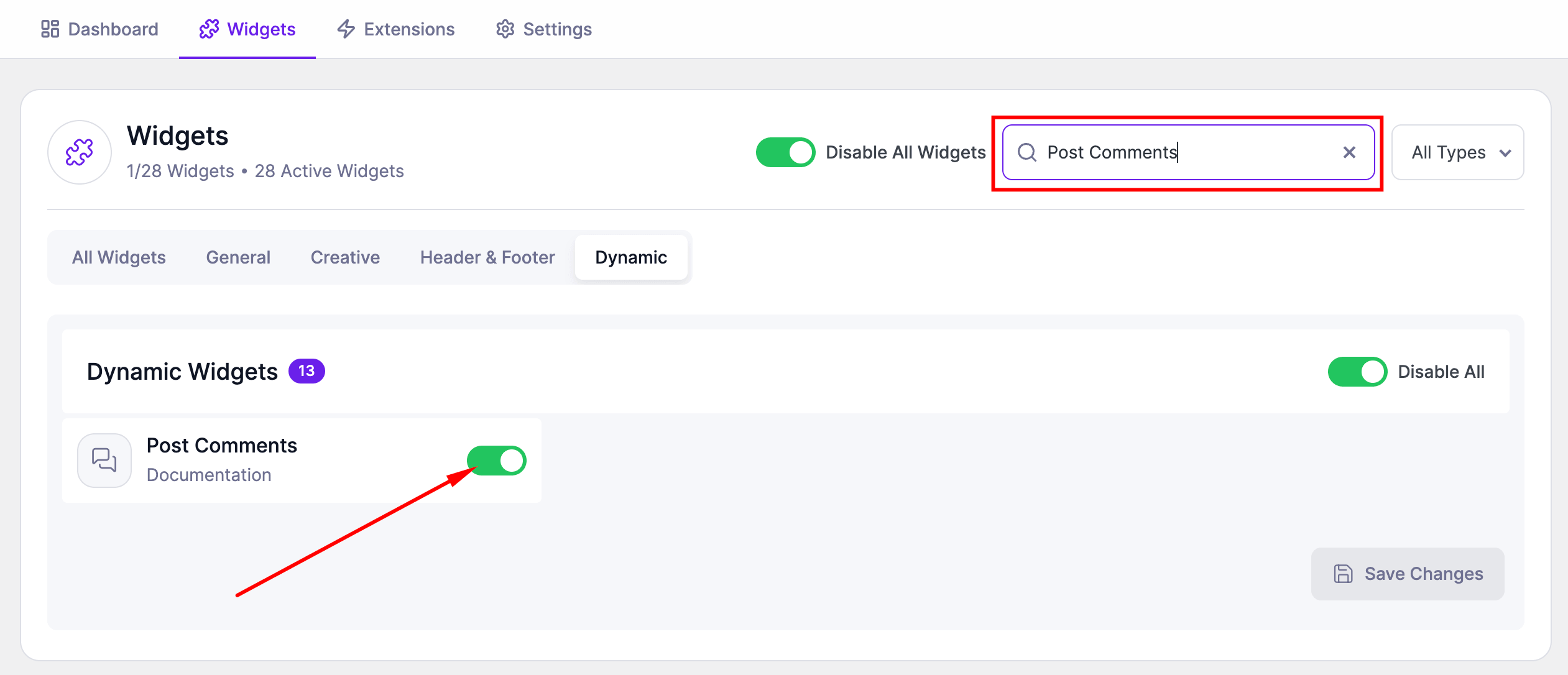
- Go to SiteCraft → Dashboard → Widgets
- Find Post Comments Widget
- Toggle to enable it
- Click Save Changes
How to Add the Widget in Elementor
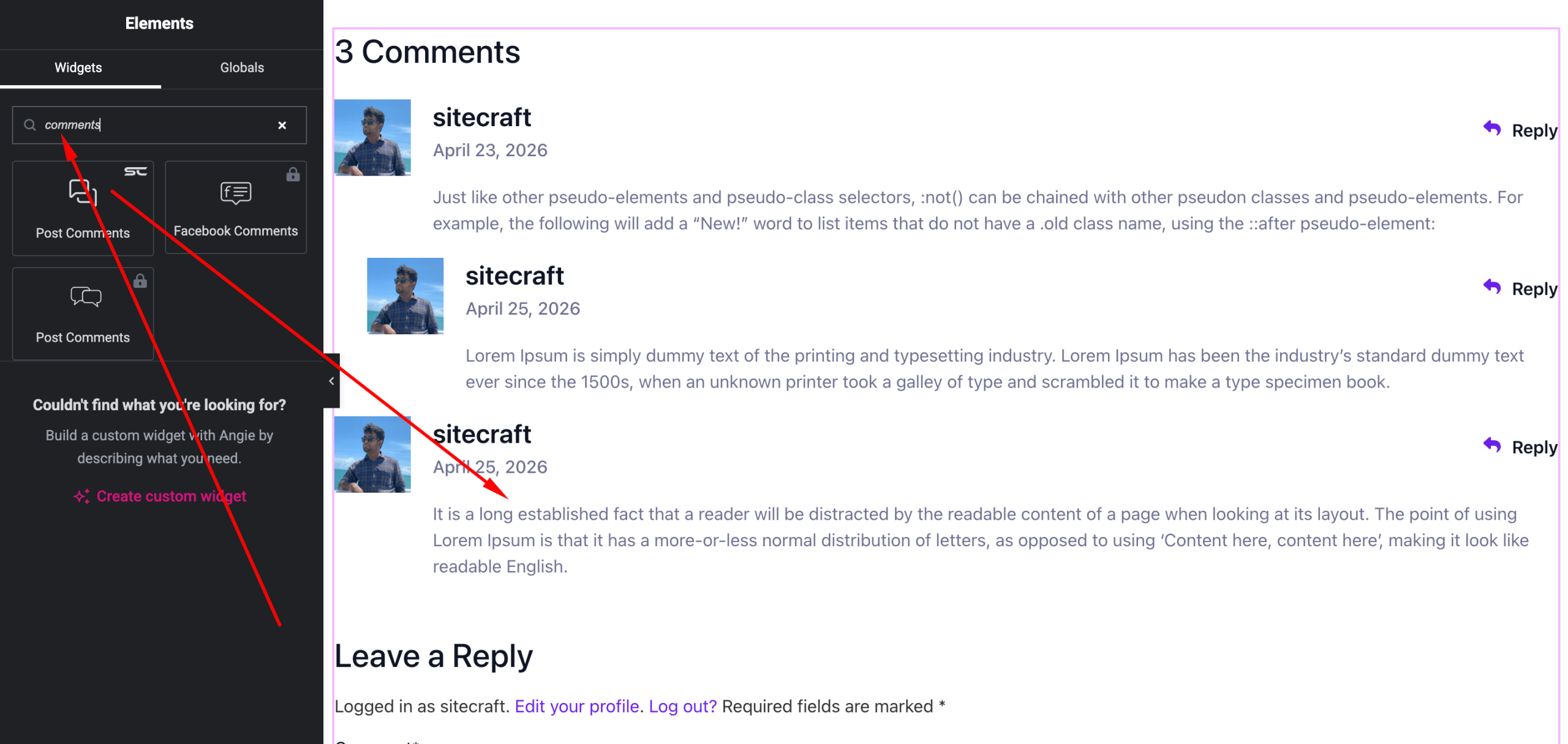
- Open your Single Post Template with Elementor
- Search for “Post Comments” under SiteCraft widgets
- Drag and drop it into your layout
- Customize styling as needed
Content Settings
Displays comments dynamically based on the current post.
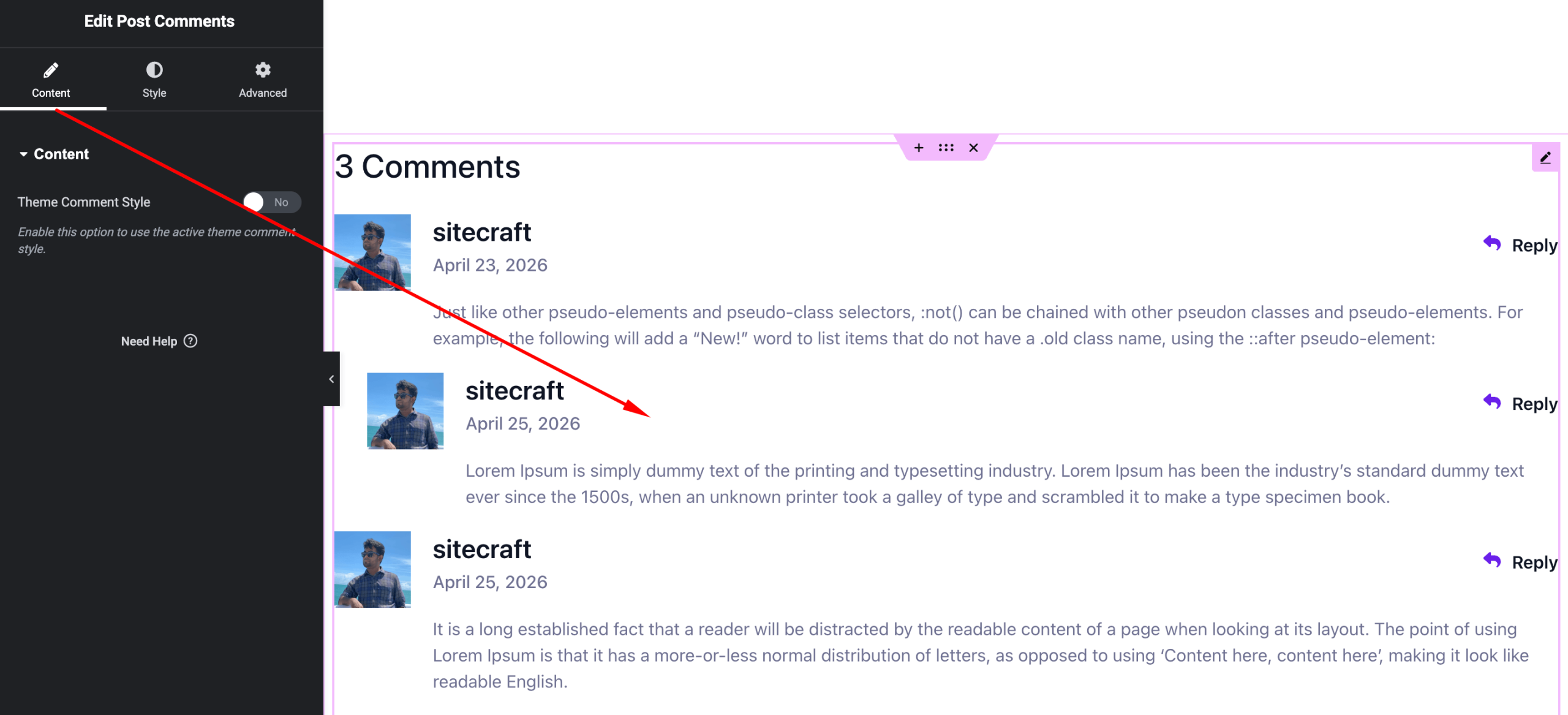
Options:
- Comments Source – WordPress native comments
- Form Display – Show/hide comment form (if available)
Style Settings
Customize the appearance of comments and form.
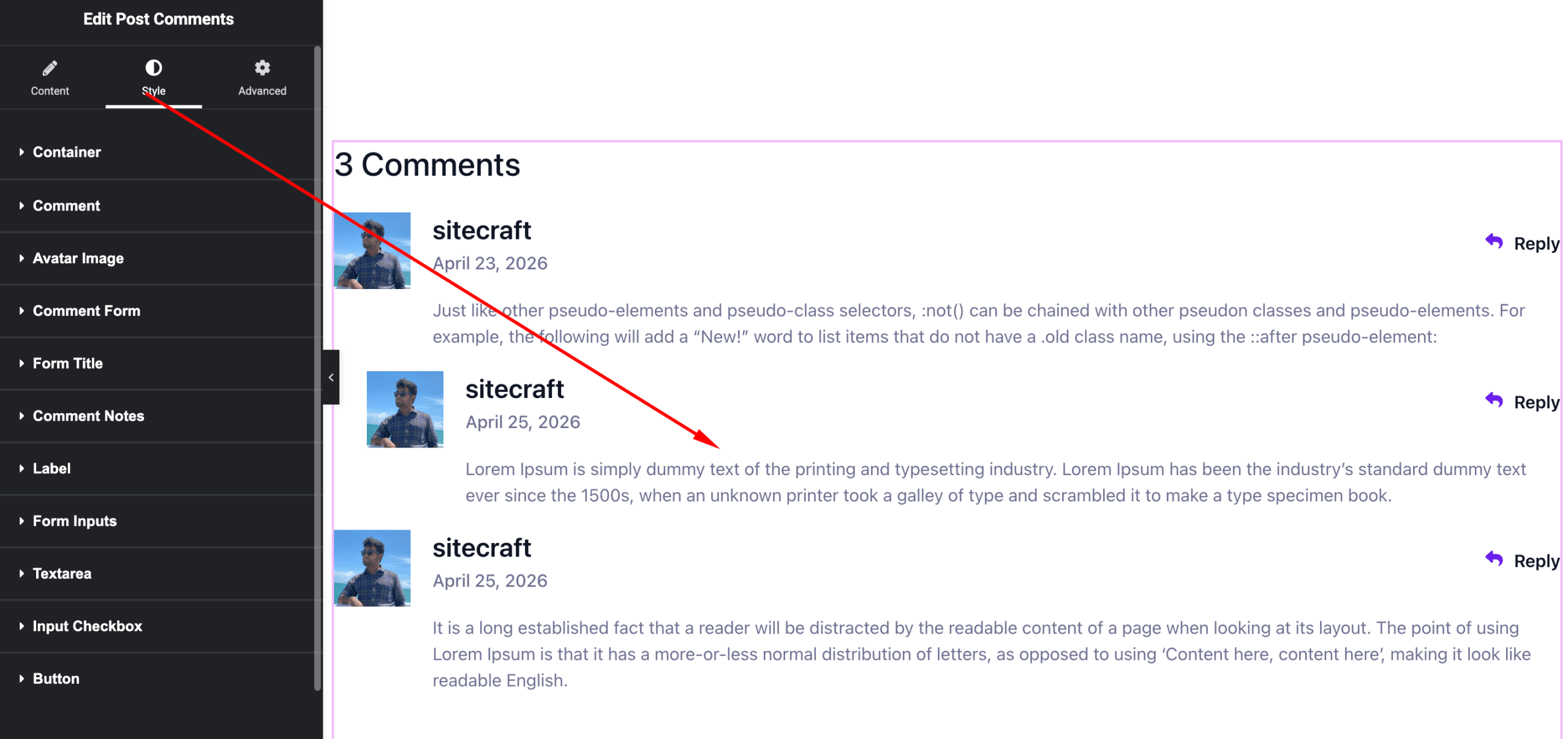
Available Controls:
- Typography – Comment text, author, form labels
- Text Color – Customize colors
- Form Fields – Input styling (padding, border, background)
- Button Styling – Submit button colors and hover
- Spacing – Gap between comments and elements
Advanced Settings
Fine-tune layout and responsiveness.
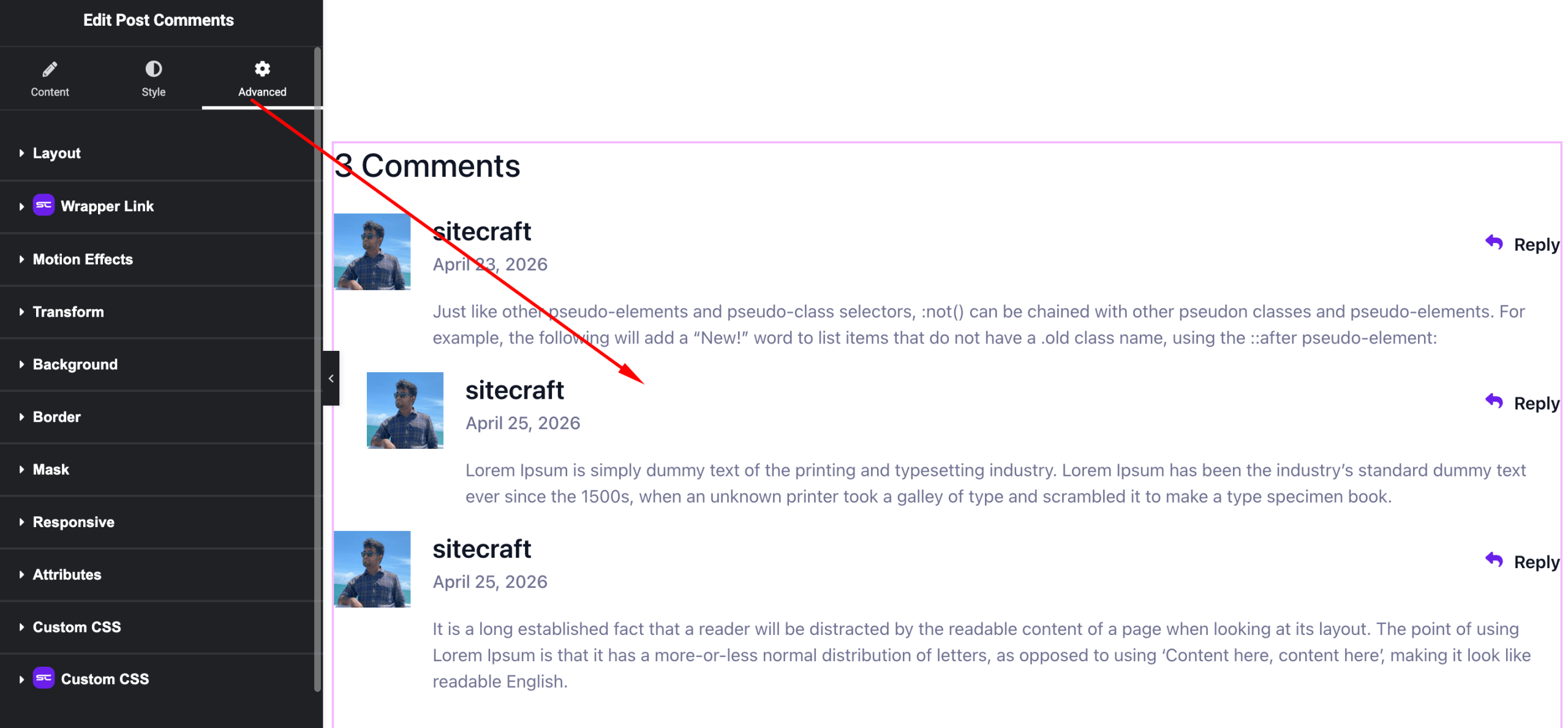
Includes:
- Margin & padding
- Responsive visibility
- Motion effects
- Positioning
- Background & border
Use Cases
Perfect for:
- Blog post pages
- Article discussions
- Community-driven content
- Review and feedback sections
Result
You can now display and style the comment section using the SiteCraft Post Comments Widget, enabling user interaction directly within your custom layouts.