
Overview
The Scroll to Top extension in SiteCraft adds a floating button that lets users quickly return to the top of the page. It improves navigation, especially on long pages, by providing a smooth and convenient scrolling experience.
Key Features
- Floating “Back to Top” button
- Smooth scroll animation
- Custom icon or text support
- Position control (left/right, bottom spacing)
- Show/hide on scroll behavior
- Color, size, and styling options
- Fully responsive design
How to Enable the Extension
Before using Scroll to Top, make sure it is enabled.
Steps:
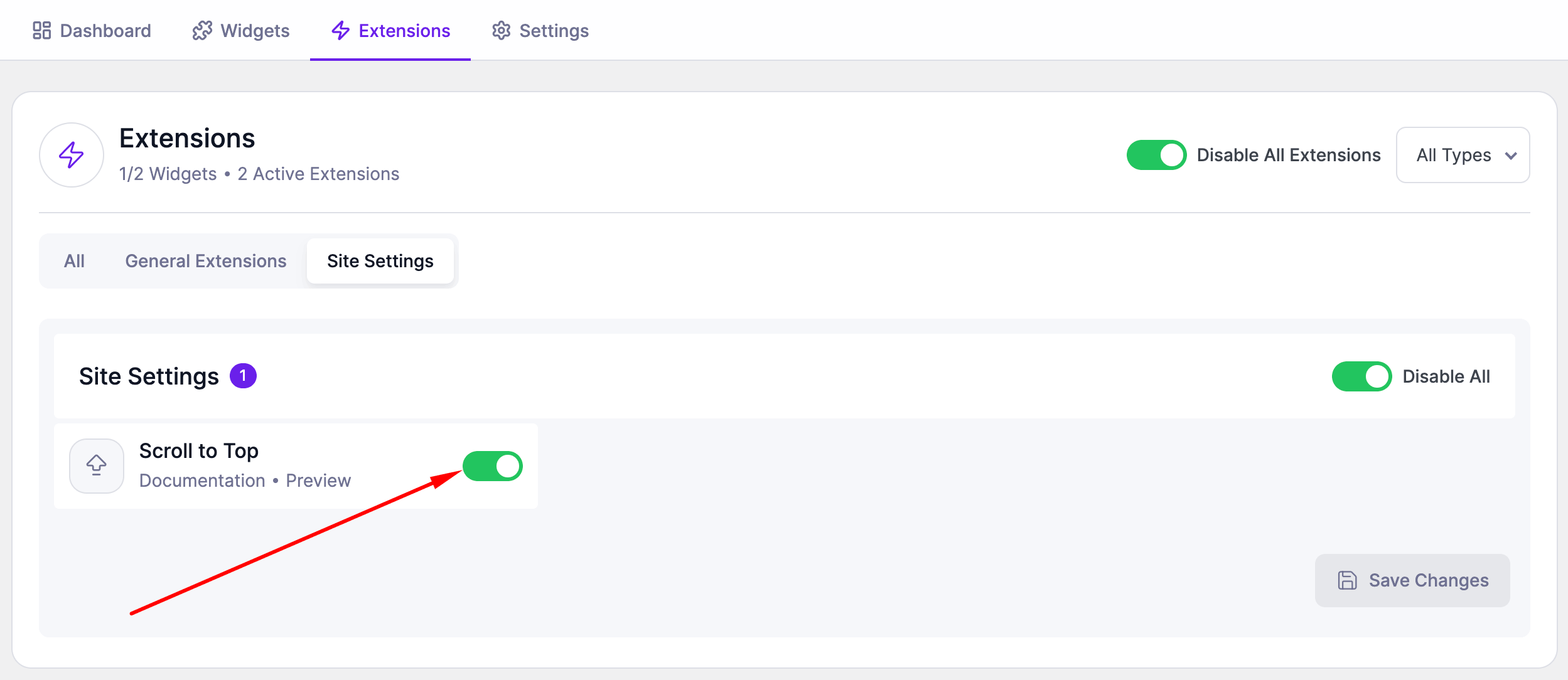
- Go to SiteCraft → Dashboard → Extensions
- Find Scroll to Top
- Toggle to enable it
- Click Save Changes
Where to Configure (Site Settings)
The Scroll to Top settings are available globally from Site Settings.
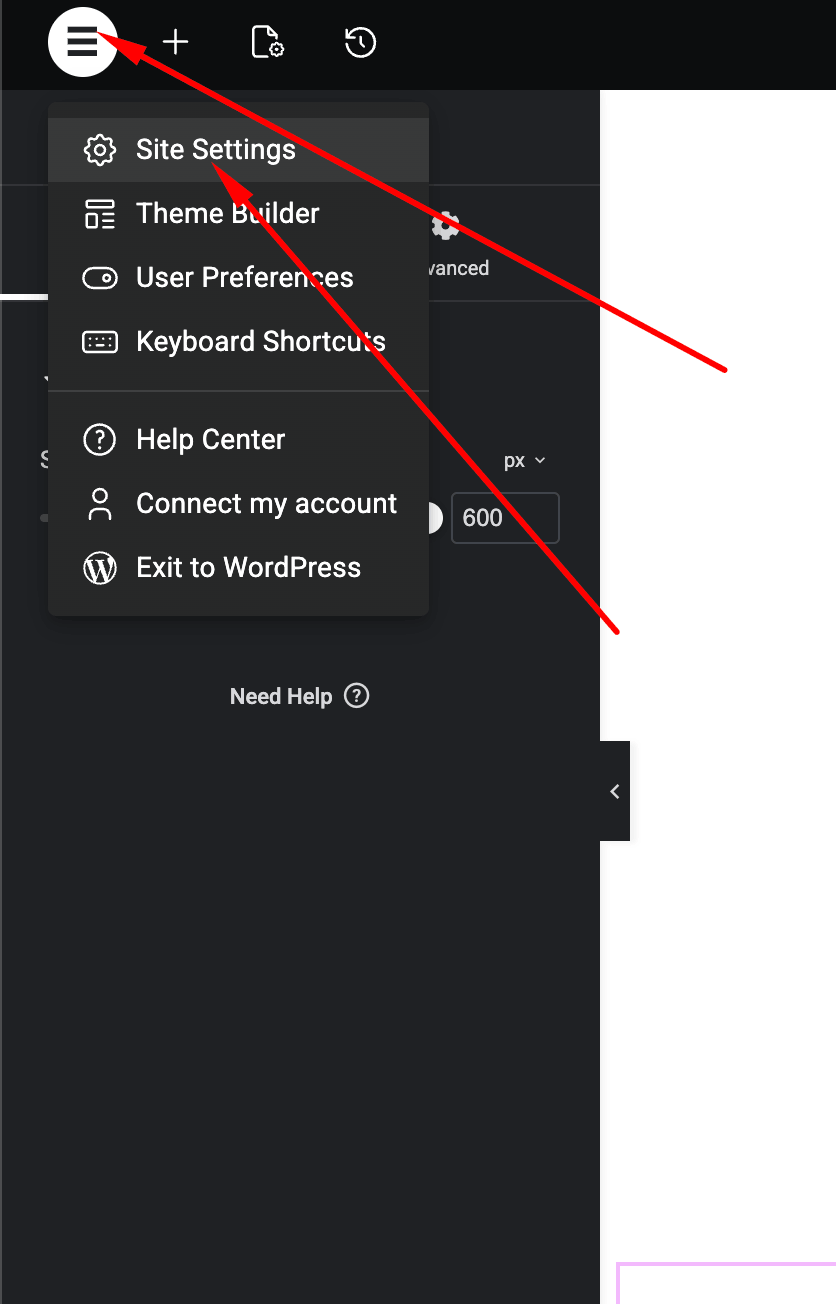
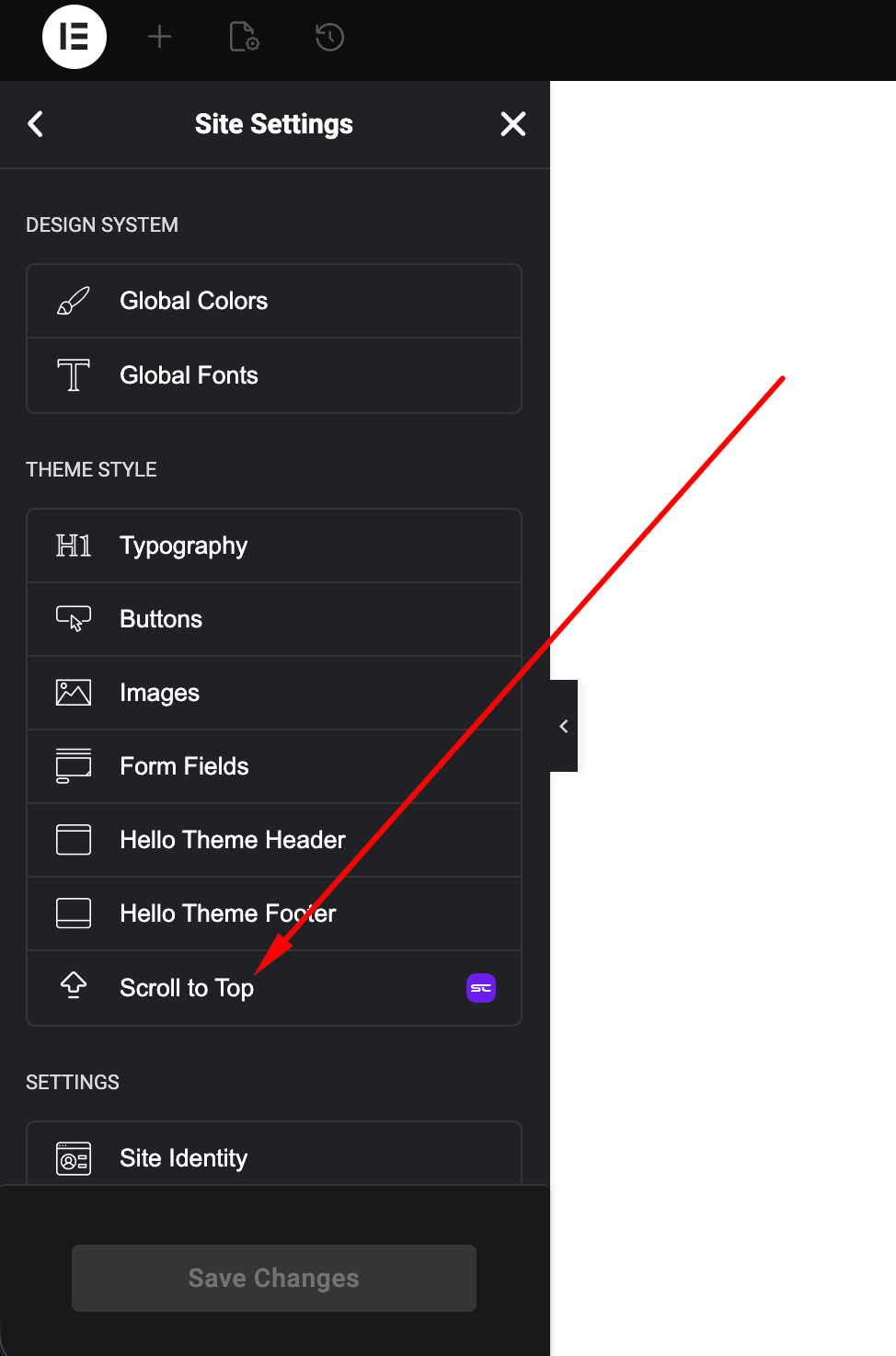
- Open any page in Elementor Editor
- Click the Site Settings icon (⚙️)
- Go to SiteCraft → Scroll to Top
Settings Options
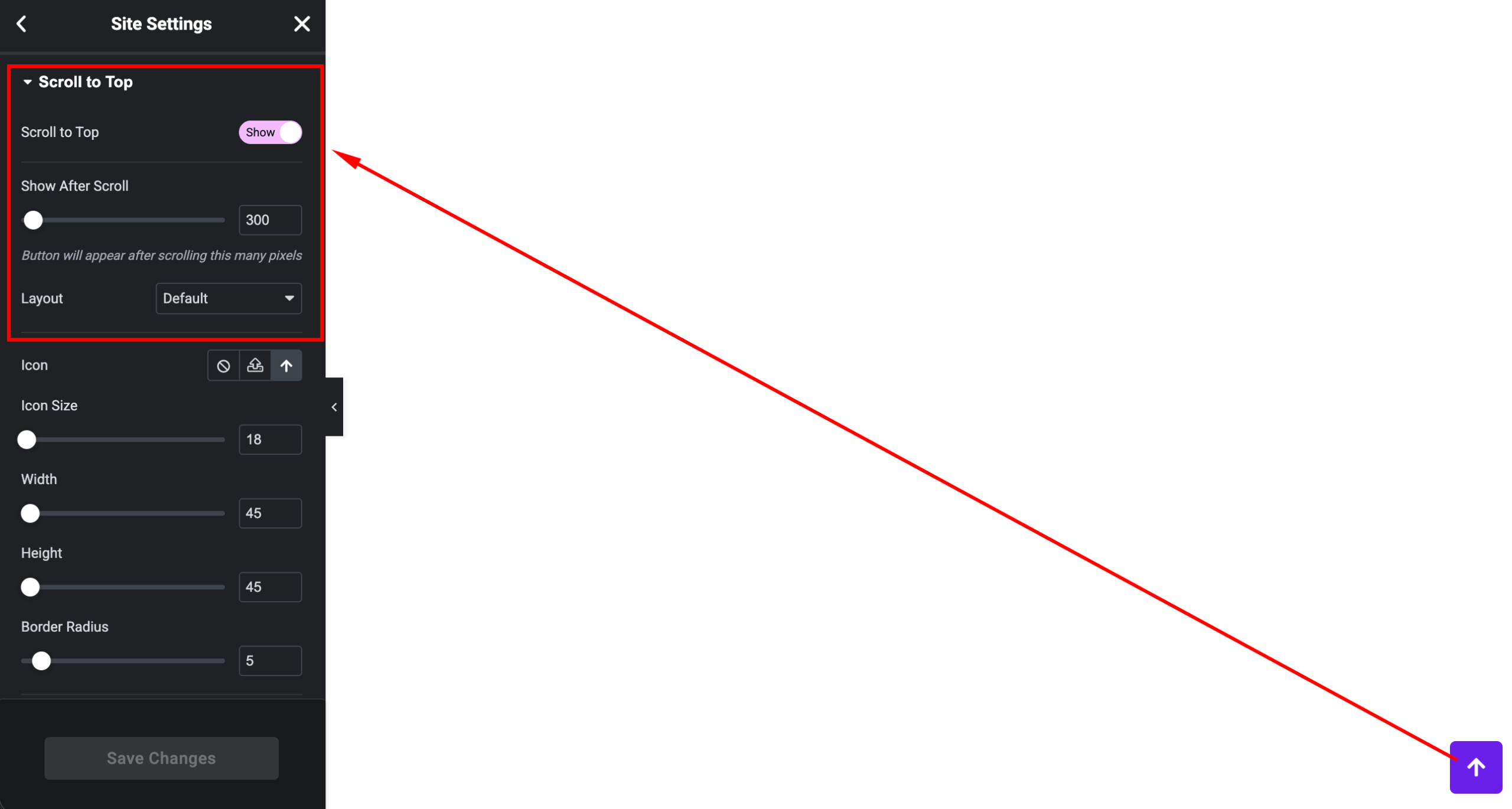
- Enable Button – Show or hide the feature
- Icon/Text – Choose button icon or label
- Position – Left or right side
- Offset – Distance from bottom/side
- Scroll Trigger – Show after scrolling a certain amount
- Animation Speed – Control scroll duration
Style Options
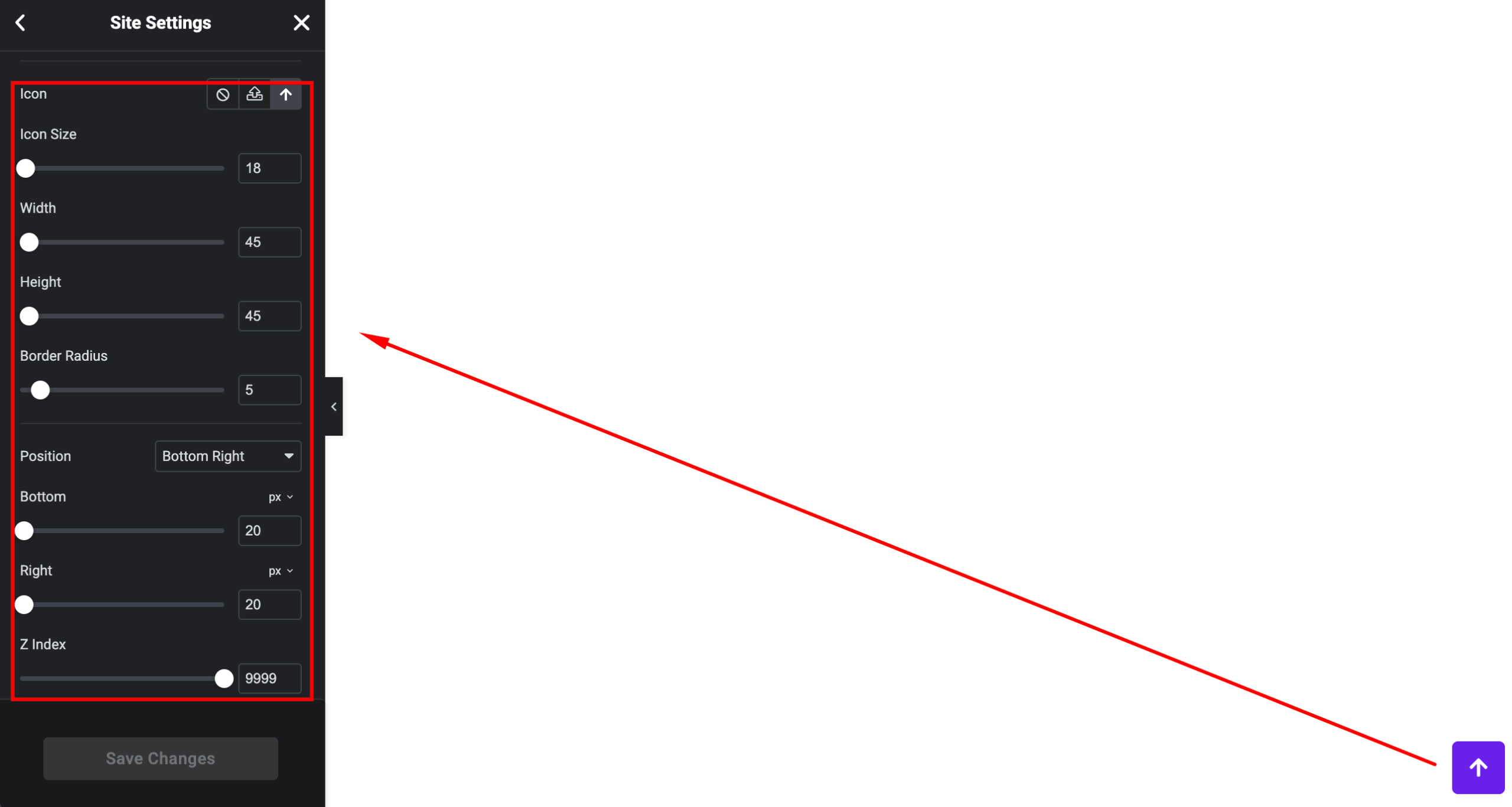
- Button Size – Adjust dimensions
- Color – Icon and background color
- Hover Effects – Color and animation on hover
- Border Radius – Rounded or circular button
Best Practices
- Keep the button visible but not intrusive
- Use clear icons (e.g., arrow up)
- Ensure good contrast for accessibility
- Test on mobile devices
Use Cases
Perfect for:
- Long landing pages
- Blogs and articles
- Documentation pages
- E-commerce product listings
Result
You can now improve navigation and usability using the SiteCraft Scroll to Top Extension, helping users quickly return to the top of your pages.