
Overview
The Site Logo widget in SiteCraft allows you to display your website logo dynamically within Elementor layouts. It pulls the logo from your WordPress Site Identity settings, ensuring consistency across your website.
Key Features
- Dynamic logo from WordPress Site Identity
- Option to use custom logo image
- Adjustable logo size and alignment
- Link to homepage or custom URL
- Retina-ready image support
- Responsive design
Requirements
Make sure a logo is set in Appearance → Customize → Site Identity.
How to Enable the Widget
Before using the Site Logo widget, make sure it is enabled.
Steps:
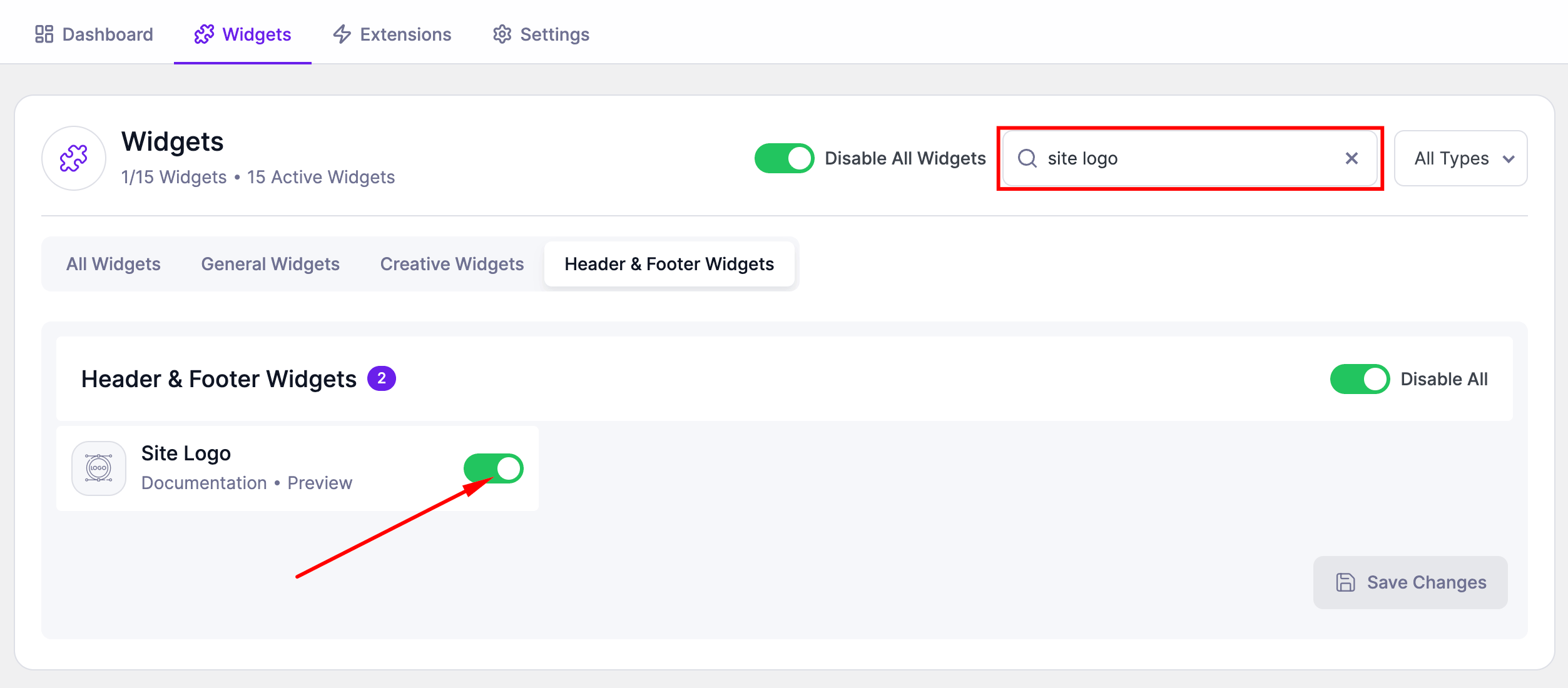
- Go to SiteCraft → Dashboard → Widgets
- Find Site Logo Widget
- Toggle to enable it
- Click Save Changes
How to Add the Widget in Elementor
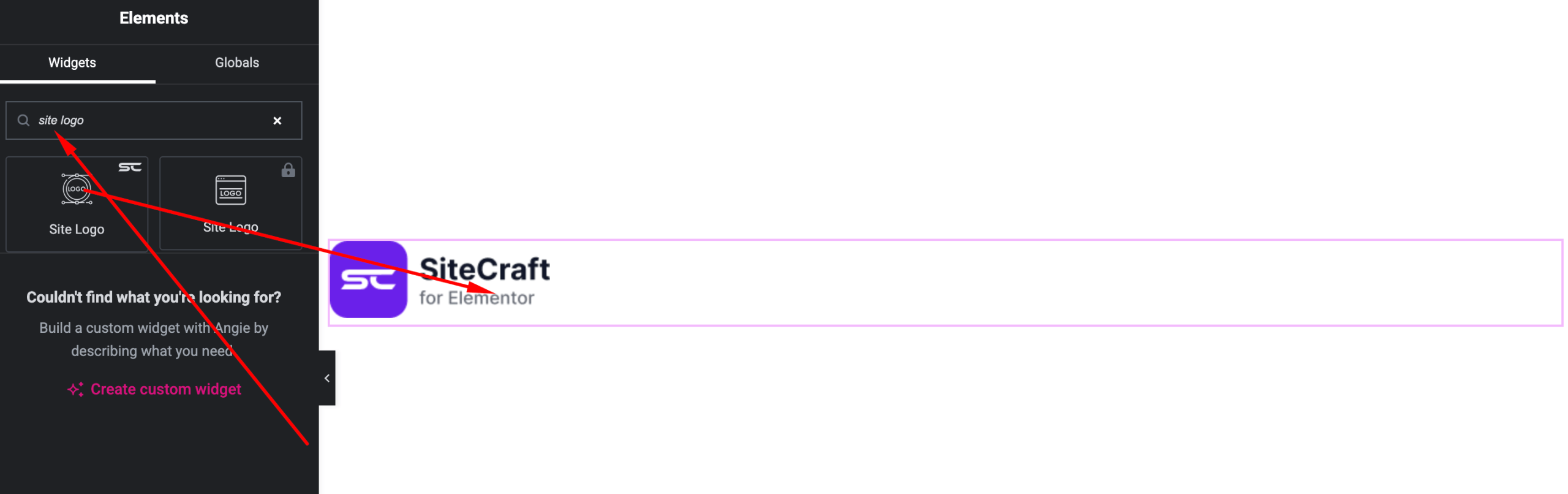
- Open your page with Elementor Editor
- Search for “Site Logo” under SiteCraft widgets
- Drag and drop it into your section
- Customize settings as needed
Content Settings
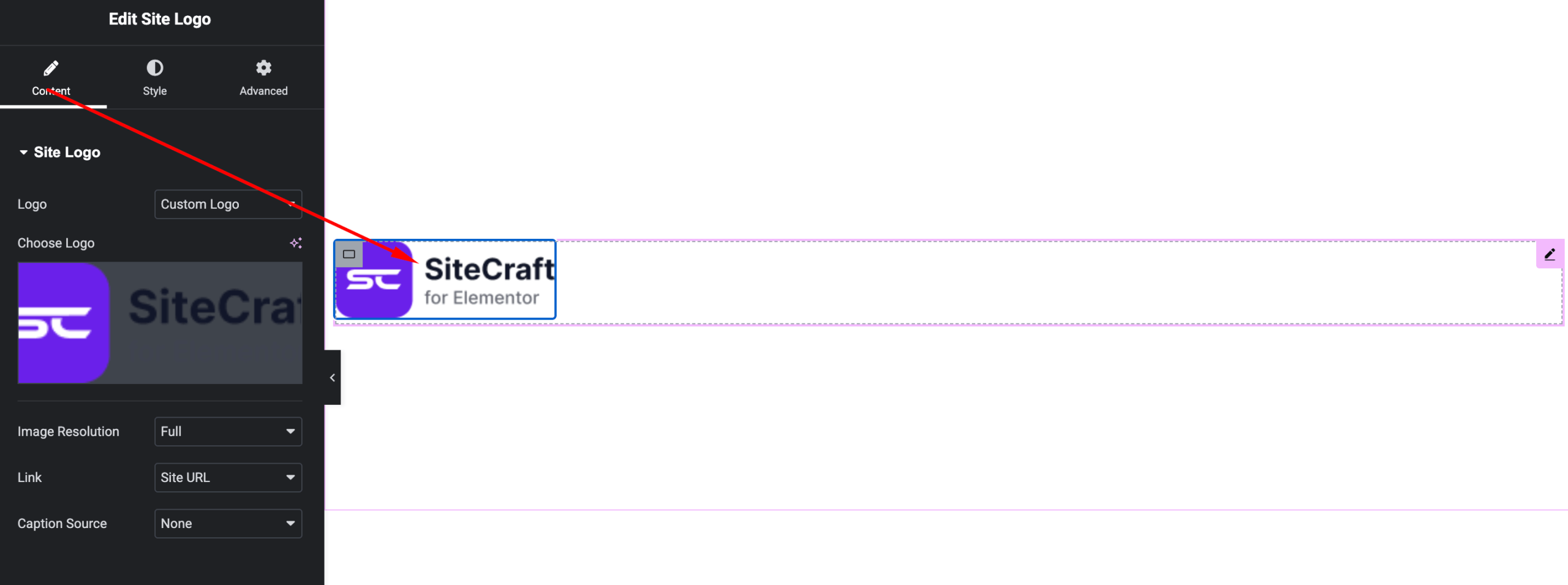
Control logo source and behavior.
Options:
- Logo Source –
- Default (from Site Identity)
- Custom image
- Image – Upload logo (if using custom)
- Link –
- Homepage (default)
- Custom URL
- Alignment – Left, Center, Right
Style Settings
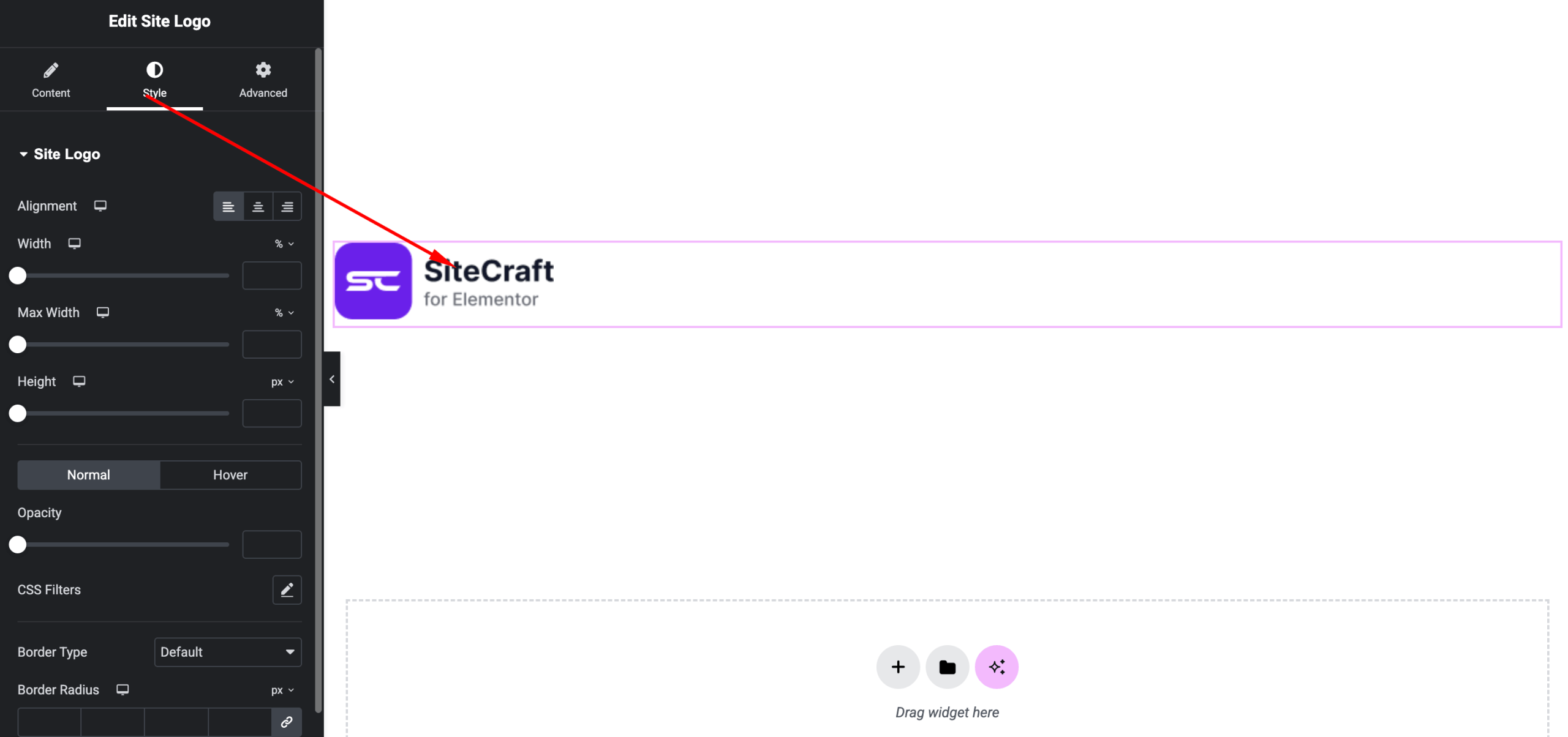
Customize the appearance of the logo.
Available Controls:
- Width/Max Width – Adjust logo size
- Height (if applicable)
- Border Radius – Rounded edges
- Spacing – Margin or padding adjustments
- Opacity/Hover Effects (if available)
Advanced Settings
Fine-tune layout and responsiveness.
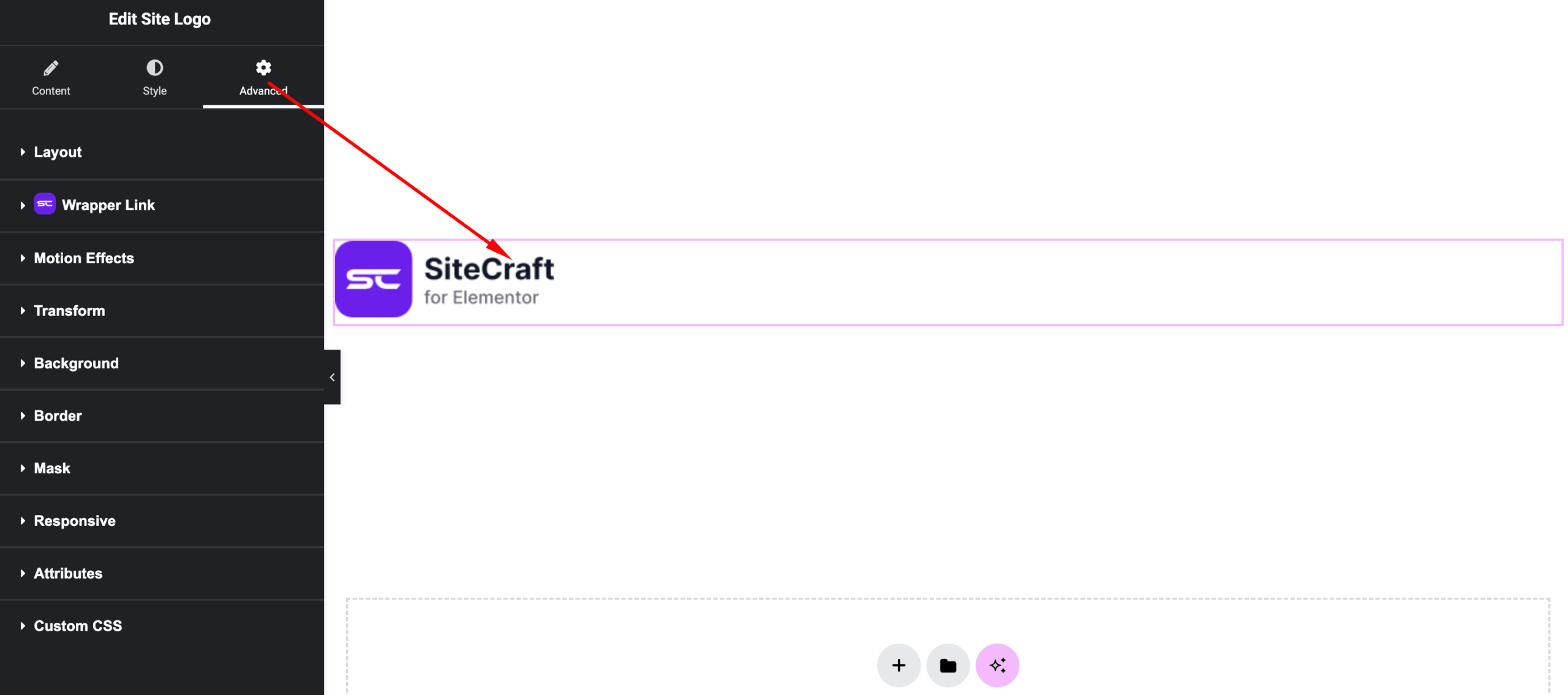
Includes:
- Margin & padding
- Responsive visibility
- Motion effects
- Positioning
- Background & border
Use Cases
Perfect for:
- Website headers
- Footers
- Branding sections
- Navigation areas
Result
You can now display a consistent and responsive logo using the SiteCraft Site Logo Widget, ensuring proper branding across your website.