
Overview
The Image Gallery widget in SiteCraft allows you to showcase images in clean grid layouts or interactive tab-filtered galleries. It’s perfect for displaying portfolios, projects, or media collections with optional filtering for better user experience.
Key Features
- Two gallery types: Simple Grid & Tab Filter
- Category-based filtering (tab filter layout)
- Multiple column layouts
- Image upload and management
- Lightbox support (image preview on click)
- Responsive and mobile-friendly design
- Spacing and alignment controls
- Clean and modern layout styles
How to Enable the Widget
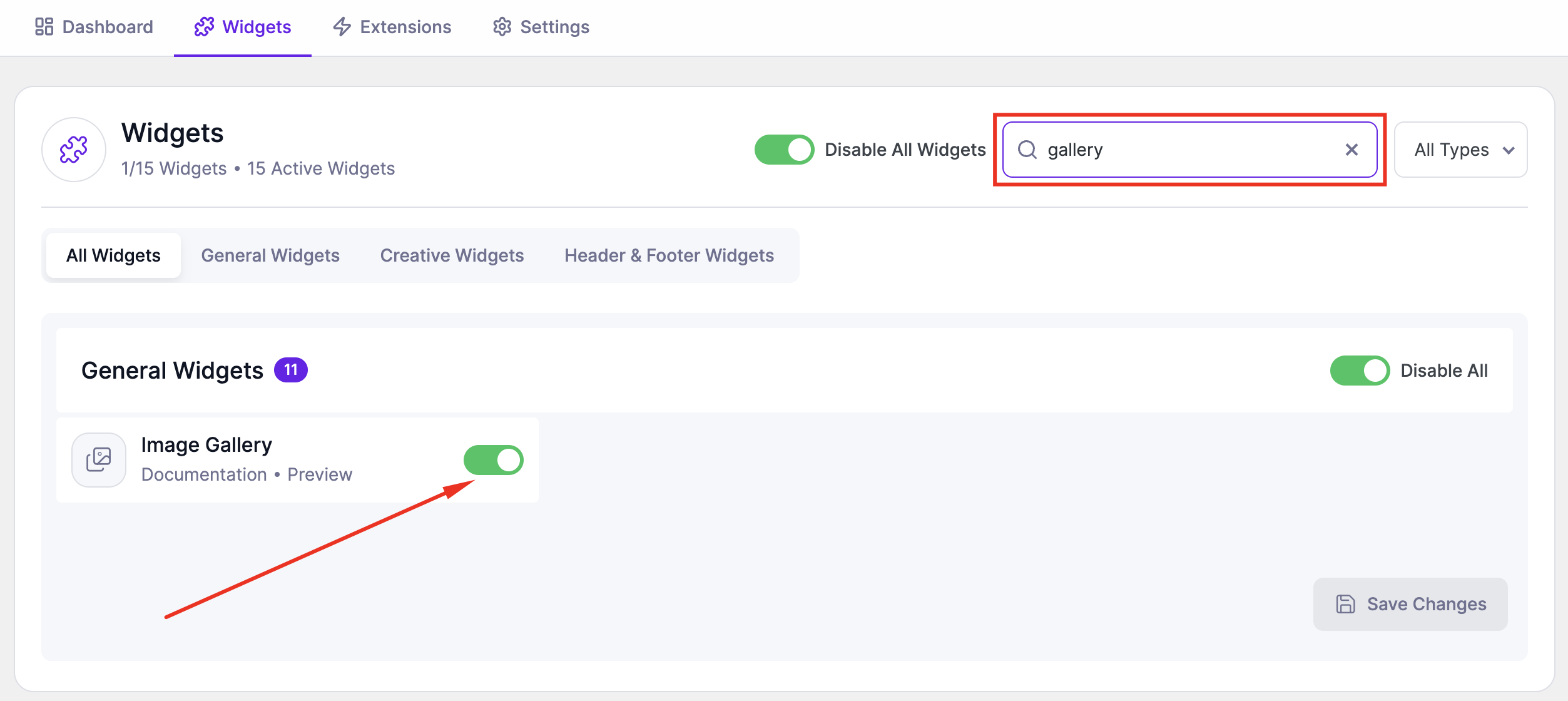
Before using the Image Gallery widget, make sure it is enabled.
Steps:
- Go to SiteCraft → Dashboard → Widgets
- Find Image Gallery Widget
- Toggle to enable it
- Click Save Changes
How to Add the Widget in Elementor
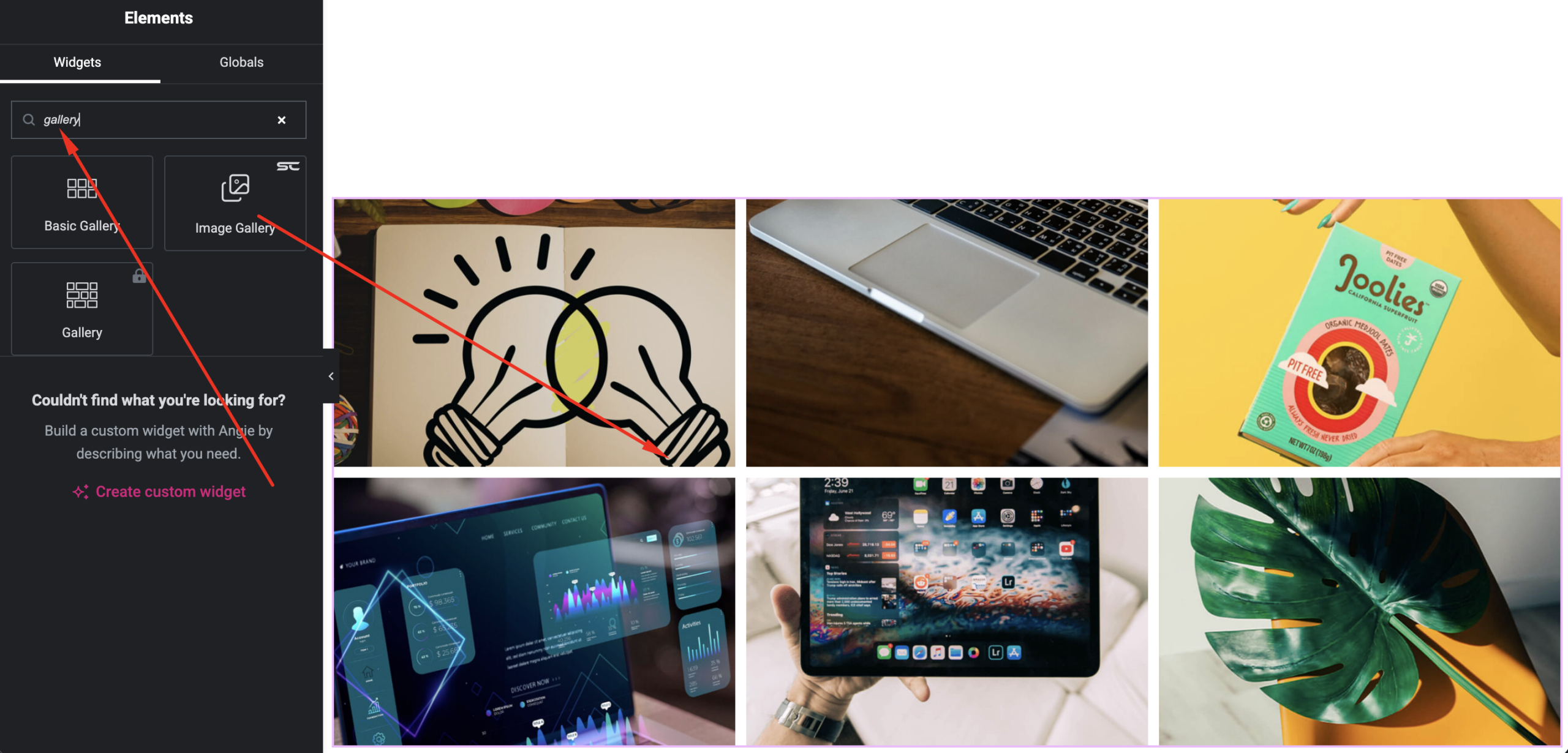
- Open your page with Elementor Editor
- Search for “Image Gallery” under SiteCraft widgets
- Drag and drop it into your section
- Choose gallery type and start customizing
Content Settings
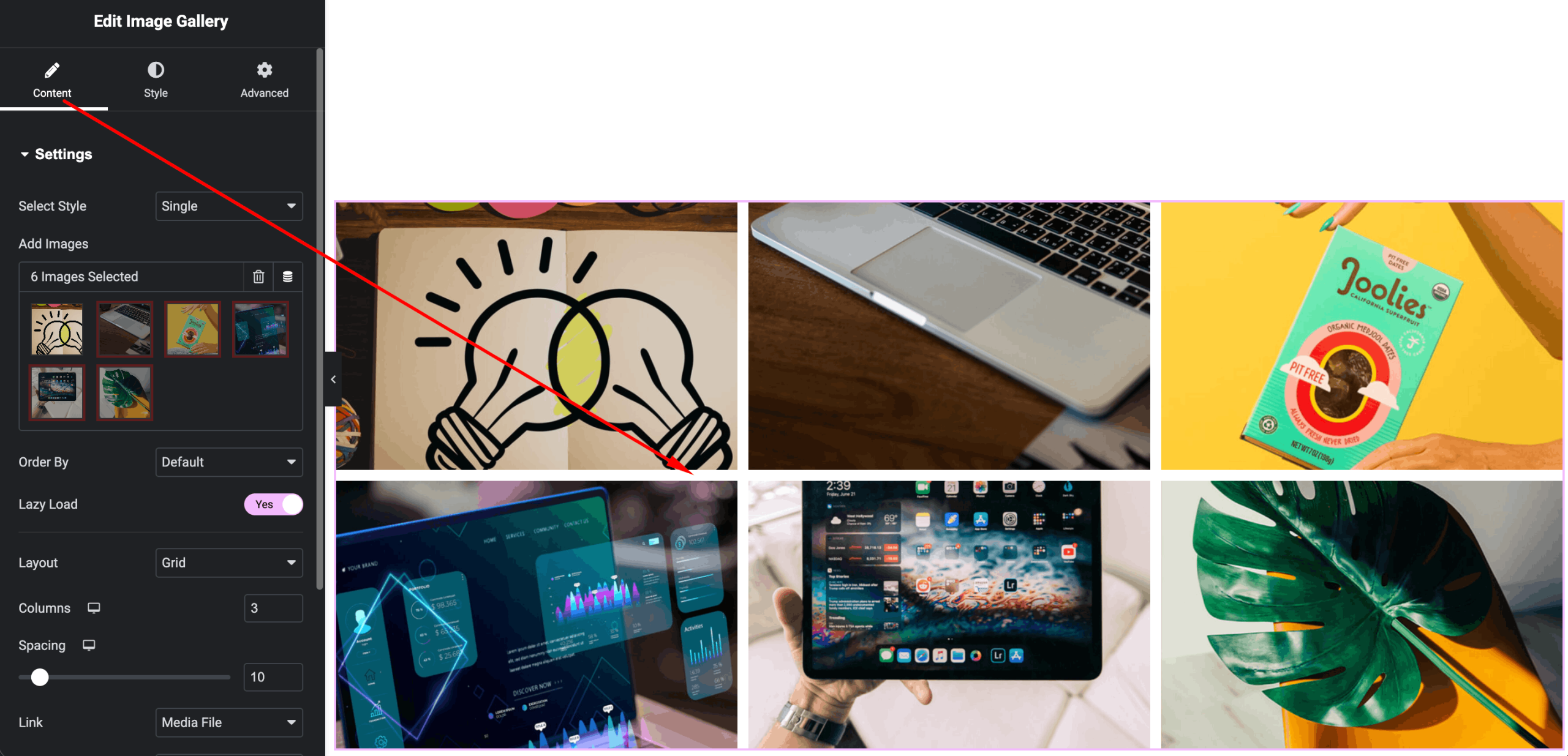
Control gallery structure and images.
Options:
- Gallery Type – Simple or Tab Filter
- Images – Upload and manage gallery images
- Categories (Tab Filter) – Assign categories for filtering
- Columns – Set number of columns
- Image Size – Choose image resolution
- Lightbox – Enable/disable image popup
Style Settings
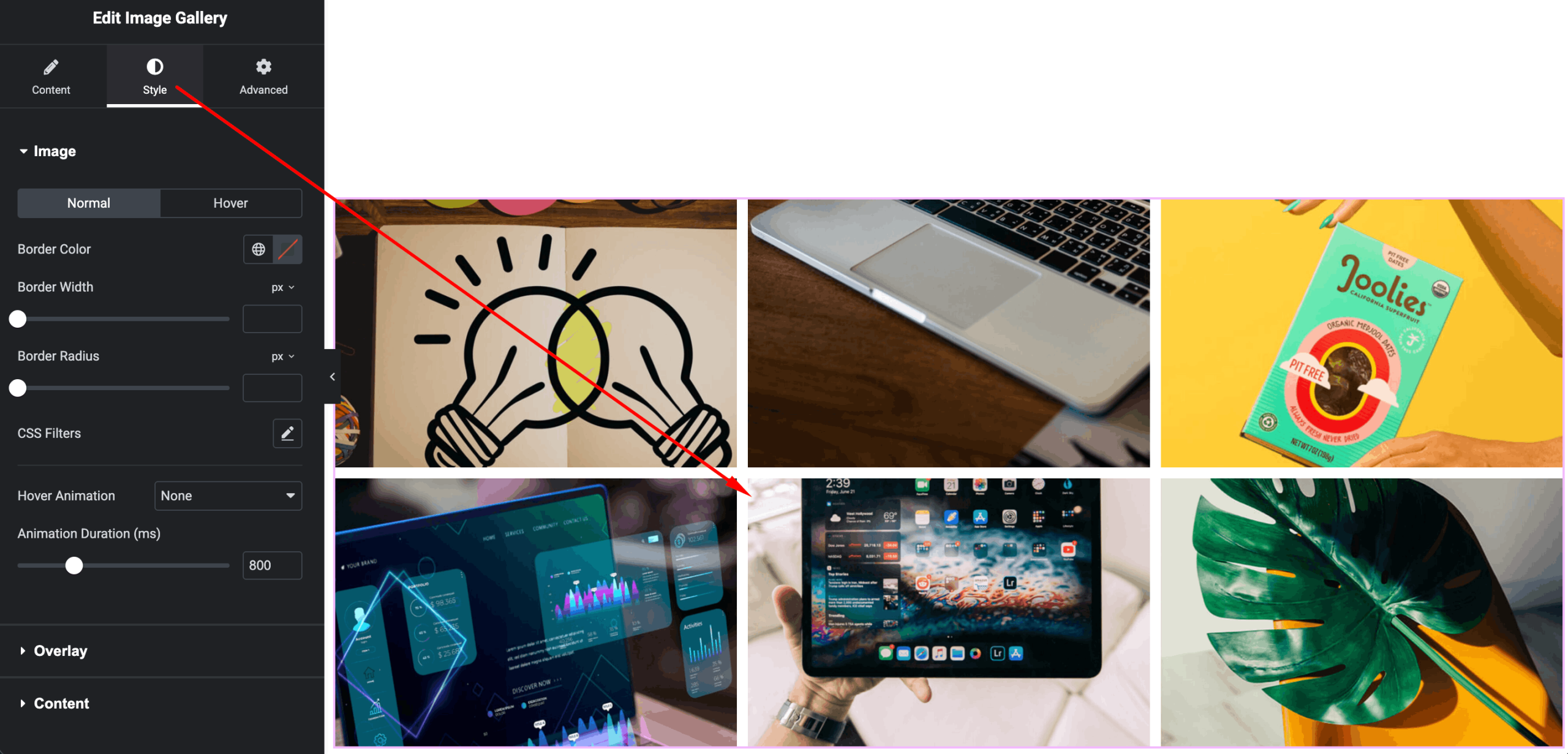
Customize gallery appearance.
Available Controls:
- Image Spacing – Adjust gap between items
- Border Radius – Rounded corners
- Hover Effects – Zoom, overlay, etc.
- Overlay Color – Customize hover overlay
- Tab Styling(Filter Layout) –
- Tab colors (normal/active)
- Typography
- Spacing and alignment
Advanced Settings
Fine-tune layout and responsiveness.
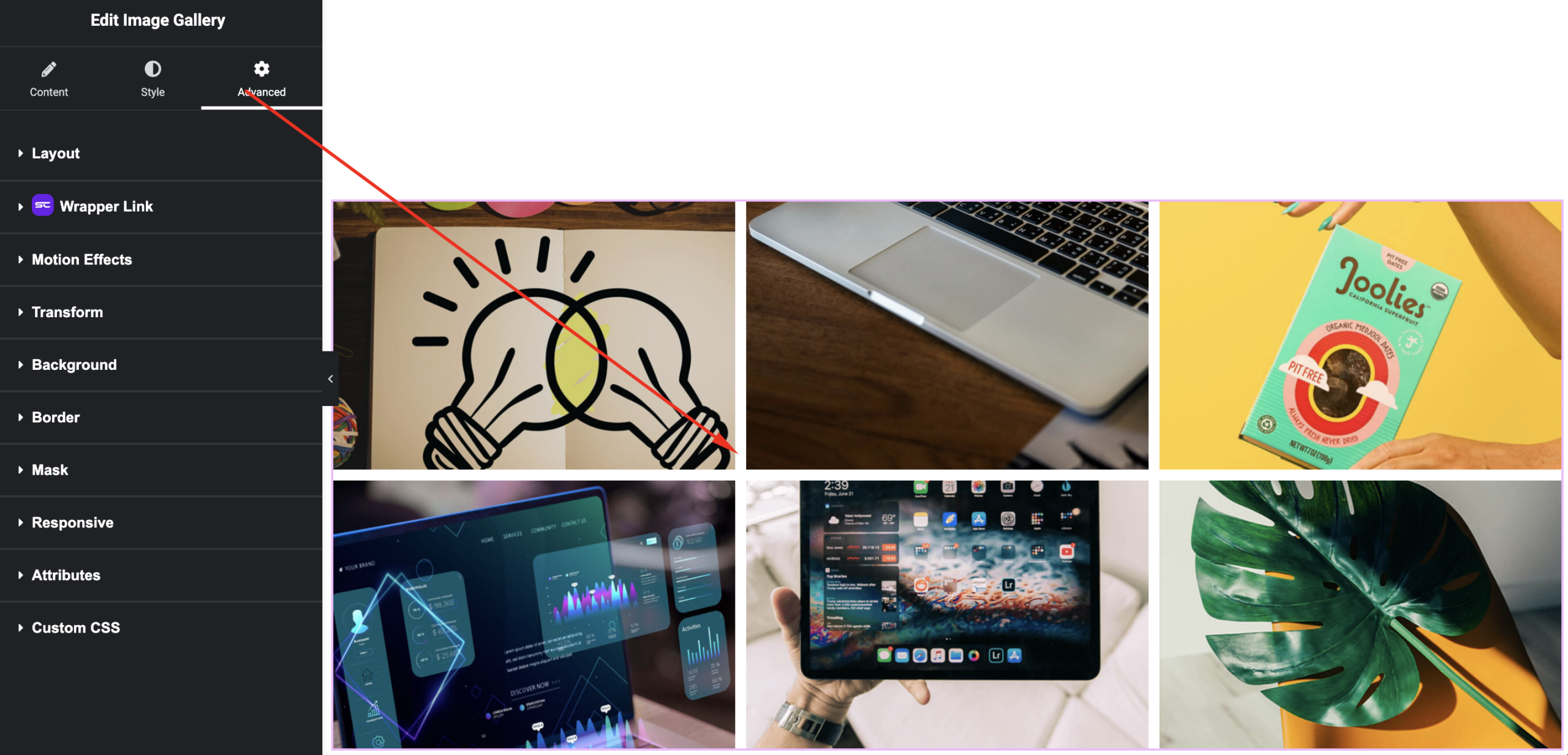
Includes:
- Margin & padding
- Responsive visibility
- Motion effects
- Positioning
- Background & border
Use Cases
Perfect for:
- Portfolio showcases
- Project galleries
- Photo collections
- Case studies with filters
Result
You can now create responsive and interactive image galleries using the SiteCraft Image Gallery Widget, with both simple and filterable layouts for better user engagement.