
Overview
The Paragraph widget in SiteCraft allows you to add and style text content with full control over typography, colors, and spacing. It’s perfect for creating readable and visually consistent content sections across your website without writing custom CSS.
Key Features
- Simple and flexible text editor
- Full typography controls (font, size, weight, spacing)
- Text color customization
- Text alignment options
- Line height and letter spacing control
- Responsive design support
- Easy integration with Elementor layouts
How to Enable the Widget
Before using the Paragraph widget, make sure it is enabled.
Steps:
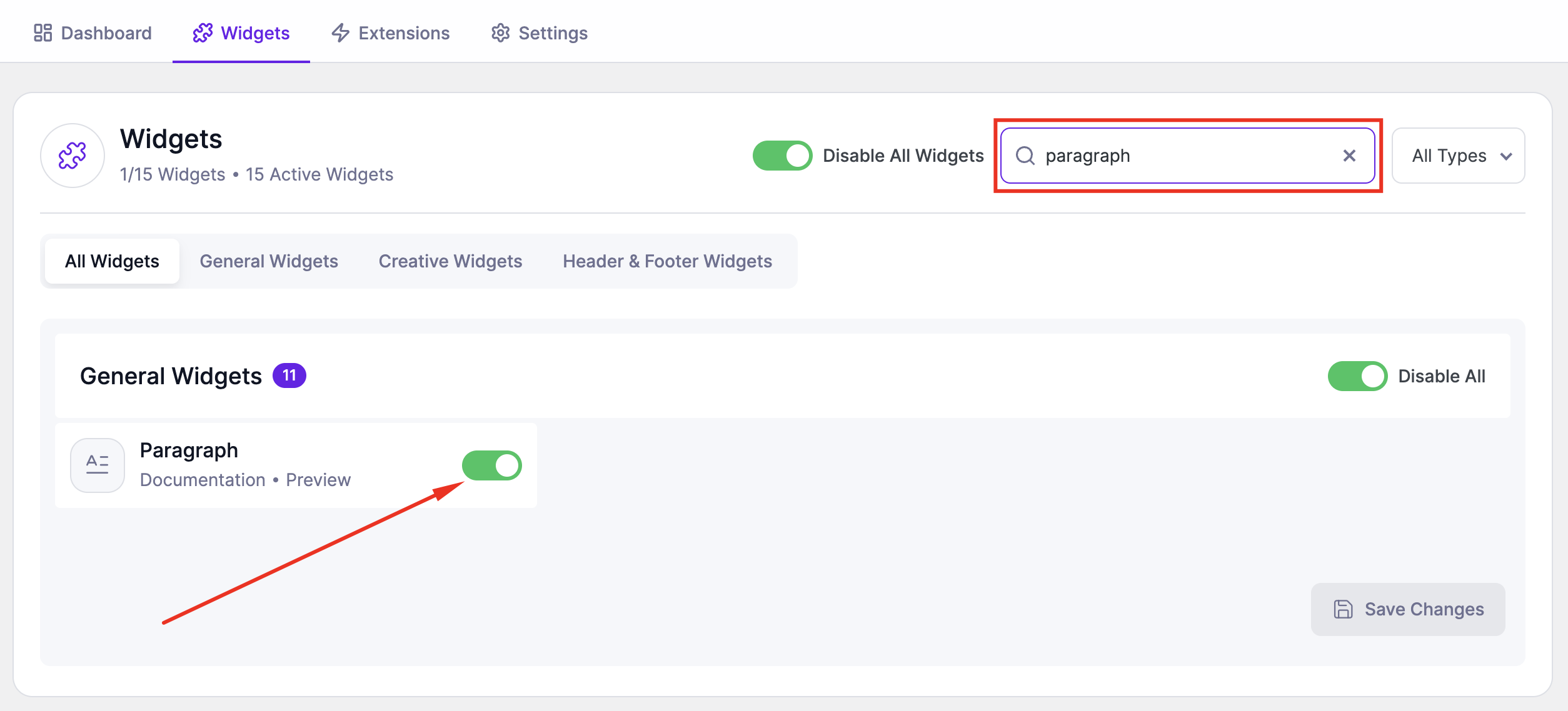
- Go to SiteCraft → Dashboard → Widgets
- Find Paragraph Widget
- Toggle to enable it
- Click Save Changes
How to Add the Widget in Elementor
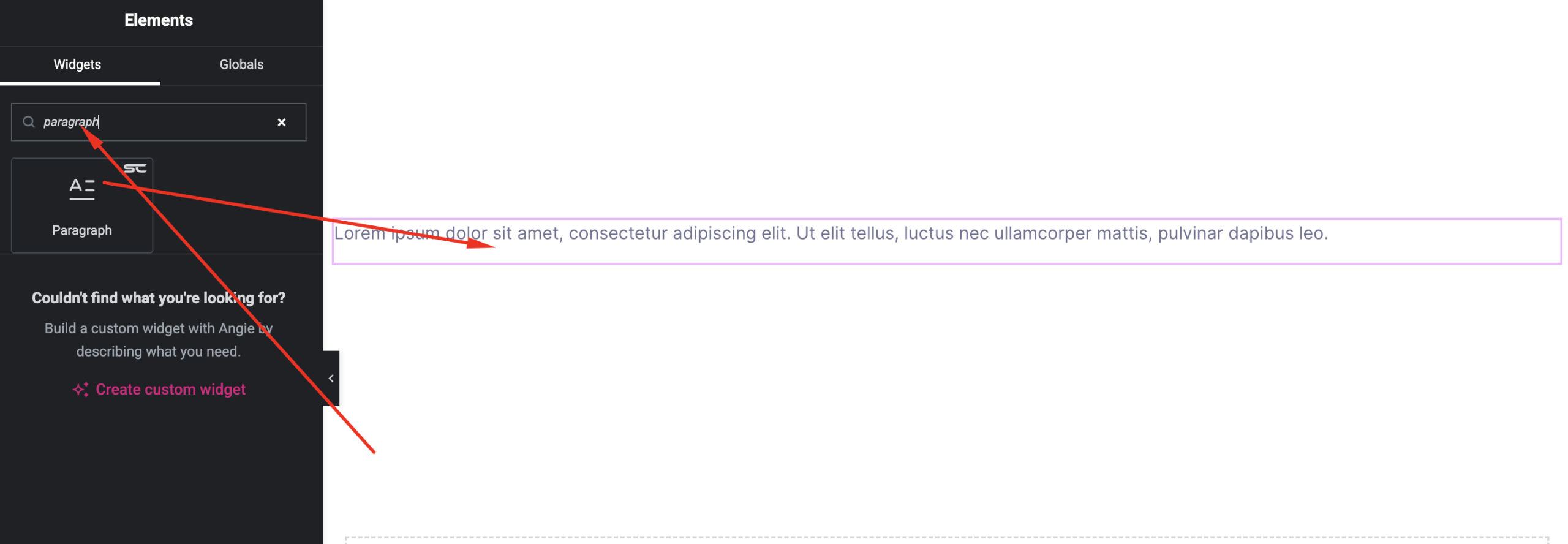
- Open your page with Elementor Editor
- Search for “Paragraph” under SiteCraft widgets
- Drag and drop it into your section
- Start editing content and styling
Content Settings
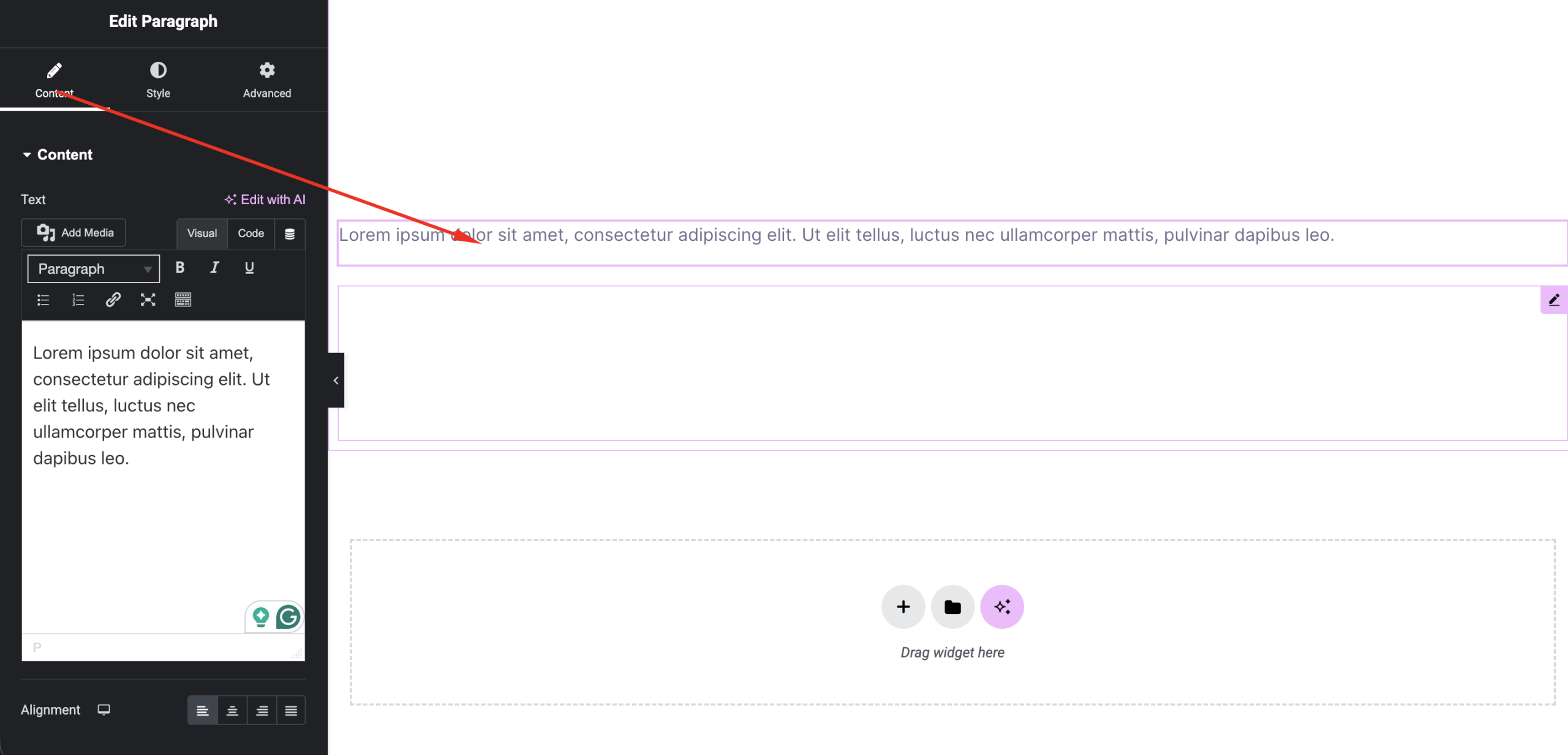
Control your text content.
Options:
- Text Editor – Add or edit your paragraph content
- Alignment – Left, Center, Right, Justified
Style Settings
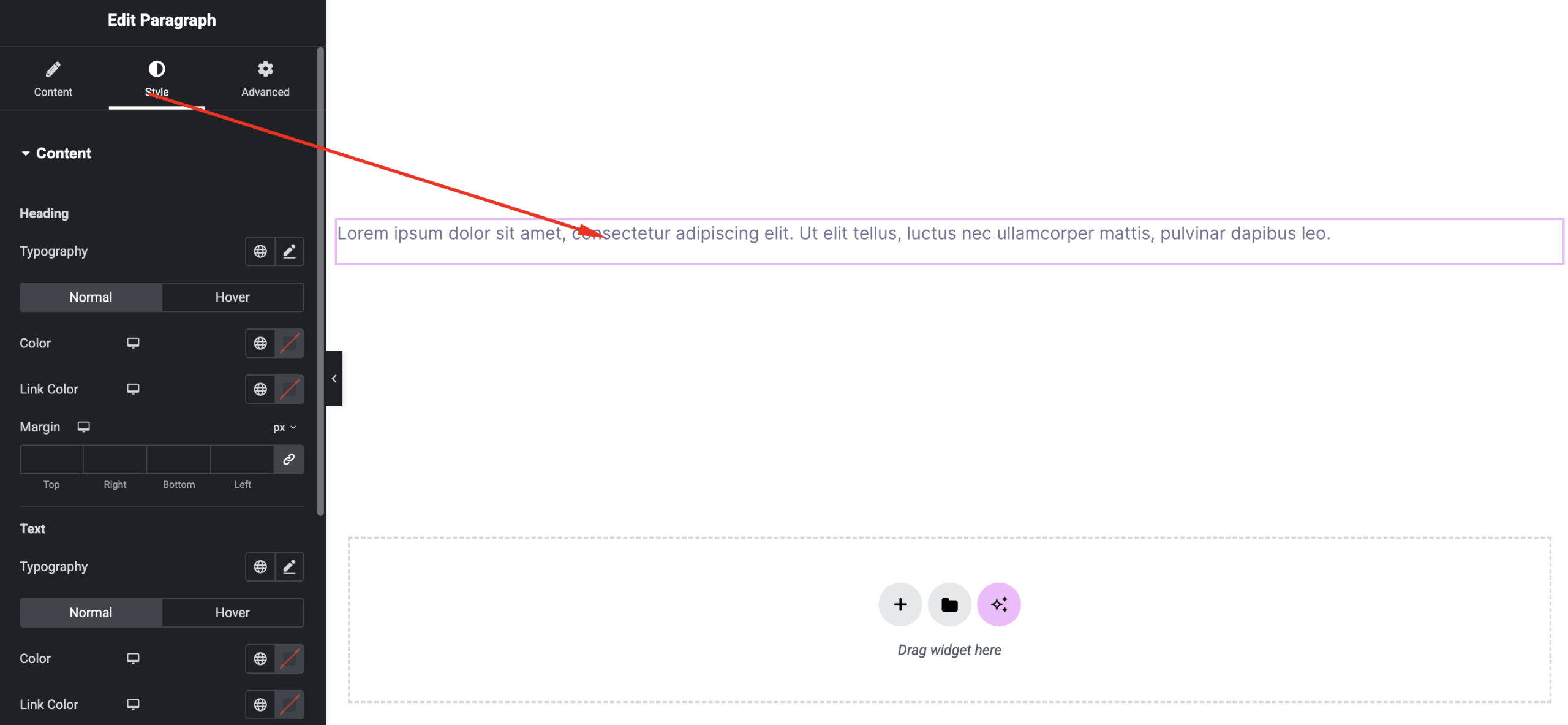
Customize the appearance of your text.
Available Controls:
- Typography – Font family, size, weight
- Text Color – Set paragraph color
- Line Height – Improve readability
- Letter Spacing – Adjust spacing between letters
Advanced Settings
Fine-tune layout and responsiveness.
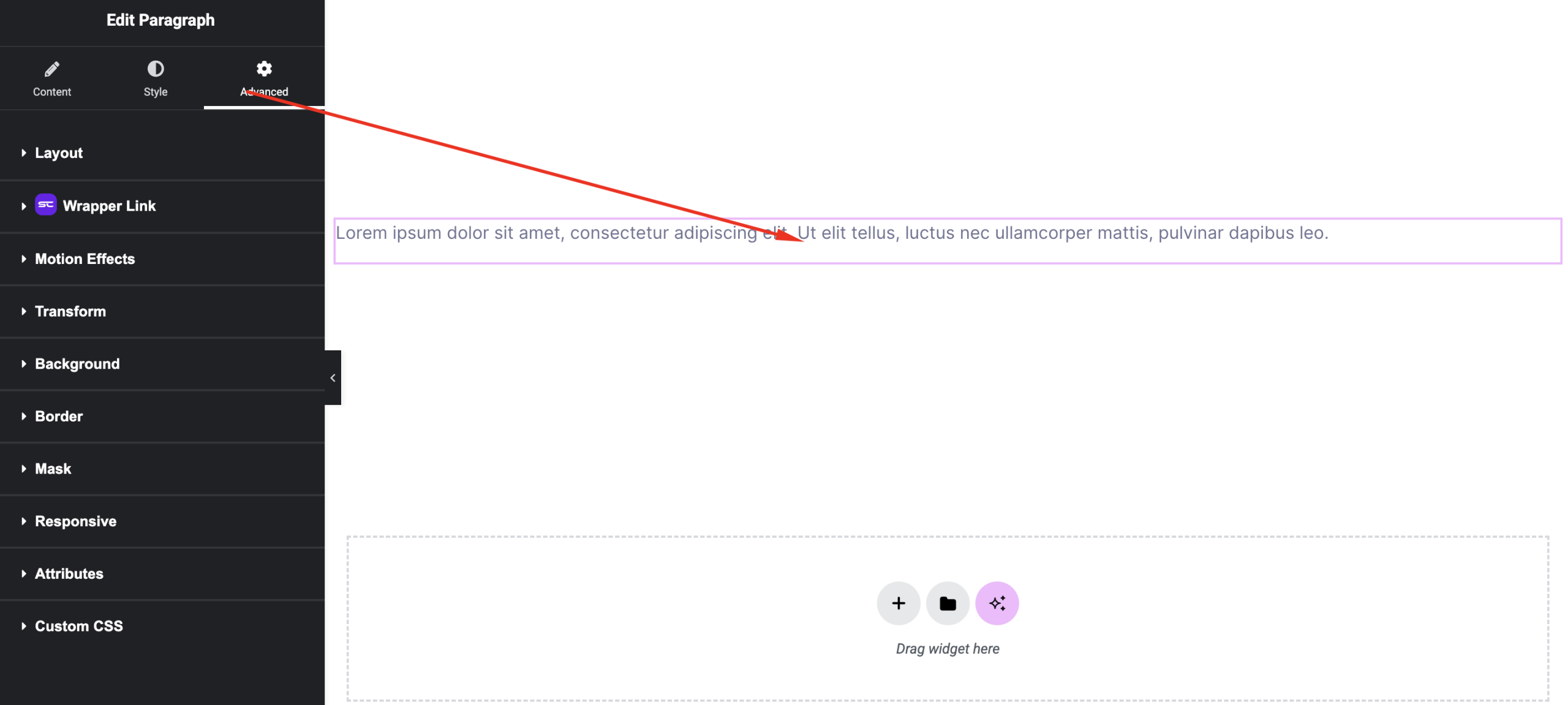
Includes:
- Margin & padding
- Responsive controls
- Motion effects
- Background & border
Use Cases
Perfect for:
- Blog content sections
- Service descriptions
- About sections
- General text blocks
Result
You can now create clean, readable, and fully customizable text sections using the SiteCraft Paragraph Widget.